

How to Get Started With Claude Code
What is Claude Code?
Claude Code is a command-line tool that lets Claude work directly with files on your computer. Instead of chatting through a browser window, you’re giving AI direct access to your filesystem. It can read your notes, edit your files, search across folders, and take action on your behalf.
If you’ve used Claude on claude.ai, this is the same AI. You’re just giving it hands.
Don’t let “command-line” scare you. You talk to it in plain English.
Pricing
At the time of writing, there are a few ways to get access to Claude Code:
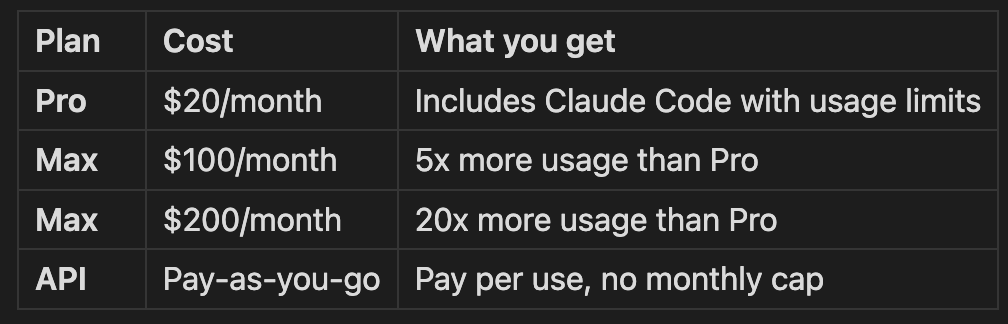
The Pro and Max plans are the simplest way to get started. You subscribe at claude.ai and Claude Code is included. The API option is more flexible but requires setting up billing at console.anthropic.com.
Check Anthropic’s pricing page for the latest plans and pricing.
The first time you run claude, it’ll walk you through connecting your account.
Step 1: Install Claude Code
On Mac:
Open Terminal (press Cmd + Space, type “Terminal”, hit Enter)
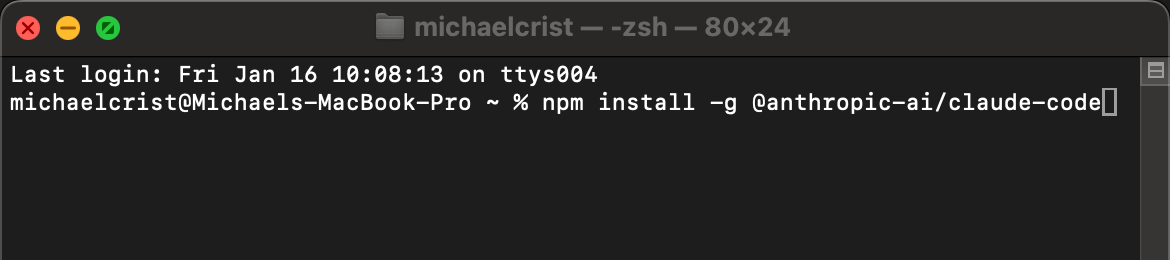
Copy and paste this command, then hit Enter:
npm install -g @anthropic-ai/claude-code
On Windows:
Open Command Prompt or PowerShell
Run the same command:
npm install -g @anthropic-ai/claude-code
Don’t have npm?
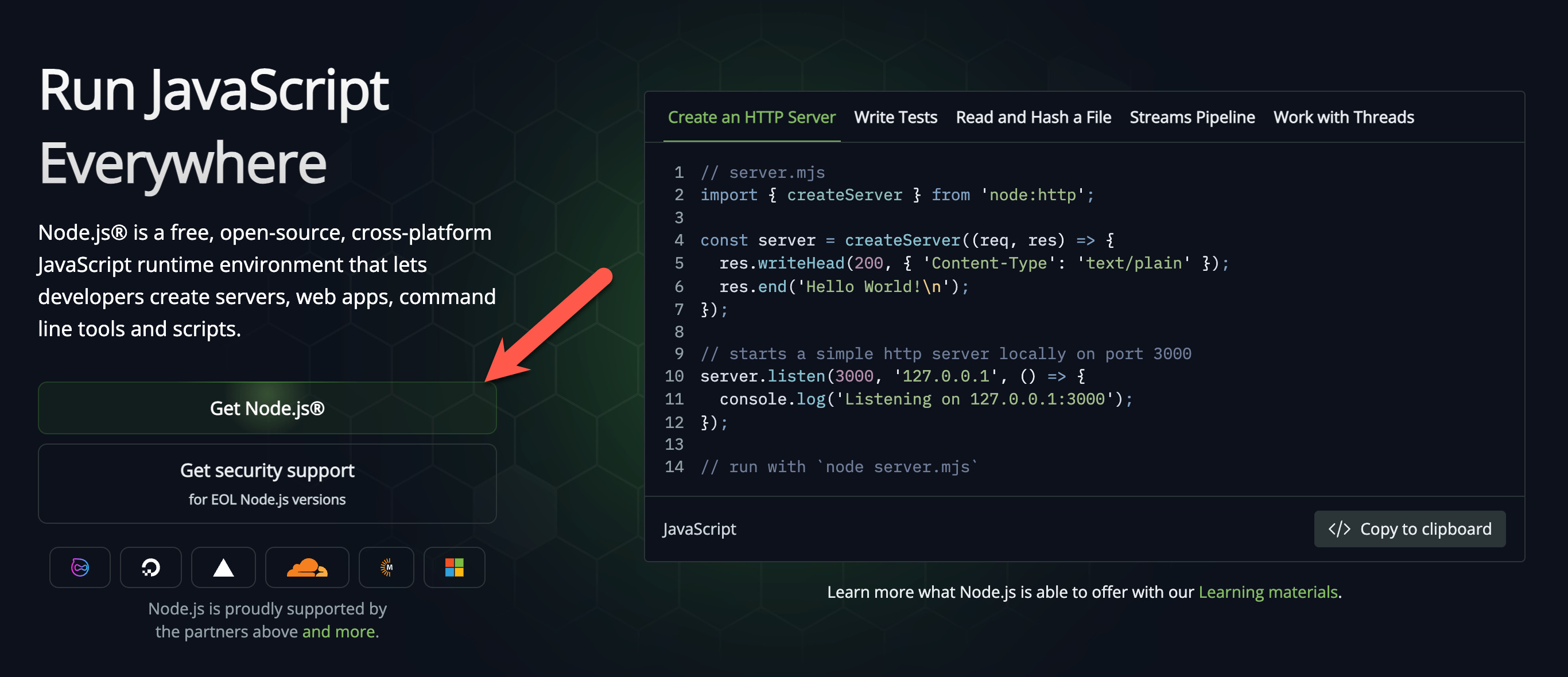
If you get an error about npm not being found, you need to install Node.js first:
Go to nodejs.org
Download the LTS version
Run the installer
Close and reopen your terminal
Try the npm install command again
Verify it worked:
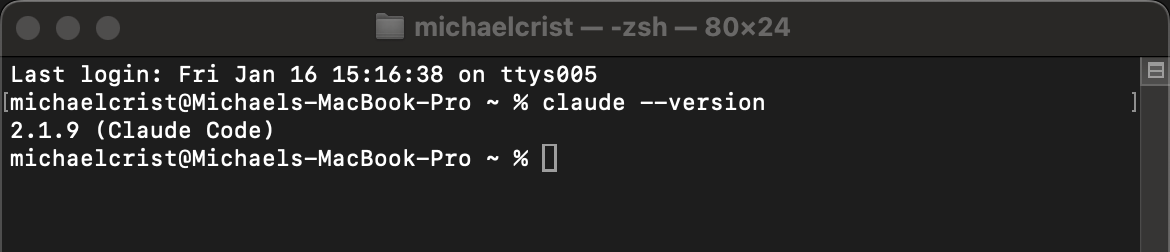
Type this in your terminal:
claude --version
If you see a version number, you’re good.
Step 2: Connect Claude Code to Your Folder
Now you need to tell terminal where your files live. This is where we’ll spend a little time in the terminal.
What is terminal?
Terminal is a way to talk to your computer by typing commands instead of clicking around. It looks like something from an 80s hacker movie, but it’s not as scary as it seems. You type a command, hit Enter, and your computer does something. That’s it.
You only need two commands to make this work:

That’s the whole vocabulary. Two words.
If you get stuck: Your favorite LLM (ChatGPT, Claude, whatever) or Google are your friends here. “How do I navigate to a folder in terminal” will get you unstuck fast. Don’t be afraid to ask.
Navigating to your folder
There are a few ways to get terminal pointed at the right folder:
Option A: The shortcut (easiest)
Skip the cd command entirely. Open terminal directly inside your folder:
On Mac:
Open Finder and navigate to your folder
Right-click on the folder
Choose “New Terminal at Folder”
On Windows:
Open File Explorer and navigate to your folder
Right-click in the empty space inside the folder
Choose “Open in Terminal”
Done. Terminal opens and you’re already in the right place.
Option B: The cd command
If the shortcut isn’t available, you can navigate manually using the cd (change directory) command.
Type cd followed by the path to your folder:
cd /path/to/your/folder
For example, if your folder is in Documents and called “Work”:
cd ~/Documents/Work
Pro tip: You can also type cd (with a space after it) and then drag your folder from Finder/Explorer directly into the terminal window. It’ll paste the path for you.
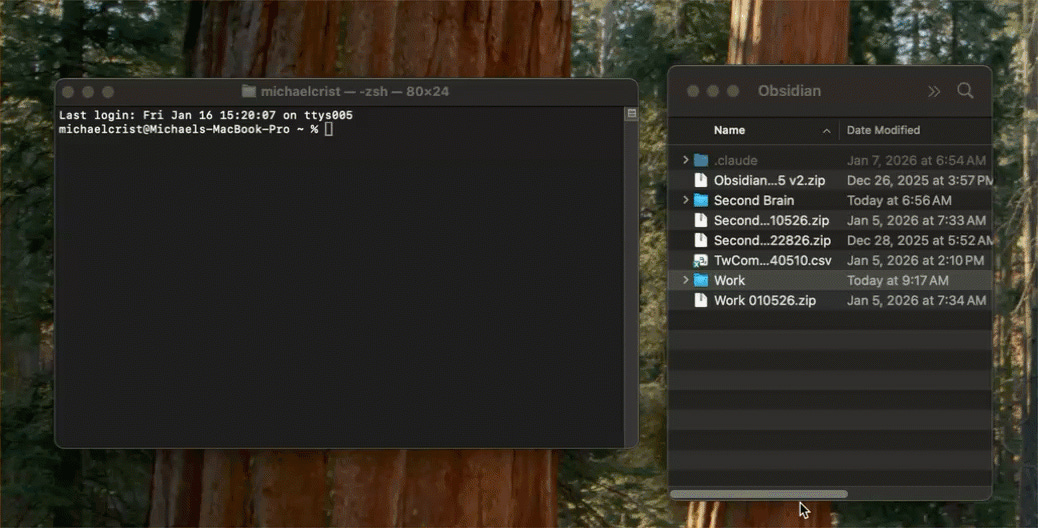
Hit Enter. You won’t see much happen, and that’s normal. No news is good news in terminal.
Starting Claude Code
Now type:
claude
And hit Enter.
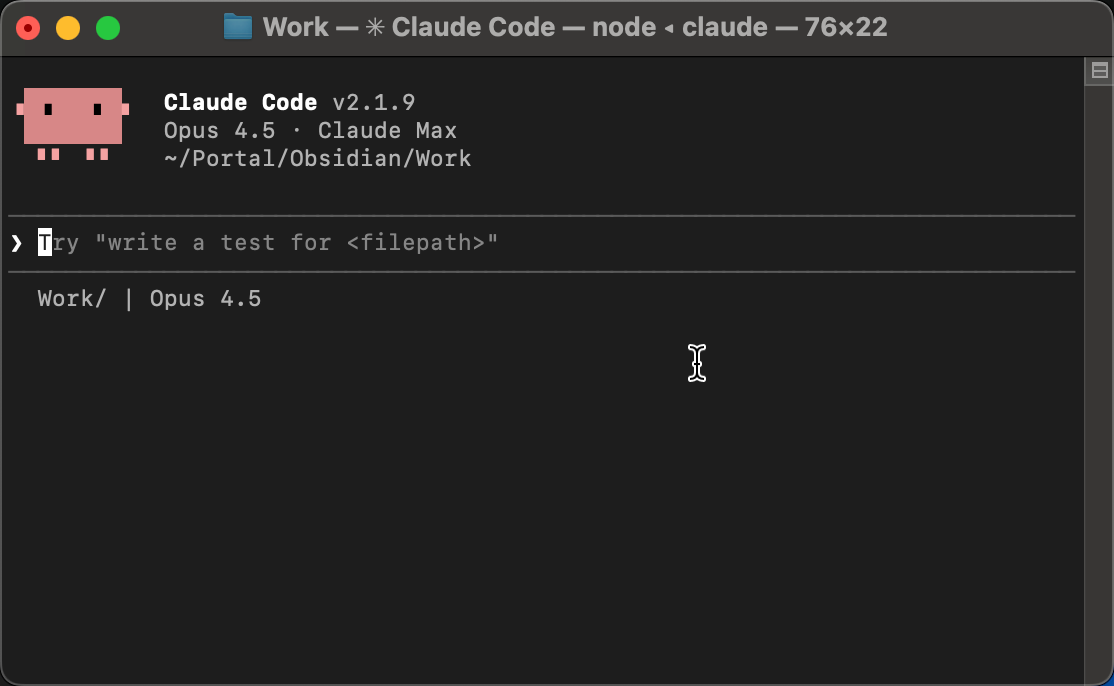
Claude Code is now running and can see all your files.
A note on what Claude can see: Whatever folder you launch Claude in, it can see everything in that folder and all subfolders. That’s what makes this powerful, but it also means you should be thoughtful about where you run it. Don’t launch Claude from a folder containing passwords, API keys, or sensitive documents you don’t want processed.
Take it for a spin
Before you set up anything else, talk to it. This is the same Claude you’d use on claude.ai, you’re just talking to it in terminal instead of a chat window.
Try a few things:
“What files and folders do you see in this directory?”
“Summarize what’s in my notes”
“Search the web for today’s top news headlines”
“What’s the weather in [your city]?”
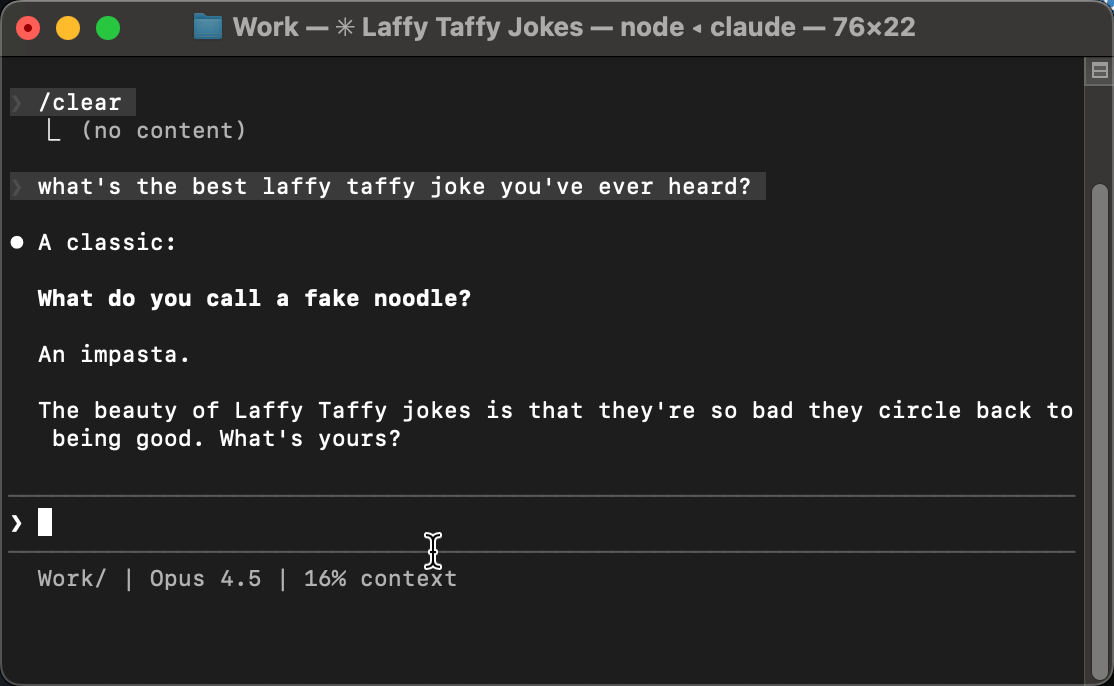
Get a feel for it. Ask it questions. Give it a task. The more you play around, the less intimidating it feels.
When you’re done, type /exit to quit Claude Code. You can also press Ctrl + C. You’ll be back at your normal terminal.
Step 3: Set Up CLAUDE.md
This is the most important part. CLAUDE.md is a file that Claude Code reads automatically every time you start a session. It’s how Claude knows who you are, what you’re working on, and how to behave.
Most people get this wrong. They write it like documentation. Don’t do that. CLAUDE.md isn’t documentation for you. It’s instructions for Claude Code.
Write it like you’re onboarding a new hire on their first day. Tell it who you are, what you’re working on, where to find things, and how you want it to behave.
Here’s a starter template you can copy and paste:
# CLAUDE.md

## Who I Am
[Your name, your role, what you do]

## What I'm Working On
[Current projects, priorities, deadlines]

## How My Files Are Organized
[Brief description of your folder structure and what's where]

## How I Want You to Work
- Read the relevant folder's index.md before working on anything in it
- Ask before deleting or overwriting files
- Keep responses concise
Create this file in the root of whatever folder you’re running Claude Code from.
One more thing:
Tell Claude Code to create an index.md file inside each of your main folders. The index is just a short description of what’s in the folder and what the key files are. Open Claude Code and type:
Go through each folder in this directory and create an index.md
file for each one. Each index should describe what the folder
contains and list the key files inside it.
The index files are doing 80% of the work. They’re the map that tells Claude Code how to navigate your files without reading every single one.
At the bottom of your CLAUDE.md file, add this:
## Maintenance
- Every time you create or delete a file, update the index.md in that folder.
Now Claude becomes the librarian for all your information. It keeps its own map current without you ever having to think about it.
That’s it. Claude Code is installed, connected to your files, and has context about who you are and how things are organized. Start using it. Ask it questions. Give it tasks. The more you work with it, the more you’ll find uses for it.