

The Non-Technical Person's Complete Guide to Claude Code
I'm a CEO who can't write code. In four months, I built dashboards, automated my inbox, and created interactive courses... all by typing sentences. Here's how.

Every Claude Code tutorial assumes you can code.
This one assumes you can’t.
I’m the CEO of a small business, I can’t write code, and I’ve been doing knowledge work for 21 years (that means I push buttons on a keyboard for a living).
In the past if I needed a presentation or had to do complex data analysis in a spreadsheet, it took half a day. I used to take meeting notes by hand because I thought automated note-takers were damn near worthless.
Contract reviews, business agreements, charts, graphs... all manual, all the time.
Four months ago I installed Claude Code.
I was nervous. Like, genuinely nervous.
Every time it asked to do something on my computer, I’d Google the command just to make sure it wasn’t going to break something.
That lasted about a week… but here’s where I am now:
I manage my entire inbox through it. It filters out the noise and only shows me emails that actually need a reply.
I turned 15 of my son’s homeschool curriculum PDFs into interactive courses with voice narration.
I built a family budget dashboard from our bank statements.
When I can’t get an idea out of my head and into my engineering team’s hands, Claude Code builds me a visual prototype so I can show them exactly what I’m thinking.
I build SQL dashboards for my company… I don’t know SQL.
I built the writing system that produced this article. Most people can’t even tell I have AI assistance.
Most of these things used to require other people. Now, thanks to Claude Code, I do them myself.
This is the complete guide for people who aren’t technical. The one that takes you from “what even is a terminal” to building all of this yourself.
I’ll walk you through every step.
Let’s go! 👇
Claude Code is an agent with hands
If you’ve tried Claude Code and bounced off it, you’re in good company.
I saw a post on Substack recently from someone who said, “I’ve been hearing so much about Claude Code but the non-technical side of me hates it. Need some inspiration.”
30 likes. 32 replies, all saying some version of the same thing.
One person said she’d been “circling Claude Code like I’m about to start a new gym routine.” Another nailed it: “I see so many articles by people saying ‘I don’t understand why more people aren’t using Claude Code’ and the rest of the article is a word salad of technical terms that is overwhelming.”
That’s the problem. The gap between “I downloaded it” and “it’s actually useful” is massive... and nobody’s walking you across it.
I’ve watched this play out with my own employees. I tried to get several of them to use Claude Code, and the pushback was immediate. One of them, pretty technical, chose Cowork instead specifically because the terminal was too intimidating. Others didn’t even want it on their computer. The idea of an AI that could manipulate files, accidentally delete things... it freaked them out.
And honestly? When I started, I was right there with them. Googling terminal commands before I’d let Claude run them. Reading every permission prompt like it was a legal document.
So let me explain what it actually is.
What Claude Code actually is
When you use ChatGPT, you’re having a conversation. You type, it responds. If you want it to look at a spreadsheet, you upload the spreadsheet. If you want it to know about your project, you paste in the details. You bring everything to the table.
Claude Code lives on your computer. It can see your files, read your folders, search through your documents, and actually do things on your machine.
When you ask Claude Code to “find every mention of Q3 revenue across my notes,” it doesn’t ask you to paste anything. It goes and looks. When you ask it to build a presentation, it creates the file right there on your computer. When you ask it to read your emails, it reads your actual emails.
The difference is tools. Claude Code has tools that let it read, write, edit, search, and run commands on your computer the way a person sitting at your desk would. That’s the entire magic trick. It’s an agent with hands.
And yes, it asks permission before it does anything risky. When it needs to create a file, edit something, or run a command, it tells you what it’s about to do and waits for you to say yes or no.
If you tell it to read a file, it’ll just read it. You already gave the instruction, so there’s no reason to ask again. But anything that changes something or runs something? It checks first.
You’re not handing over the keys and walking away. You’re watching a really fast assistant work, and it pauses before every move that matters.
“But what about hallucinations?”
Fair question.
Yes, AI can get things wrong. But after four months of daily use, I can tell you it’s pretty rare. And I don’t take it on faith. I check.
When I loaded all my bank transactions, credit card statements, and Amazon order history into Claude Code and had it build me a budget dashboard, I went back through and spot-checked the numbers.
They were right.
Almost always, it’s right.
If you’re really worried, you can use one Claude Code session to build something and a second session to review it. Have the reviewer check the builder’s work.
But the bigger point is this: Claude Code shows you what it’s doing, step by step. You’re watching it work and approving as it goes. So, just pay close attention and you’ll be fine.
Briefings, not prompts
When it comes to AI, most people think the real skill is prompting.
It’s not.
The real skill is context building.
When I use Claude Code, I barely think about prompting anymore. What I’m actually doing is assembling a package. I’m pointing Claude at the right files, giving it examples of what I want the output to look like, loading in the relevant background. And then the prompt? It’s almost an afterthought. A lightweight harness that tells Claude how to navigate everything I just gave it.
Let me show you what I mean.
I needed to redesign my company’s product catalog. About 150 products, and the current layout wasn’t working. Here’s what I did:
I went out and took screenshots of how our competitors lay out their catalogs
I loaded in all of our brand documents (colors, logo, tone of voice)
I created a folder with all of our product images
I loaded up a design skill I’d built (I’ll teach you how to make these later)
I included notes on what specifically was broken about the current catalog
And then the “prompt” was basically: create me eight variations that are clean, organized, and intuitive to browse.
One sentence of instruction. Everything else was context.
A prompt says “design me a product catalog.” A briefing gives Claude your brand, your competitors, your products, all of it... and then says “show me eight options.”
The difference in what you get back is enormous.
This is the mental model that separates people who try Claude Code and think it’s broken from people who use it every day and think it’s magic. And once someone shows you the pattern, you can learn it in ten minutes.
I’ll break down the exact pattern later in this guide.
Getting started
I overthought this part. The whole thing is about 10 minutes, and most of that is just waiting for downloads.
By the end of this section, Claude Code will be running on your computer and it will have already done something with your actual files.
That first time you watch it reach in and pull something back... that’s when it clicks.
What you need
Two things. Node.js (a piece of software that Claude Code runs on top of) and Claude Code itself. If you already have Node.js installed, skip ahead to “Install Claude Code.”
Install Node.js
Go to nodejs.org. You’ll see a big green button that says “Get Node.js”. Click it, run the installer, click through the prompts.
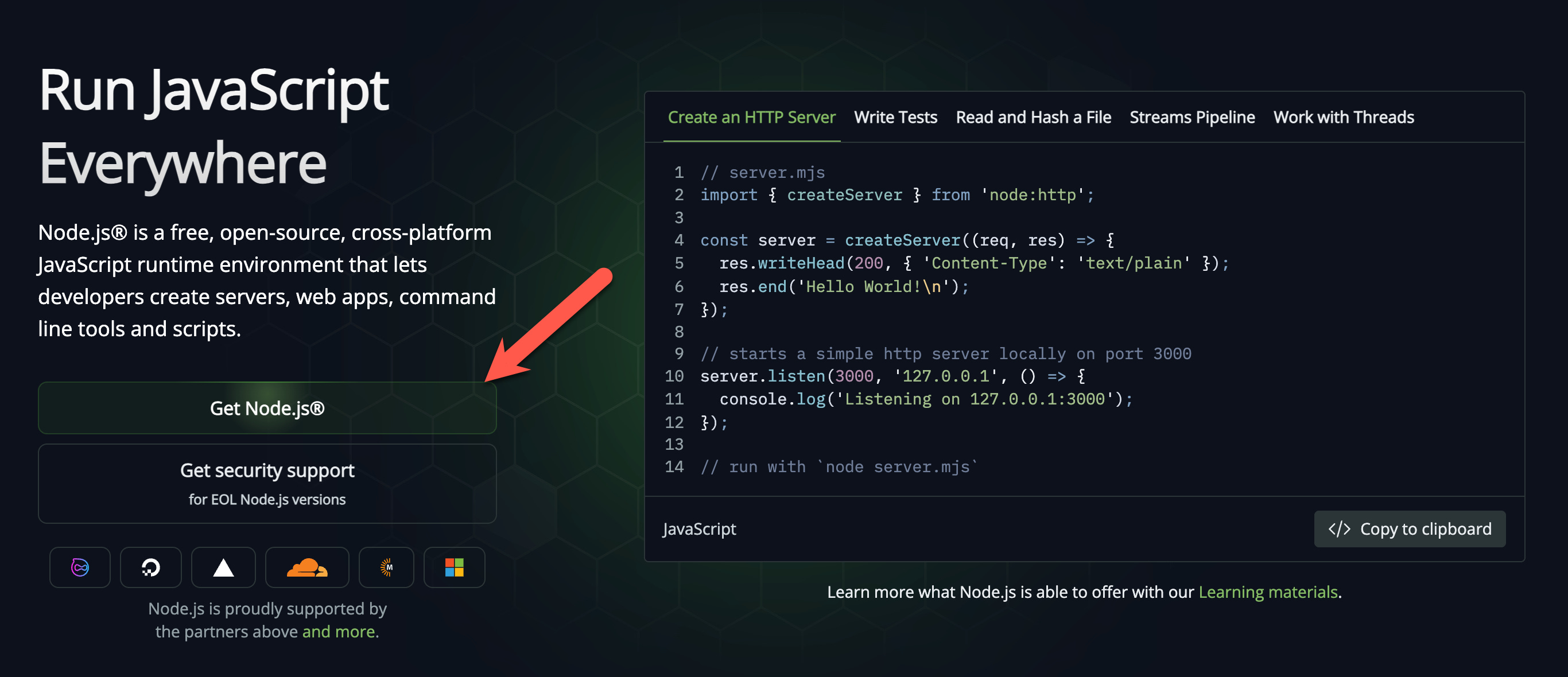
That’s it. Don’t overthink this one.
Install Claude Code
Open your terminal. On Mac, hit Command+Space, type “Terminal,” and open it. On Windows, you’ll need something called WSL first (Windows Subsystem for Linux)... I know, the name alone is enough to make you close this article, but it’s a one-time install. Consider it the price of admission.
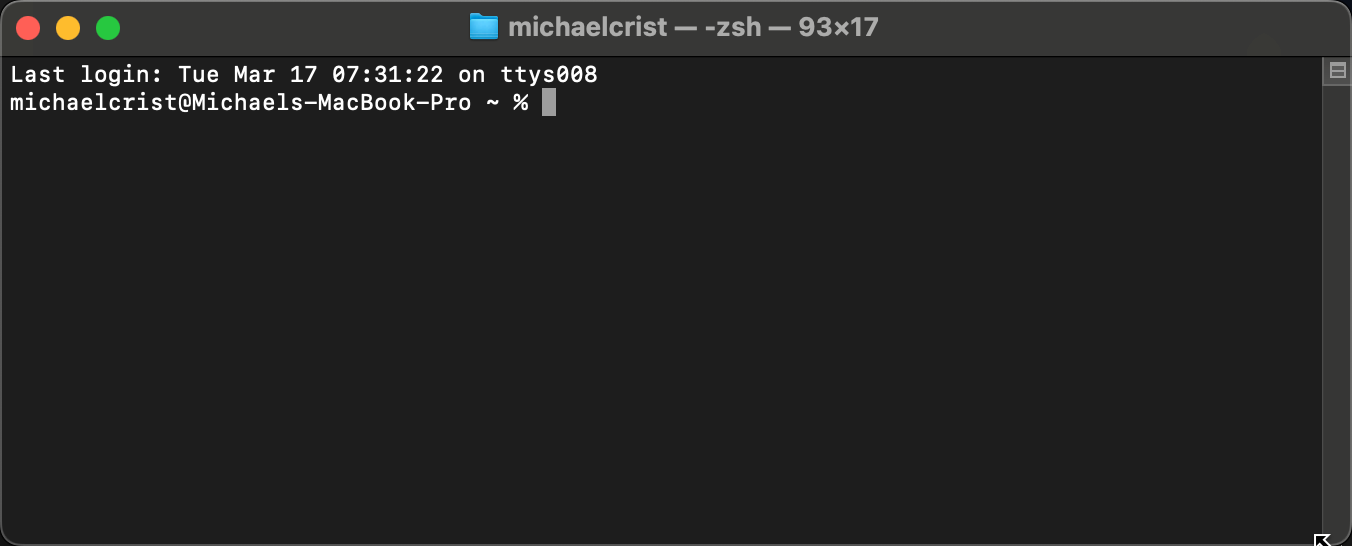
Once your terminal is open, paste this and hit Enter:
npm install -g @anthropic-ai/claude-codeIt’ll churn for a minute while it downloads everything. When it finishes, type claude --version and if a version number comes back, you’re good.
Point it at a folder
Claude Code works from whatever folder you launch it in. When you start it up, it can see everything in that folder and everything inside it. So you want to point it at the right place.
Create a folder somewhere on your computer. Desktop, Documents, wherever. Name it whatever you want (I just called mine “Claude” because I’m creative like that).
Here’s how to open your terminal directly in that folder without typing any path commands:
On Mac: right-click the folder and pick “New Terminal at Folder.”
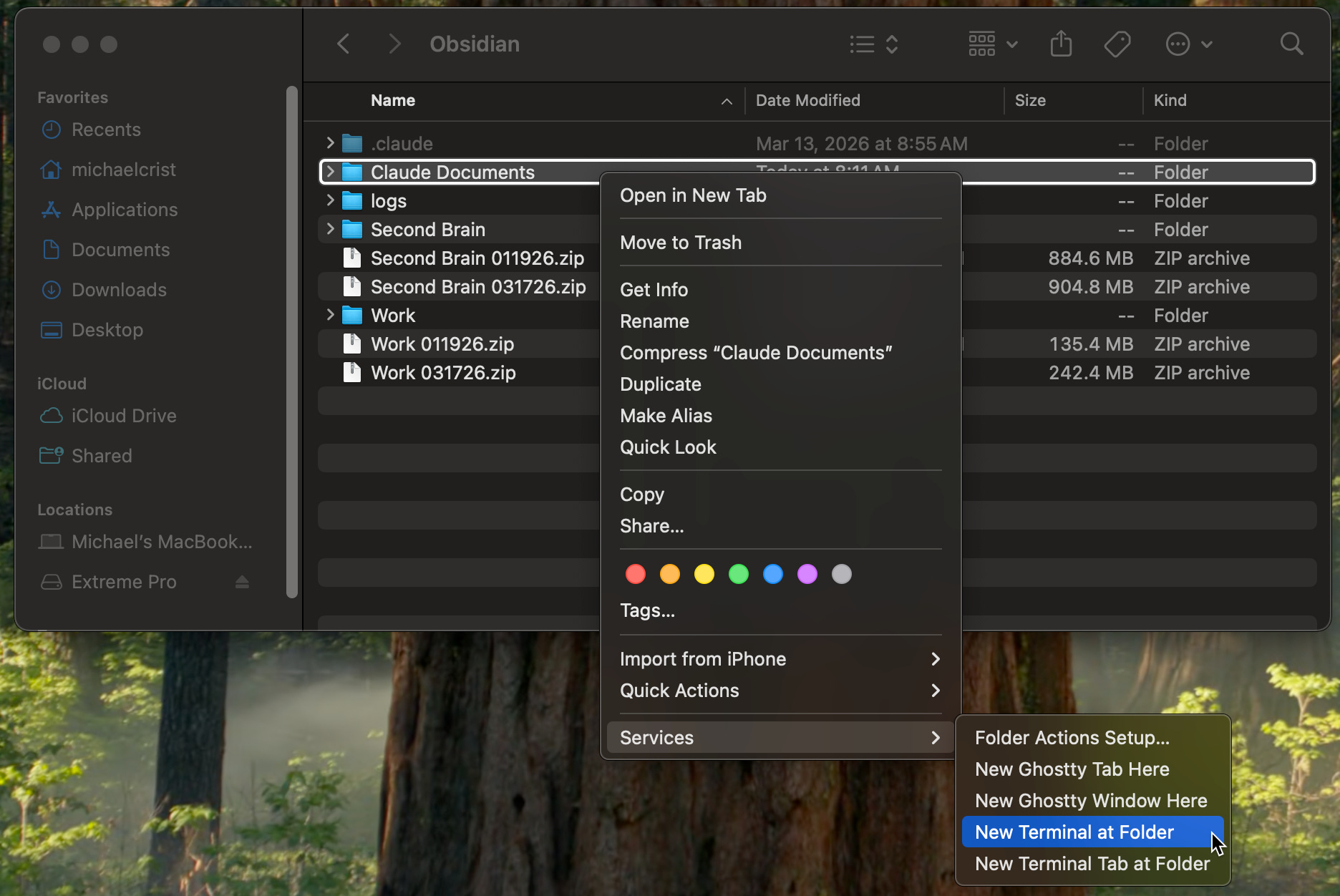
On Windows: right-click and pick “Open in Terminal.”
Your terminal is now pointed at that folder. Type claude and hit Enter.
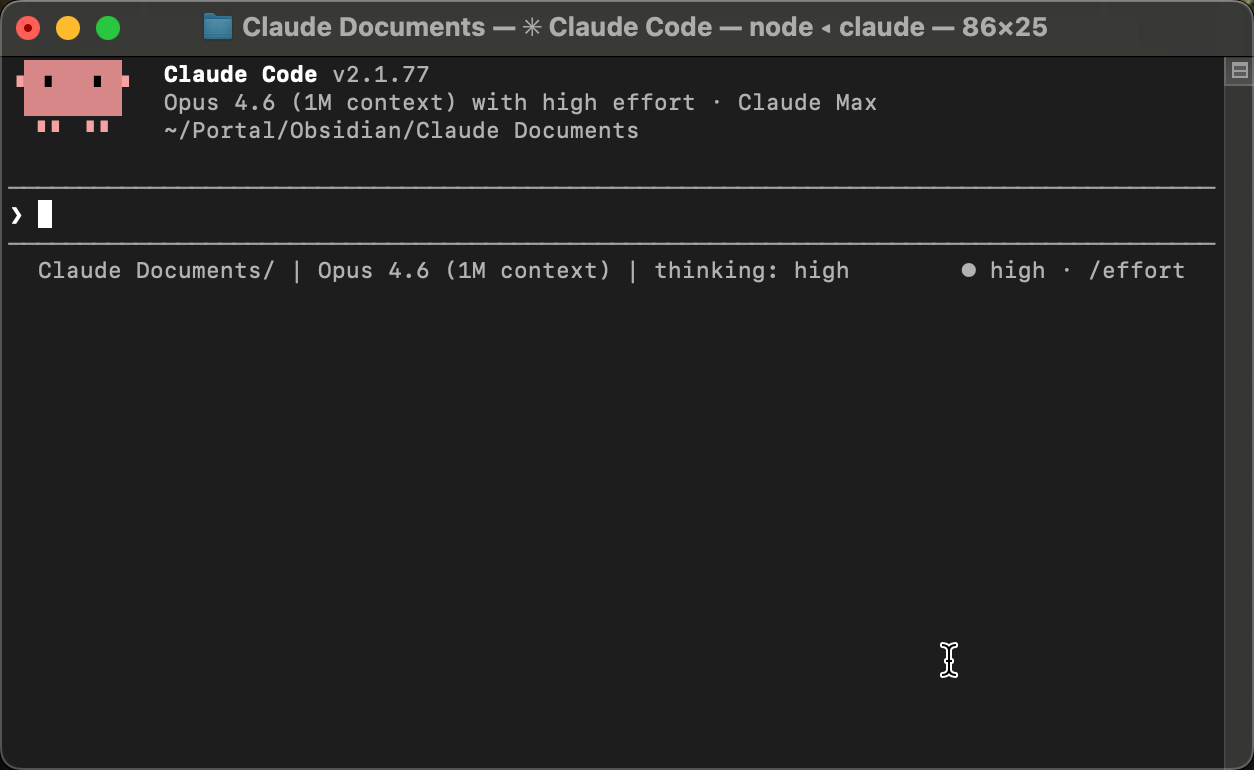
Sign in
First time you run Claude Code, it’s going to ask you to sign in with an Anthropic account. If you don’t have one, it walks you through creating one. You’ll need a paid plan... Claude Pro at $20/month is the starting point.
Follow the prompts, sign in, and you’re in.
Your first conversation
Claude Code is running. Before we set anything up, before we configure a single thing, I want you to see what this thing actually does.
Find a file on your computer. A Word doc, a PDF, some meeting notes, whatever you have lying around. Drop it into that folder you just created. Or if you launched Claude Code from a folder that already has files in it, even better.
Now type something like:
Summarize the main points from [your filename]And then watch.
Claude doesn’t ask permission here — you told it to read the file, so it just does it. It reaches into your file system, reads the actual document on your computer, and comes back with a summary. No uploading. No copy-pasting text into a chat window. It just... went and read it. Like a person sitting at your desk would.
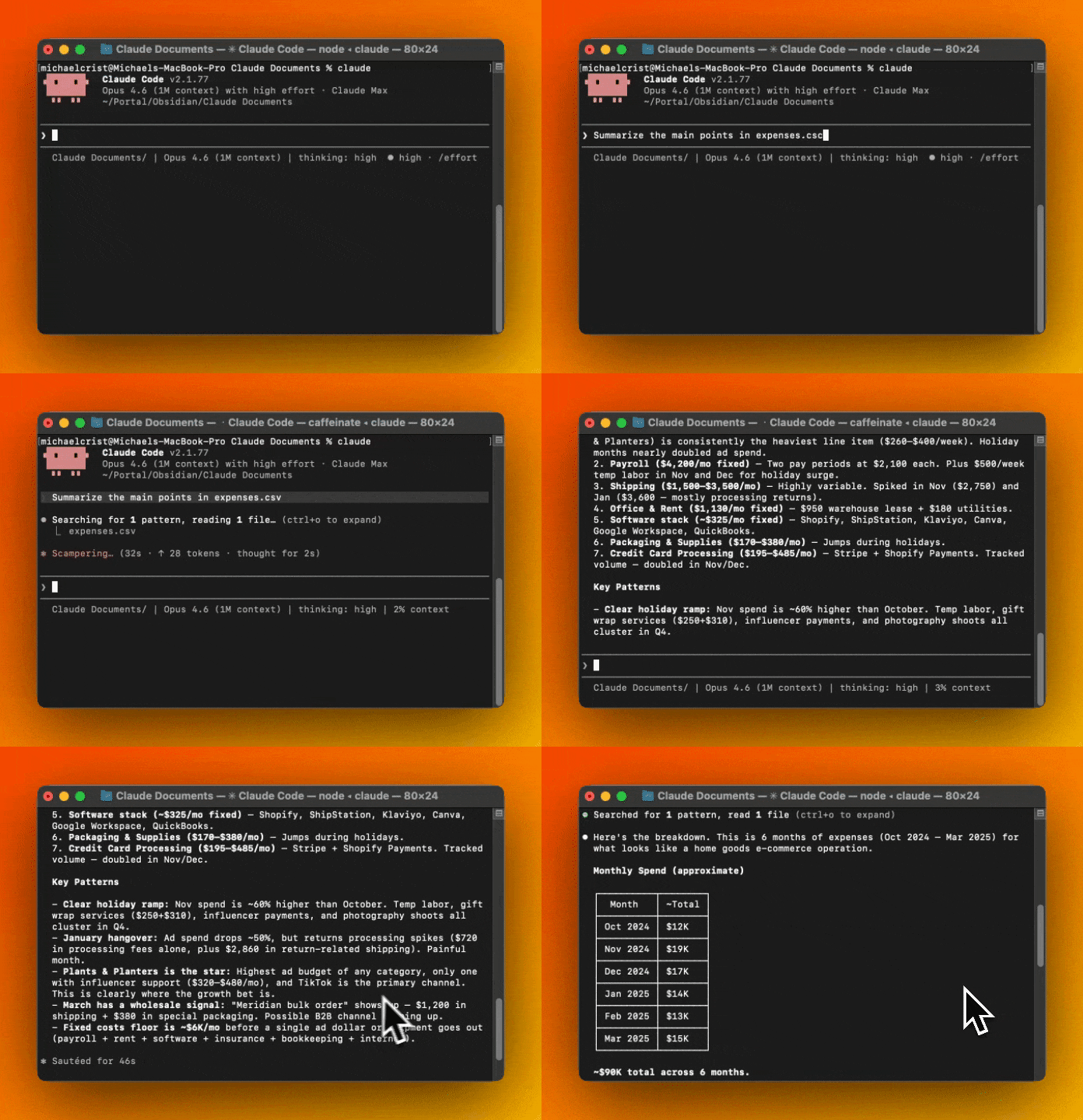
That’s the moment. If something just clicked for you... that’s exactly what happened to me the first time too.
You just watched an AI use your computer.

One last thing before we move on
If you’re worried about what happens when you close the terminal window... nothing. Nothing happens. Nothing gets deleted or lost. When you want to come back, just open terminal in the same folder, type claude, and you’re in a fresh conversation.
Close it and come back as many times as you want. It’ll be there.
How to talk to it
Most people talk to Claude Code the same way they talk to ChatGPT. Type a question, hope for the best.
That’s like hiring an assistant and only ever asking them to Google things for you.
Claude Code has a set of controls that completely change what you get back, and none of them are technical. How you frame a request, how much freedom you give it, when to tell it to think harder... that’s the difference between “I guess that’s fine” and “how did it just do that.”
The briefing pattern
Remember “briefings, not prompts” from earlier? Here’s where it gets practical.
Most people type something like:
Summarize this document.And they get back something generic. Fine. Usable. But not what they actually needed.
Now try this:
You're a business analyst helping me prep for a board meeting. Summarize quarterly_report.pdf so my CEO can scan the key numbers in 2 minutes. Focus on revenue trends, anything declining, and any red flags. Keep it under 300 words.Same task. Completely different result.
The difference comes down to five things:
Role — tell Claude who to be. “You’re a business analyst” or “you’re my executive assistant” or “you’re someone who explains data to people who hate spreadsheets.” This shapes everything that follows.
Goal — what you’re actually trying to accomplish. Not “summarize this” but “help me prep for a board meeting.” When Claude knows the why, it makes better decisions about what to include and what to cut.
Task — the specific thing you want done. “Summarize this PDF.” “Draft a reply.” “Build me a chart.” Goal is the why, task is the what. For anything multi-step, this is where you spell out the steps: “First do A, then do B, then do C.” Sometimes a single sentence is enough. Sometimes you need a numbered list. Include it when the goal alone doesn’t make the action obvious.
Constraints — format and boundaries. “Under 300 words.” “Bullet points.” “Only focus on revenue.” This keeps Claude from writing you a novel when you needed a sticky note.
Context — the actual files, background, and examples. Point Claude at documents with @filename or just tell it where to look. The more context you feed it, the less it has to guess. And guessing is where things go sideways.
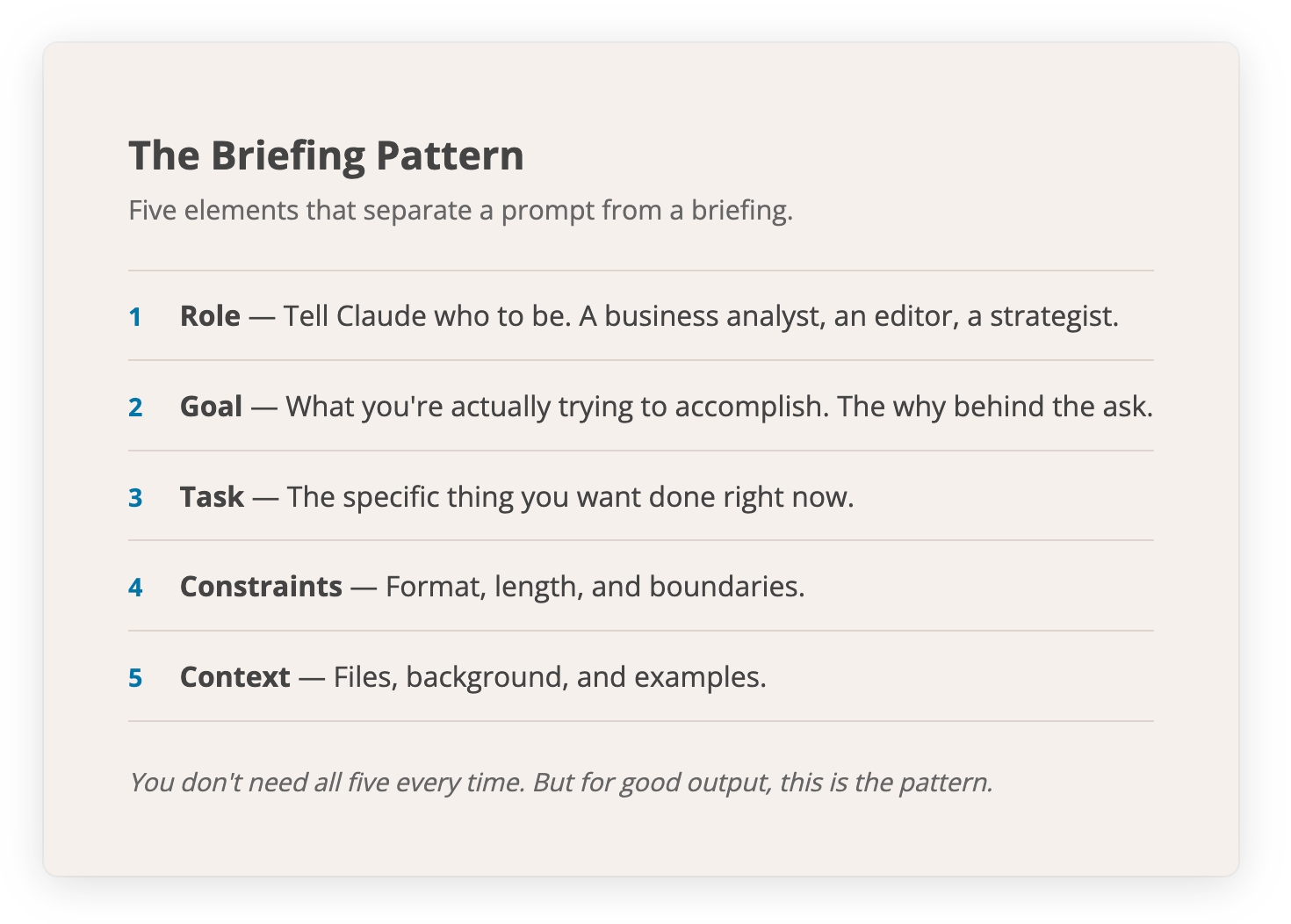
You don’t need all five every time. For quick stuff, just ask. But anytime you want genuinely good output, this is the pattern.
One quick tip:
Tell Claude what you want, not what you don’t want. “Make the text large and readable” gets you further than “don’t make the text small.” Positive instructions are just easier for AI to follow.
Permission modes
Claude Code asks your permission before it does anything. But you can control how tight that leash is.
Hit Shift+Tab to cycle through three modes:
Default mode — Claude asks before every action. Wants to read a file? Asks you. Wants to edit something? Asks you. This is where you should start, and honestly I stayed here for weeks... probably longer than I needed to. But it builds trust.
Auto-accept edits — Claude edits files without asking, but still checks with you before running commands in the terminal. A nice middle ground when you trust Claude with your files but want to keep an eye on anything system-level.
Plan mode — Claude goes read-only. It can look at everything, search your files, and think through a plan, but it can’t change a single thing until you approve. Great for bigger tasks where you want to see the roadmap before anything moves. You can also type /plan to jump straight into this mode.
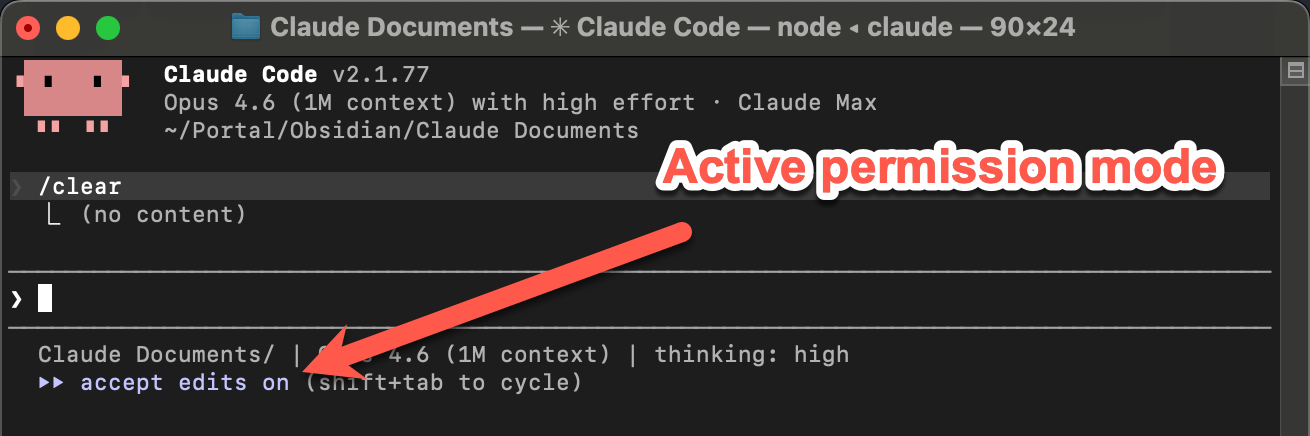
Start in default mode. Move to the others when you’re comfortable.
Your control panel
All of this stuff I just described — which mode you’re in, how much context you’ve used, what model you’re running — there’s a way to see it all at a glance without typing any commands.
It’s called the status line. It’s a little footer that sits at the bottom of your terminal and shows you exactly what’s going on. Think of it like the instrument panel in your car. You don’t need to pop the hood to check your speed. You just look down.
Here’s what mine looks like:
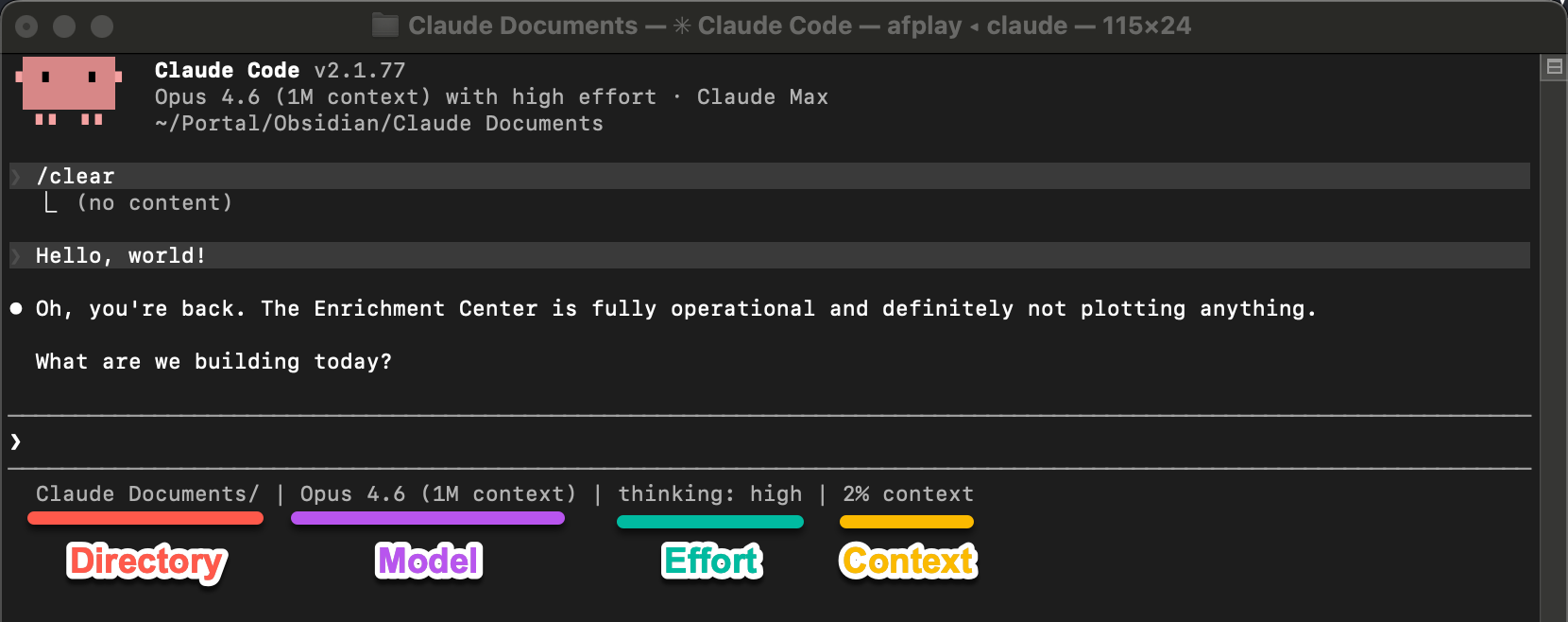
Setting it up takes one line. Type this in any Claude Code conversation:
/statusline show the current directory, model name, thinking effort, and context percentageThat’s it. Claude builds a little script, saves it, and configures everything automatically. From that point on, it shows up at the bottom of every session. You never set it up again.
Now when I mention things like context getting full or switching permission modes, you won’t have to guess. You’ll just look at the bottom of your screen.
Thinking effort
When you give Claude something complex, you can tell it to think harder.
Type /effort high or /effort max in any conversation and Claude will spend more time reasoning before it responds. You can also just say it in plain English (”think harder about this” works too). Higher effort means better results on tough problems, but uses more tokens. For simple stuff like renaming a file or summarizing a short doc, the default is fine.
You can also set this when starting a session: claude --effort high instead of just claude.
Steering the conversation
A few controls you’ll use constantly:
ESC stops Claude mid-response. Hit it the moment you see it heading somewhere you don’t want. Don’t sit there watching it write 500 words of the wrong thing.
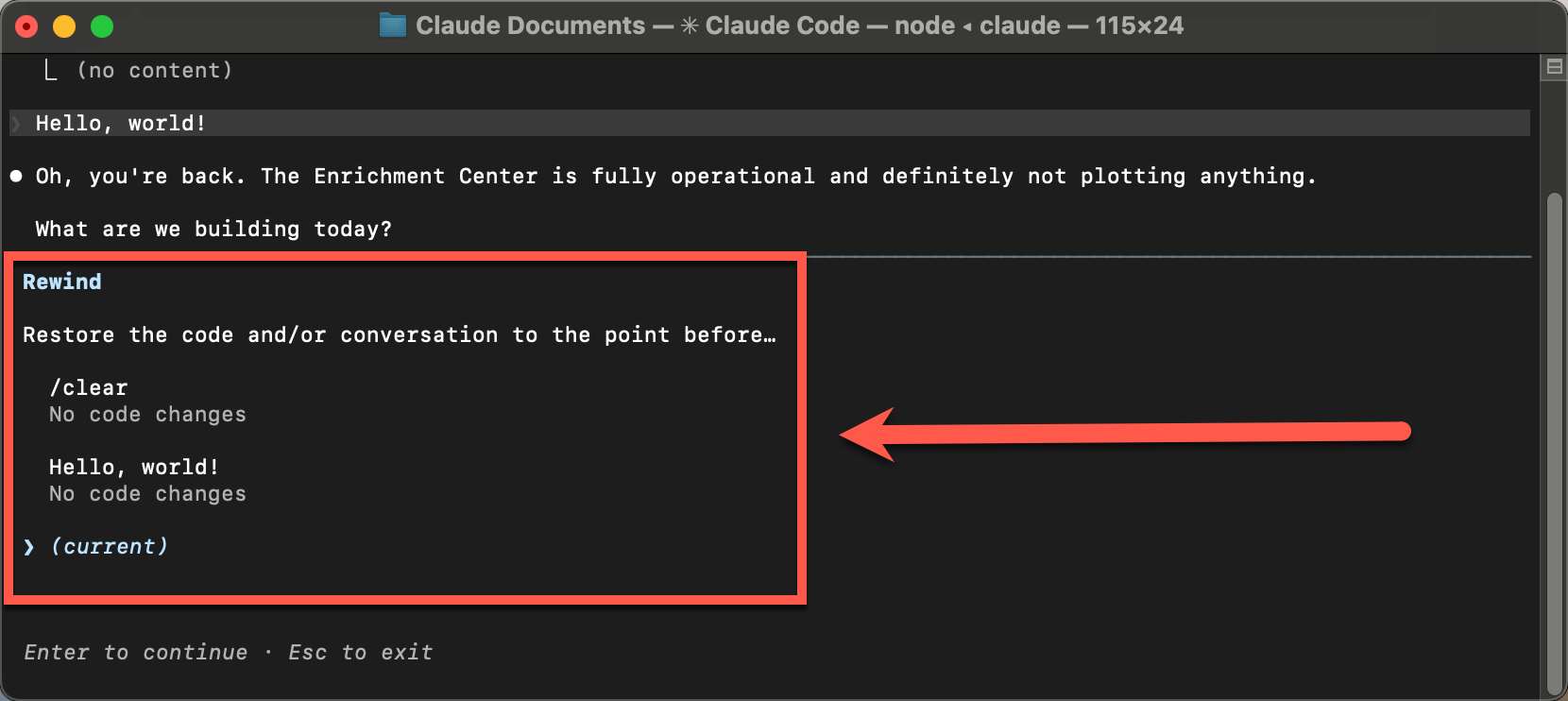
ESC twice opens the rewind interface. This lets you pick any point in the conversation and roll back to it. You can restore just the code, just the conversation, or both. It’s like a time machine for your session... way more powerful than a simple undo.
@filename pulls a specific file into the conversation. Instead of describing where a file is, just type @budget.csv and Claude gets the full contents. Way more reliable than trying to explain it.
Context: the glass of water
Every conversation with Claude Code has a limit... think of it like a glass of water. Every message you send, every file Claude reads, every response it generates... all of it is filling that glass. And when the glass gets full, the quality starts to drop. Claude gets a little dumber the longer a conversation goes.
Here’s what you need to know:
/context shows how much you’ve spent and roughly how full the glass is.
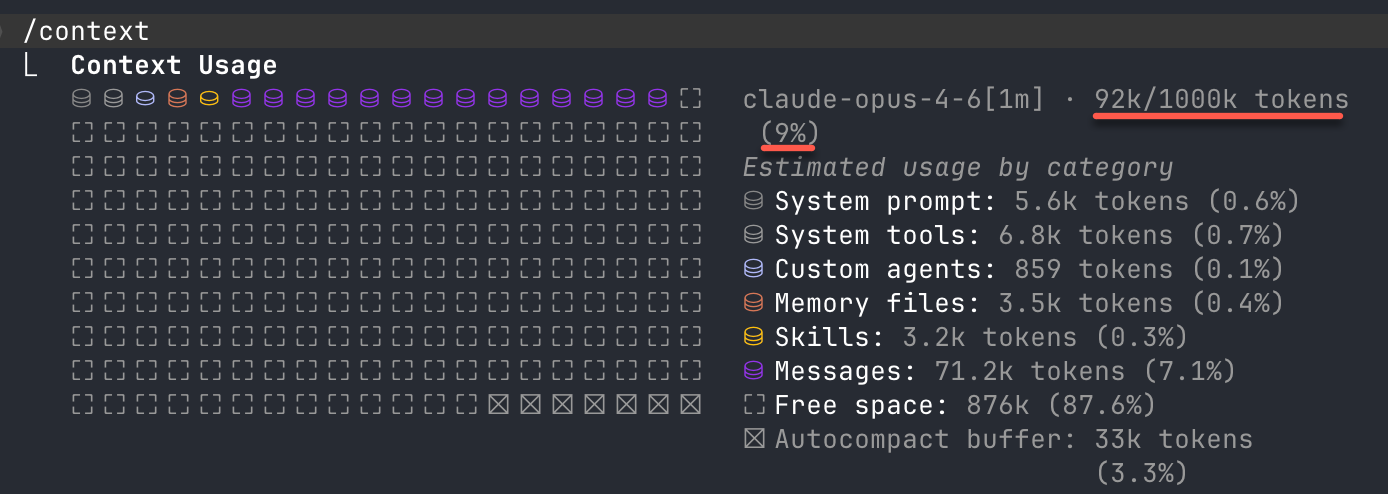
/compact squeezes the conversation down. It keeps the important stuff and drops the noise. Use this when a conversation is getting long but you’re not done yet.
/clear wipes everything and starts fresh.
The single best piece of advice I can give you: one task per conversation. Don’t ask Claude to analyze a spreadsheet and then draft an email and then summarize a meeting all in the same session (unless each task benefits from the context built before it).
Each unrelated task you pile on makes everything worse. Start fresh, get better results, spend less money.
When in doubt, new conversation.
Making it yours
Claude Code does remember some things between conversations. If you tell it you prefer bullet points or correct how it formats something, it’ll pick that up over time (more on that in a minute).
But it doesn’t carry over the full picture. It won’t remember that you were halfway through a budget project yesterday, or that the files you care about are in a specific folder, or that your CEO likes reports under one page.
The big stuff, the project context... that resets every conversation.
It’s like having an assistant with a decent long-term memory but total amnesia about what happened this morning.
This section fixes that. You’re going to set up three things that give Claude Code a real understanding of you and your work, and one of them is going to come back later in this guide in a way you won’t expect.
CLAUDE.md — your standing instructions
Imagine you hire a contractor to work on your house. Every morning they show up with zero memory of what you discussed the day before. So you start leaving a document on the kitchen counter: what the project is, what’s been decided, your budget, your preferences, which rooms not to touch.
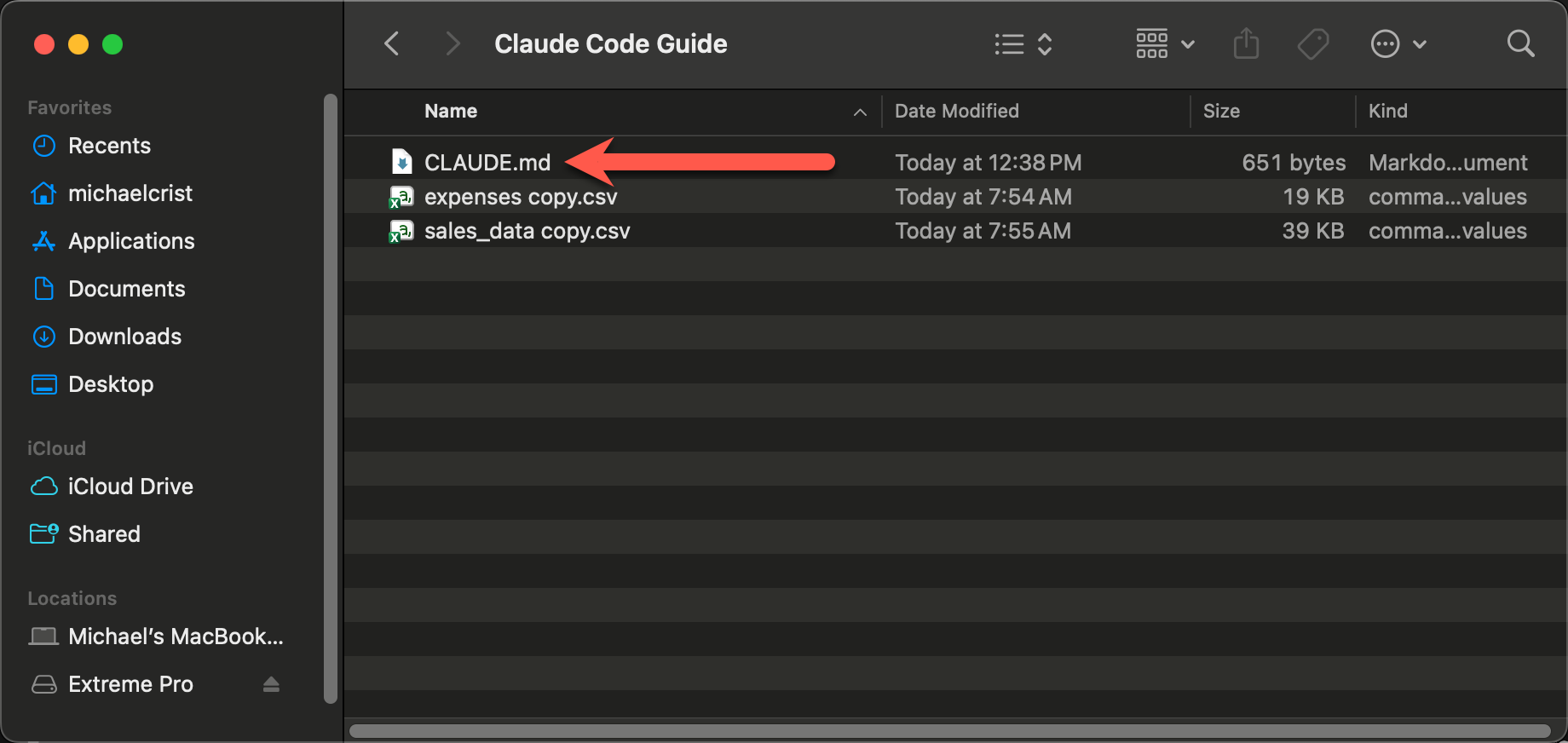
That’s CLAUDE.md. It’s a text file that Claude reads automatically at the start of every conversation. You write it once and from that point on, Claude already knows the basics before you type a single word.
There are two layers.
Your global CLAUDE.md lives at ~/.claude/CLAUDE.md and applies everywhere. (The ~ just means your home folder, usually it has your name on it.) This is where you put things about how you work in general. “I’m not technical, explain things simply.” “I prefer bullet points.” “Don’t ask me if I want to proceed, just do it.” Preferences that apply no matter what project you’re in.
Your project CLAUDE.md goes in whatever folder you’re working from and only applies there. What the project is about, which files matter, any rules or constraints. If you’re working on a family budget, it might say “the bank statements are in /data, output goes in /reports, round everything to whole dollars.”
The easiest way to start: open a new claude session from the folder you want to work in and type /init. Claude scans the files in your folder and generates a starting CLAUDE.md for you. It won’t be perfect on the first try (mine was about 70% right), but it gives you a base to build on. Add to it over time as you notice things you keep repeating.
Your first session in a new folder feels like talking to a generic assistant. By your tenth session, Claude knows the project. It knows the file structure, your preferences, what you’ve tried, what worked. And all of that context loads automatically every single conversation without you saying a word.
That compounds fast.
Skills — reusable instructions
A skill is a set of instructions that tells Claude how to handle a specific kind of task. Think of it like saving a recipe. You describe the process once, save it, and Claude can follow those instructions whenever you need it to.
You don’t write code to create one. You just ask Claude to build it for you.
And here’s the part I think is kind of cool: Claude actually comes with a built-in skill developer. It’s a skill for creating skills. So when you ask Claude to make a new skill, it uses its own skill developer to handle the folder structure, the files, all of it. You just describe what you want in plain English.
We’re going to create your first skill right now, and I want you to use this specific one because it’s going to come back later in the guide.
Type this:
Use your skill developer to help me create a skill. The skill should be
for building interactive HTML dashboards and data visualizations.
Clean typography, professional styling, polished look, works on any
screen size. Charts should be colorful and easy to read. Use a clean
white or light background.
Claude is going to create a folder with a markdown file that contains all the design instructions. It might ask you a few questions about your preferences (colors, fonts, layout style). Answer them or let Claude pick defaults... either way works.
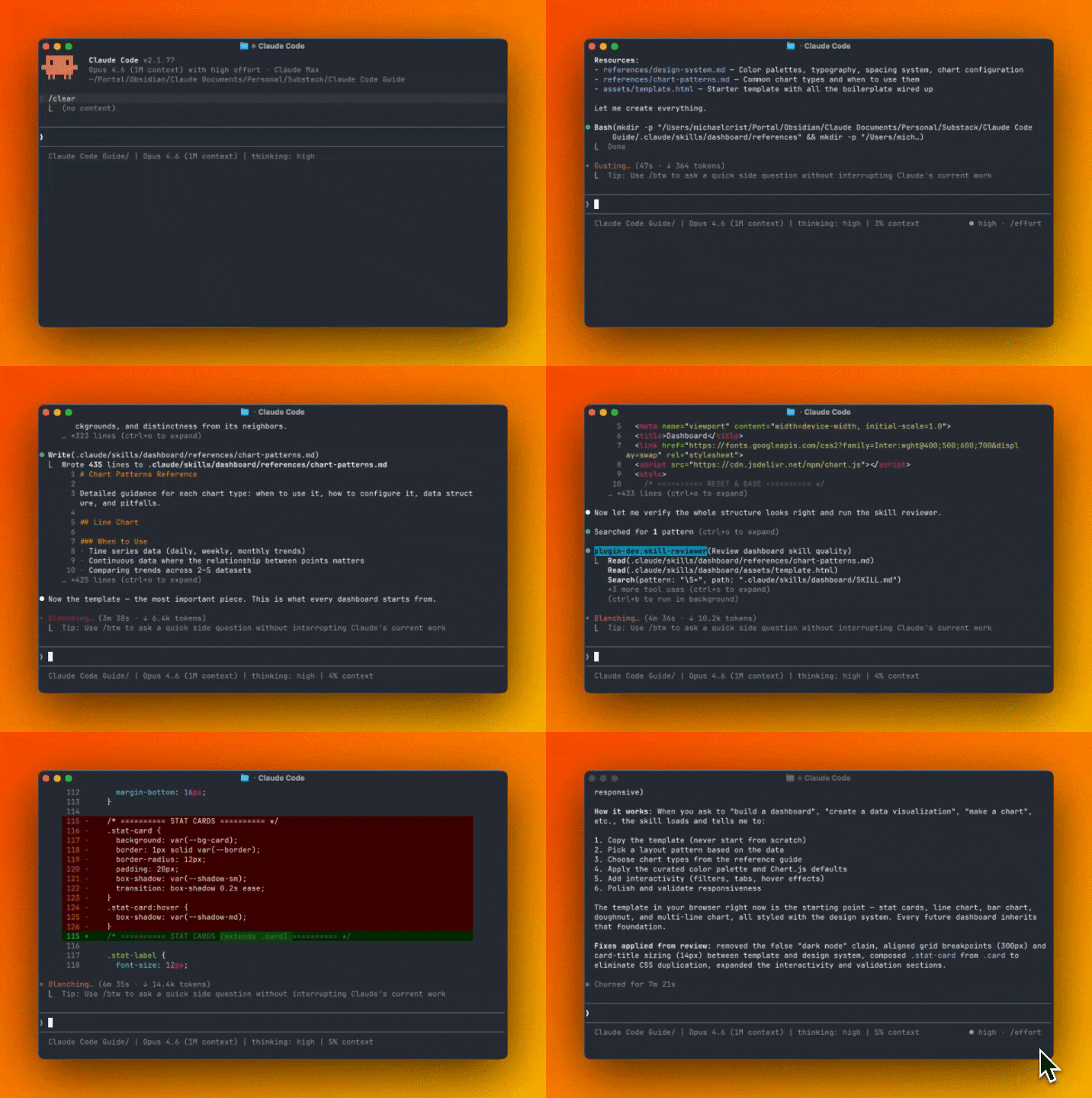
That took just a few minutes. You now have a skill.
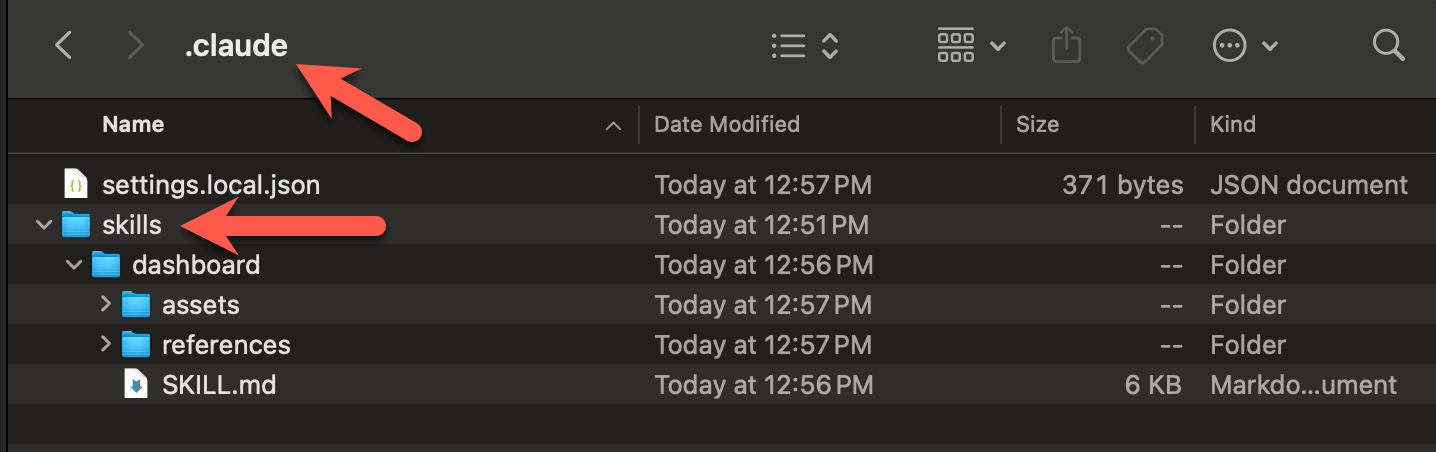
When you want to use it later, just mention it: “Build me a page using my dashboard builder skill” or “Use my design skill for this.” Claude reads the instructions and follows them. Same quality, every time.
You can build skills for anything you do repeatedly:
“Summarize meeting notes and list action items with owners and deadlines.”
“Analyze a spreadsheet and give me the top findings.”
“Draft email replies in my voice, not the voice of someone who says ‘per my last email’ unironically.”
Every skill you create makes Claude a little more useful for your specific work. You’re building a playbook. And that HTML skill we just made? Hold on to it. You’ll see why soon.
Memory — automatic learning
Remember at the top of this section when I said Claude remembers some things between conversations? This is that.
Every time you use Claude Code, it saves memories in the background. Your preferences, corrections you’ve made, things about your projects. If you told it three conversations ago that you hate bullet points, it remembers. No setup required.
Where does it keep all this? Plain text files in a .claude/memory/ folder. Not a black box. Just markdown files you can open and read anytime you’re curious.
And you can steer it. If you want Claude to remember something specific, just say it: “Remember that I prefer dark mode for all HTML pages” or “Remember that my boss’s name is Sarah and she likes short reports.” If it’s picked up something wrong, tell it to forget.
Over time, Claude builds up a picture of how you work and what you care about. And it uses that to give you better answers without you having to re-explain yourself every session.
The full picture
CLAUDE.md is what you tell Claude up front. Skills are what you teach it to do on command. Memory is what it picks up on its own.
All three compound. The more you use Claude Code, the less you have to explain.
Your first session feels like talking to a stranger. Your twentieth feels like working with someone who knows you.
Connecting to your email
Everything we’ve done so far lives on your computer. Files in folders. And that’s useful, but let’s be honest... most of your real work doesn’t live in folders on your machine. It lives in your inbox, in Slack, in your calendar.
Claude can’t reach any of that. Yet.
Sure, ChatGPT and Claude’s web app can connect to your email now too. But you’re still stuck inside a little chat window. Claude Code runs on your actual computer. It can read your inbox, draft replies, and then save summaries to a file, update a spreadsheet, or pipe that data into something else you’re building. It’s the difference between checking your email and having an assistant who processes it. In about 15 minutes, you’re going to see what that looks like.
Bridges
To connect Claude Code to an outside tool, you install what’s called an MCP server. MCP stands for Model Context Protocol, and you don’t need to remember that. Think of each one as a bridge — install the Gmail MCP, Claude can reach your email. Install the Slack MCP, Claude can read your messages. Calendar MCP, your schedule. You get the idea.
There are MCPs for Gmail, Google Calendar, Slack, Notion, databases, and the list keeps growing. We’re starting with email because for most knowledge workers it’s the single biggest time sink of the day.
Setting up Gmail
The setup has three steps:
You run a command that tells Claude Code to install the Gmail MCP.
A browser window opens where you sign into your Google account and grant permission for Claude to read and send emails.
Done.
The whole thing took me about 10 minutes the first time (most of that was me reading every single permission screen word by word, because that’s how I am).
Once the MCP is connected, it loads automatically every time you start Claude Code. You never set it up again.
“Scan my inbox”
Start a new conversation and type something like:
Scan my inbox and tell me which emails actually need a response from me.
Skip anything automated, skip calendar invites, skip newsletters. Just
show me emails from real people that are waiting on me.
And then watch Claude read your actual email.
Not a copy-paste. Not an upload. Your real inbox, in real time. Claude goes through your messages, filters out the junk, and comes back with a short list of the emails that genuinely need your attention.
Here’s an example of what it looks like (note: I have to blur a lot of my emails for obvious reasons):
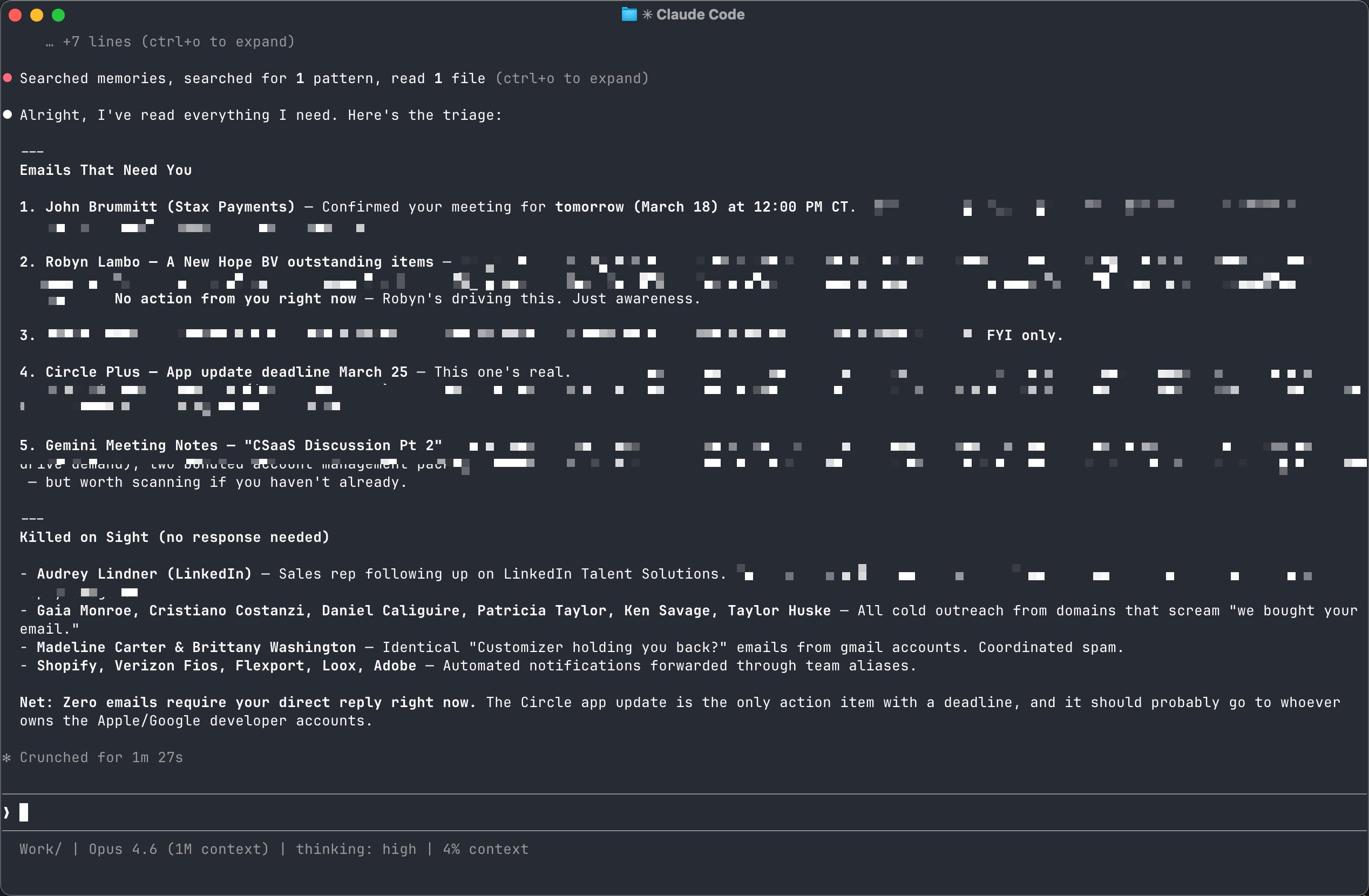
I remember the first time I ran something like this. I was staring at a list of about 8 emails pulled from what felt like a hundred unread messages, and I thought... I’ve been doing this manually every single morning for 20 years.
You can sort of do this in ChatGPT or Claude’s web app now, but the result lives and dies inside that chat window. Here, Claude just triaged your inbox and you can turn around and say “now save those 8 emails to a file with my notes” or “draft replies for all of them.” You just built a workflow.
Draft a reply
Pick an email from the list. Tell Claude to draft a response:
Draft a reply to the email from [name]. Friendly but brief. Confirm the meeting time and ask if they need anything from me beforehand.Claude writes it. You read it, tweak it if you want, and tell Claude to send. Or adjust: “Make it shorter” or “Add a line about the Q2 numbers” or “Actually, suggest Wednesday instead.”
And here’s the callback to the last section. Remember CLAUDE.md? If you put your communication style in there (how you sign off, how formal you are, phrases you tend to use) Claude starts writing emails that sound like you. Not like a corporate robot. Like how you’d actually write if you had the time to think about every reply.
I have my entire email voice documented in my CLAUDE.md. When Claude drafts a reply for me now, most people can’t tell the difference.
Search old emails
This one’s simple but I use it all the time:
Find the invoice Sarah sent me about the website redesign. Sometime in January I think.Claude searches your email, finds it, pulls up the details. No clicking through Gmail’s search trying to remember the exact subject line or which thread it was buried in. Just describe what you’re looking for like you’d describe it to a person.
The first time you do this and Claude just... finds the thing in 5 seconds that would have taken you 10 minutes of digging, you’ll start wondering what else you’ve been doing the hard way.
Talk to your spreadsheets
You’ve probably uploaded a spreadsheet to ChatGPT before. Asked some questions, got some answers, maybe a chart. It works okay.
But here’s what you can’t do in a chat window: work with multiple files at once, cross-reference data across spreadsheets, or have a real back-and-forth conversation with your numbers like there’s an analyst sitting next to you who’s already read everything.
We’re about to do all of that. I’ve put together two sample spreadsheets you can download and follow along with — six months of sales data and expense records for a fictional small e-commerce company that sells office accessories and home decor. This business is hovering right around break-even, and by the end of this section you’re going to figure out why and what it would take to make it profitable.
You can grab both spreadsheets by clicking here.
Drop both files into a folder and open Claude Code there.
Ask what’s interesting
Start with the sales data:
Read sales_data.csv and tell me what's interesting. Any patterns, any anomalies, anything that stands out.Claude reads the file (right off your computer, no upload needed) and comes back with observations. It might notice that revenue spiked in March, or that one product category is outperforming everything else, or that there’s a customer who placed 15 orders in one month.
This is where it starts feeling less like a tool and more like a conversation. Because you can just... keep asking.
Keep pulling the thread
What are the top 5 products by total revenue?Which categories are performing best and worst?Are there any seasonal patterns in this data?Each question builds on the last. Claude remembers the entire conversation and the file it already read. You don’t have to re-explain anything. You’re just talking to someone who’s already looked at the spreadsheet and is ready to answer whatever you throw at them.
One thing that might surprise you: for that last question about seasonal patterns, Claude might ask to run a small script. It’ll show you a Python command in the terminal and ask for permission.
Don’t panic. A script is basically Claude’s version of a pivot table — it’s crunching the numbers so it can give you a real answer instead of eyeballing it. Say yes, let it run, and look at the results.
You don’t need to understand the code. You just need to read Claude’s summary.
This is what I mean by conversational data analysis. You’re not writing formulas. You’re not building pivot tables. You’re not clicking through menus trying to figure out which chart type to use. You’re just asking questions in plain English and getting answers.
Now add a second file
This is where chat interfaces fall apart.
Now read expenses.csv too. Where am I spending the most on marketing relative to what each category actually sells? Are there any categories where the ad spend doesn't match the revenue?Claude reads the second file, holds both datasets in its head, and starts connecting dots across them. It might come back and tell you that your Plants & Planters category is eating 40% of your ad budget but generating the least revenue — a 0.6x return on every dollar spent. Meanwhile, Wall Art is returning 11x on just 8% of the budget. The business is break-even, but the fix is sitting right there: shift the money from what’s losing to what’s winning.
You just found that by typing three questions. No pivot tables. No formulas. No analyst on retainer.
Try doing that in ChatGPT. You’d have to upload both files, hope it keeps the context from the first one, and pray it doesn’t hit a size limit. In Claude Code, both files are just sitting in the folder. Claude reads them whenever it needs to. No uploading, no limits, no friction.
And if you had 5 files? Or 10? Same thing. Point Claude at the folder and ask your questions.
From text to tools
You just had a real conversation with your data. You asked questions, got answers, found patterns, and connected dots across two different spreadsheets. All by typing sentences.
But everything Claude just told you is text in a terminal. Words on a screen. What if you could take all of those insights and turn them into something visual? Something you could open in a browser, share with your boss, or come back to next month?
That’s what we’re doing next.
Build a dashboard
Start a fresh Claude Code session in the same folder (remember, one task per session) and type:
Read sales_data.csv and expenses.csv and build me an interactivedashboard that shows the key insights. Use my HTML skill.That last part — “use my HTML skill” — is the skill you created back in the Making It Yours section. Watch what happens when Claude combines your data with your design instructions.
Watch it work
Claude is going to start reading both files, and then it’s going to start writing code. You’ll see it in the terminal — lines of HTML, CSS, and JavaScript scrolling by. You don’t need to understand any of it. Just let it run.
This part takes a couple of minutes. Maybe three. Claude is building a full interactive web page from scratch, pulling in your actual data, creating charts, building filters, laying out a dashboard... all from one sentence.
When it finishes, it’ll tell you it created a file. Something like dashboard.html.
Open it
Go to your folder, find the file, and double-click it. It opens in your browser.
And there it is.
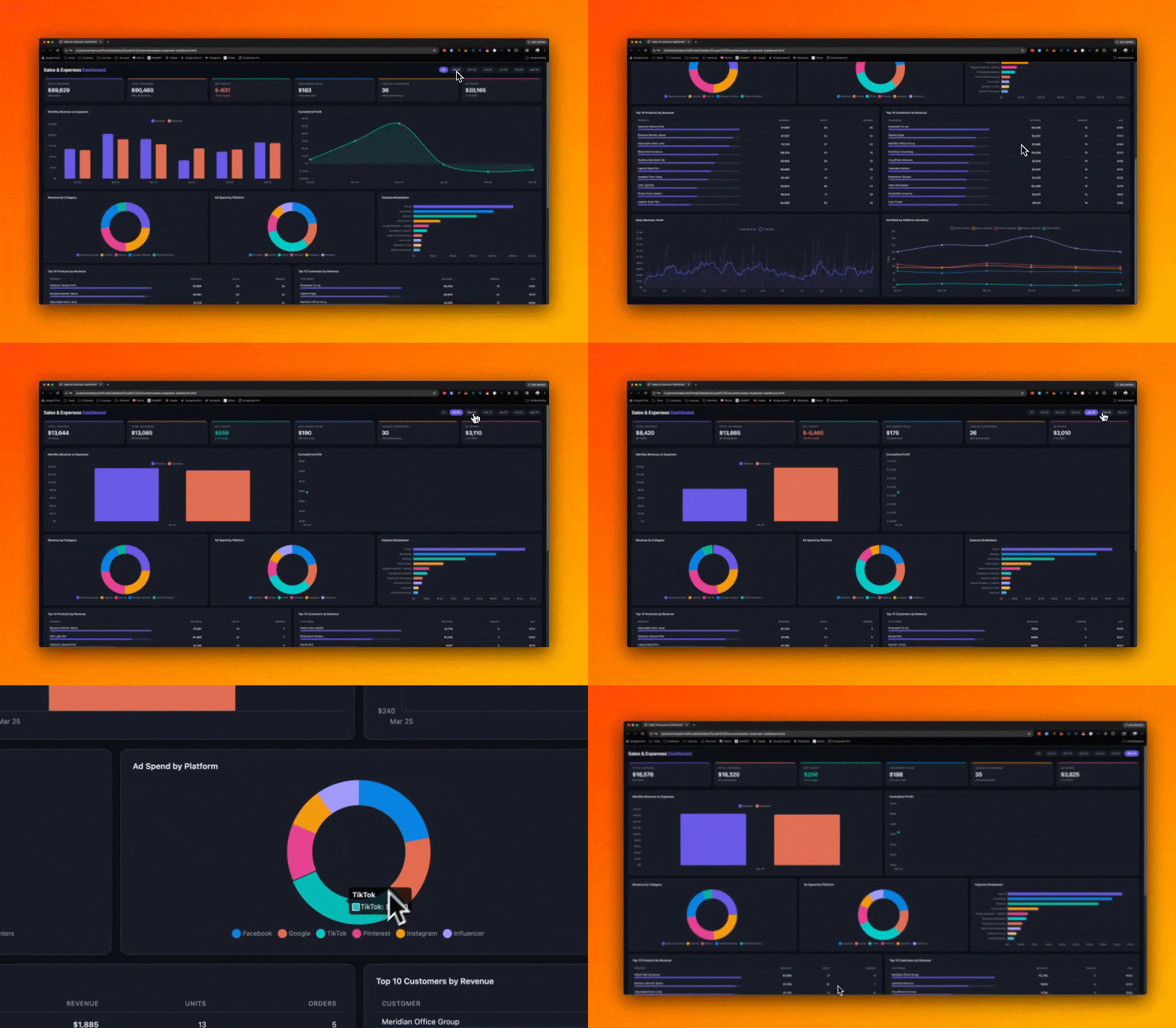
Charts showing revenue by month and expense breakdowns by category. A sortable table of your top products. Filters you can click to drill into specific months or categories, and summary stats at the top showing total revenue, total expenses, and the net.
It’s all interactive, all built from your actual data, and it took about 3 minutes because you typed one sentence.
I don’t care how many times I do this, it still gets me a little bit. That moment where the browser opens and there’s a full working dashboard sitting there that didn’t exist 3 minutes ago... honestly, it’s something.
Make it better
And you’re not stuck with the first version. Go back to Claude Code and tell it what to change:
Add a date range filter at the top so I can look at specific months.Make the revenue chart a bar chart instead of a line chart.Add a section that shows the 3 expense categories with the worst revenue-to-expense ratio.Each time, Claude edits the actual file. Refresh your browser and the changes are there. You’re designing a dashboard by describing what you want in plain English, and it just... updates.
Why this is different
This file lives on your computer and it’s real. You can email it to your boss and they open it in Chrome. You can bookmark it. You can put it in a shared drive and your whole team can see it.
Come back next month with new data, drop the updated CSVs in the same folder, and tell Claude to refresh the dashboard. It reads the new files and rebuilds it.
Try that in a chat interface. Claude.ai has artifacts, sure — little previews that live inside the chat window. But the moment you close that tab, they’re gone. You can’t email an artifact. You can’t bookmark it. You can’t hand it to someone and say “open this.”
And remember that HTML skill you created a few sections ago? That’s why this dashboard doesn’t look like a generic template. The skill told Claude how you want things to look — the typography, the colors, the layout. Your data, your design preferences, your dashboard.
You just built a tool. By typing sentences. And the next one will be even better, because Claude already knows how you like things done.
Before you build everything
I know you have a 6-month backlog of things you’ve been waiting to build, but before you go, I need to save you from three things. I either made these mistakes myself or watched someone else make them, and one of them can cost you real money while another can cost you your actual files.
Two minutes of reading. Worth it.
Back up your work
This is the big one.
Claude Code can undo things within a conversation using the rewind feature. You can even pick up previous sessions with /resume if you need to go back. But that only works if you remember to do it, and it only covers changes Claude made — not your own edits.
I’ve seen people on Reddit talk about losing hours of work because Claude rewrote a file they didn’t mean to change and they had no way to get the original back. It happens.
The fix is simple: use version control. If you know Git, use Git. If you don’t know Git (and you probably don’t if you’re reading this guide), just make a copy of your important files before you let Claude work on them. Put them in a backup folder. Takes 10 seconds.
Or, honestly, ask Claude to help you set up Git. It’s pretty good at that.
The point is: have a way to go back. Claude is fast and capable, but fast and capable means it can also make big changes quickly. A safety net costs you almost nothing and saves you from the one time things go sideways.
Watch what’s in the folder
Claude Code can see every file in the folder you launch it from and everything inside it. All of it.
So if you open Claude Code from your home directory... it can see everything on your computer. Your documents, your downloads, everything. And when Claude reads a file, that data goes to Anthropic’s servers for processing.
The rule: only launch Claude Code from the specific folder you want it working in. Don’t run it from your desktop. Don’t run it from your home folder. And definitely don’t point it at anything that has passwords, API keys, or sensitive credentials in it.
Create dedicated folders for your Claude Code projects. Keep them clean. Keep sensitive stuff somewhere else.
Where you go from here
You started this guide wondering what a terminal was.
You just built an interactive dashboard from two spreadsheets by typing a few sentences. You connected Claude Code to your actual email and had it scan your inbox. You created a reusable skill that makes everything Claude builds for you look better. And you set up a system where Claude gets smarter about you and your work every time you use it.
Congrats, you can build things now.
And this was the starting point. I showed you three use cases, but there are hundreds. Every repetitive task you do, every spreadsheet you dread opening, every time you think “I wish I had someone who could just do this for me”... that’s a Claude Code conversation waiting to happen.
Build more skills. Connect more tools. Experiment. Break things (you’ve got backups now). The more you use it, the better it gets at being useful to you specifically.
I’m not a developer. I can’t write code. And I built all of this.
Now, you can too.
Take care & see you in the next one ✌️
-Michael
P.S. If you found this useful, it’d mean the world to me if you subscribed, restacked, or dropped a comment. All of that’s free for you but a huge boost for me, and I’d really appreciate it.
I'm a software engineer who uses Claude Code exclusively for my actual work.
It's amazing.
I can build in 30 minutes what used to take me weeks of part time work writing code. Still gotta be careful though, AI is still slightly unpredictable.
Excellent tutorial for starters - will share with all my people and certainly encourage to try Code (and terminal) instead if Cowork .