

How I Built My Personal AI Assistant (Claude Code Tutorial)
Step-by-step setup guide inside

Hey 👋
If you give me 10 minutes, I’ll to teach you how to build an AI assistant that will save you a few hundred hours this year.
It’s easy to get started, and you don’t have to be nerd to figure it out. But if you are a nerd, that’s cool too.
I’ll walk you through everything step-by-step.
(Or if you just want the prompt to one-shot the entire thing, click here.)
This will be especially helpful if you do mouse and keyboard work, manage a to-do list, or want to be more productive.
You see, everyone is doing task management wrong.
I was too.
Tell me if you can relate to this:
At one point, I had 9 different to-do lists. Each one was overflowing with junk.
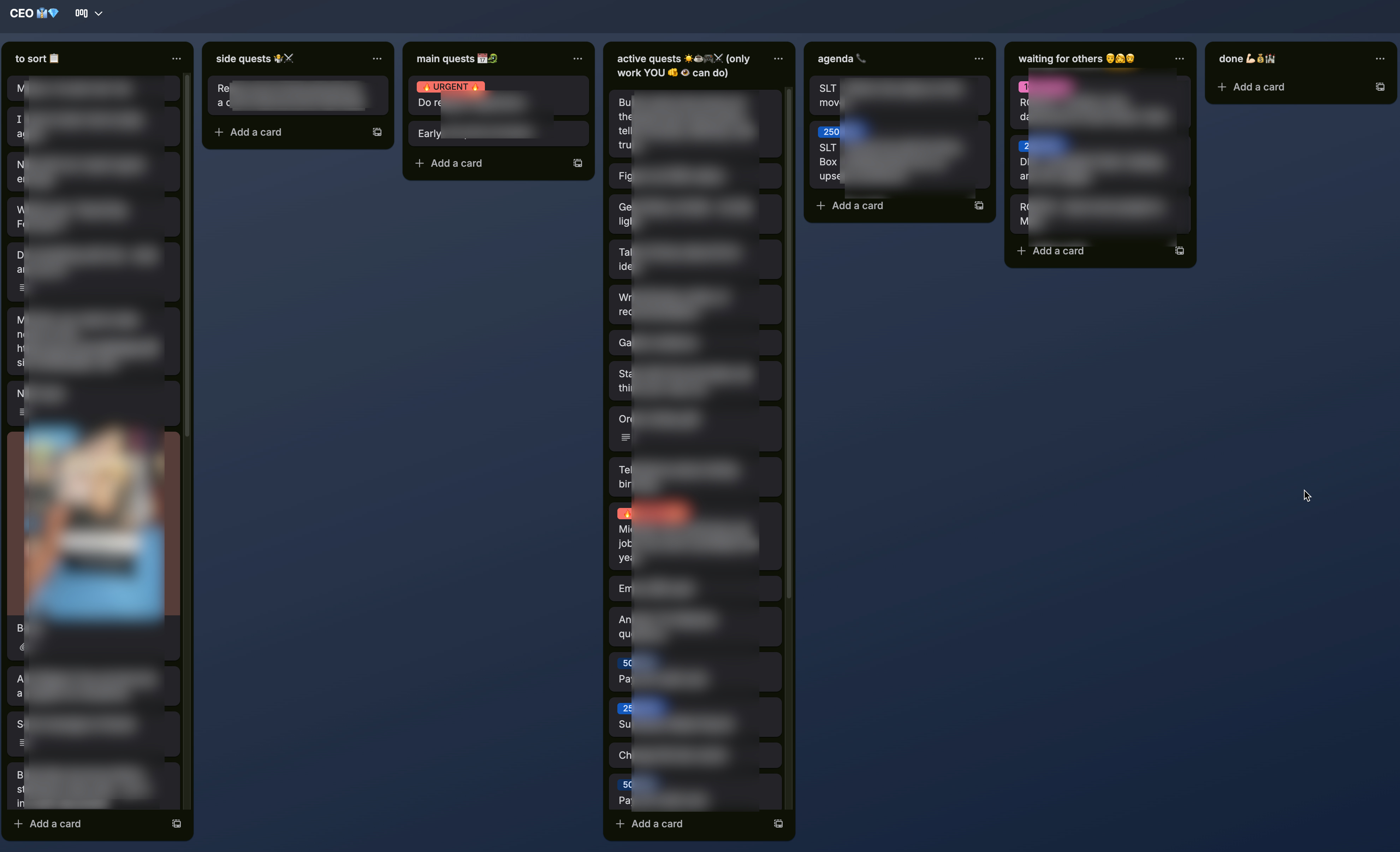
I followed all the best task management advice:
Inbox
This Month
This Week
Today
Agenda
Waiting for Others
Done
(plus 2 other personal lists)
The lists were supposed to help organize the chaos, but became extra stress. Every week I’d have pruning sessions, rewriting items, removing ones that didn’t matter anymore, updating tasks that changed. I was constantly processing, processing, processing.
As old items were purged, new ones showed up.
My task management system became background anxiety. Every time I got off a call or left a meeting, I’d know it was sitting there. Waiting for me.
Over time, I set a goal to keep my to-do list from having scroll bars.
Not to be productive.
Not to get ahead.
To not have scrollbars.
It sucked.
Then I saw a video that broke my friggin’ brain:
I was doom-scrolling X before Christmas break, and I saw a product manager who built an AI-powered task system using Claude Code. She typed a single command into the terminal on her computer, the AI thought for a moment, looked at her notes, her priorities, and spit out a structured agenda for her day.

No pruning lists, no reorganizing tasks, it just... worked.
I couldn’t believe it.
What black magic voodoo devil did she sell her soul to for this wizardry?
BECAUSE I NEED IT!
Then a second realization hit me:
I’ve been using AI through a keyhole this whole time.
Talking to Super-Intelligence Through a Tiny Window
I’ve been talking to AI through interfaces. Little text fields, chat boxes, tiny narrow openings.
Through chat, you’re the curator. You have to manually pull together information and files that you want AI to analyze. But if you can’t find the files you need, or can’t remember you have them in the first place, you’re out of luck.
The issue is that a partition exists between you and the AI. It’s as if it were in another room.
It’s like when you’re at the bank drive-through trying to pass paperwork back and forth to the teller through those pneumatic air tubes.
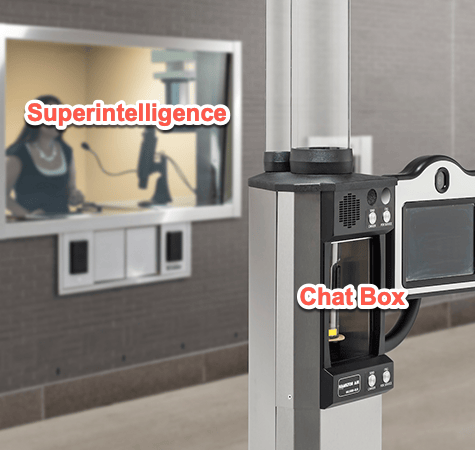
This is fine for a question like, “How many more days until the weekend?” but horrible for a request like, “Build me an on brand, 12 slide powerpoint deck on Project X from my meeting notes.”
Through a chat box, AI can’t scan your meeting notes from 8 months ago where you already solved this exact problem before. It can’t help you find a document you put in some random folder about your Q3 strategy. It can’t chase a thread about Project X from one file to another to give you a holistic view of progress.
This is where Claude Code comes in and changes things. When you take AI and give it direct access to your filesystem, the aperture blows wide open.
The walls come down.
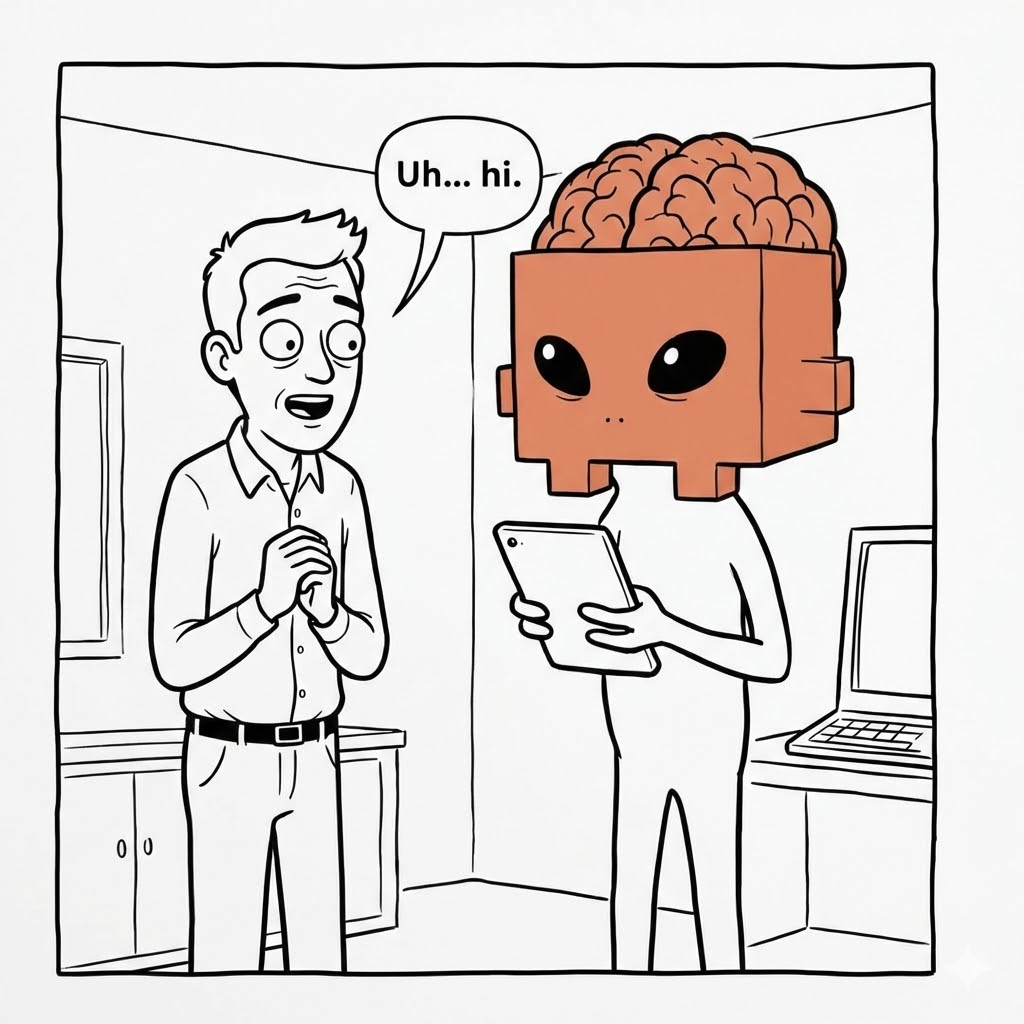
Suddenly, you find yourself standing in the same room with this new alien super-intelligence.
David Allen Was Only Half Right
I remember reading David Allen’s Getting Things Done and absorbing the insight that “the mind is for having ideas, not holding them”.

The first time I built a to-do list using the GTD method was a huge relief. Suddenly, I had a place to dump every idea that came to mind. It got stuff out of my head. Closed loops. I didn’t have to burn mental energy holding ideas in place anymore because I had a system I could trust.
But it created a new kind of misery:
To-do list management.
But now, thanks to Claude Code, I don’t have to do that anymore either.
My AI Assistant frees me from the entirety of admin work. I have more mental energy to not only have ideas, but to execute on them.
Allen says the mind isn’t meant for holding ideas. He’s right.
I’d also add that the mind isn’t meant for processing, organizing, and administrating them either.
Your brain isn’t a filing cabinet.
It’s an engine.
And it wants two things:
To have ideas
To execute on them
Everything in between - the sorting, the pruning, the endless reorganizing - that’s friction.
Overhead.
The work that gets in the way of work.
And now you don’t have to do it anymore.
The LLMs that started in chat boxes can now be installed on your computer. They can manipulate files, take action, and do things in your digital life.
The super-intelligent brain is growing hands and feet.
So, what does this look like?
Let me take you on a tour.
Want the shortcut? If you’d rather skip the walkthrough and build this in one shot, click here. Otherwise, keep reading.
Two Notes, Three Commands
This system saves me at least 1 hour per day.
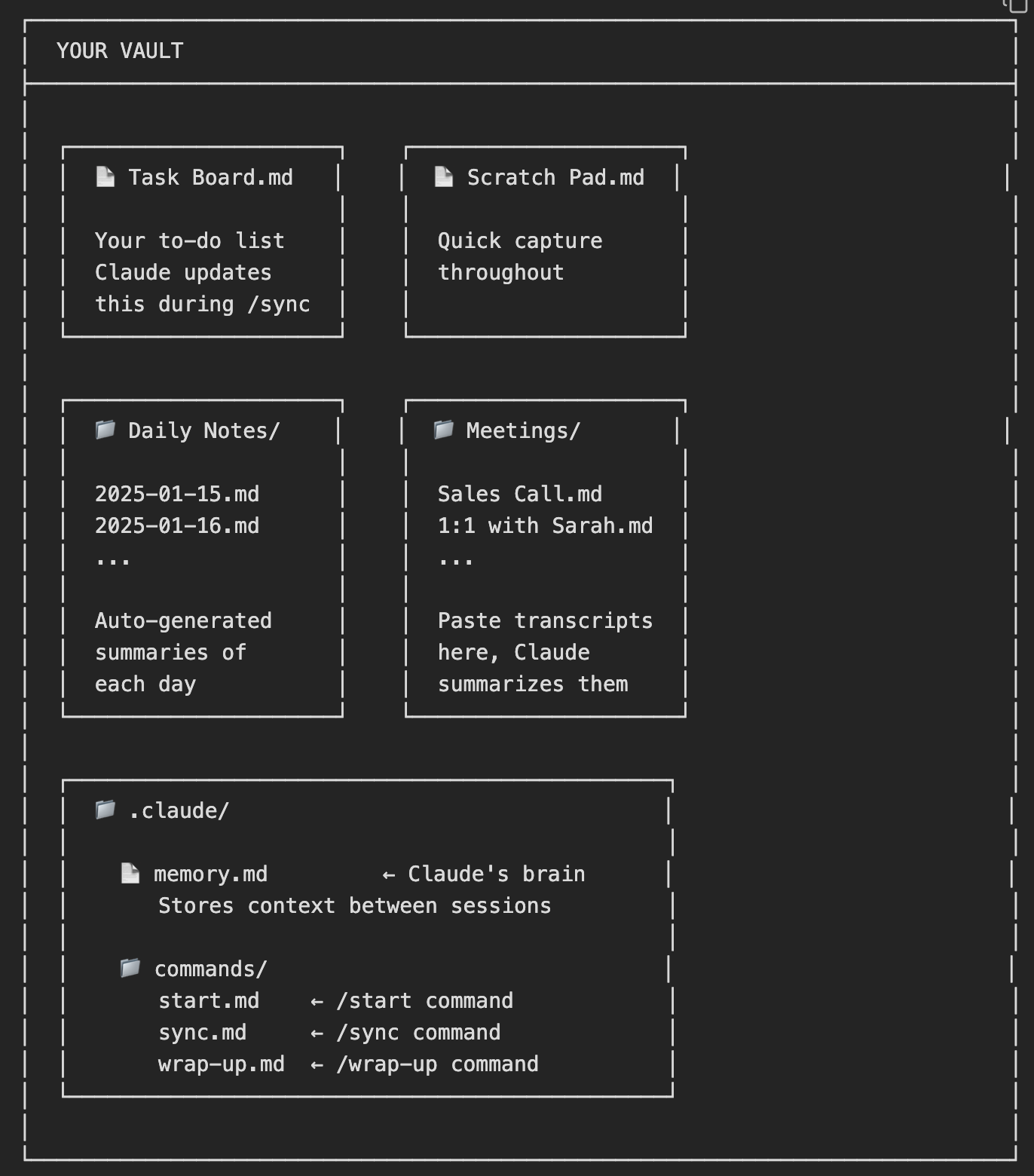
It’s simple. Two notes, two folders, one memory file, and three commands.
The notes are a scratch pad for quick capture, and a task list. The folders hold daily notes and meetings. The memory file is where Claude maintains working context over time, so it remembers what matters from one day to the next.
For the three commands, I created /start, /sync, and /wrap-up.
That’s it.
The scratch pad is where I dump everything throughout the day. Bullets, notes, decisions, follow-ups. Anything that crosses my mind. I don’t organize it. I don’t file it. I capture it.
The daily note is like a captain’s log. Decisions made, meeting links, completed tasks. A record of the day. I don’t touch this, AI takes care of it for me.
The memory file is the interesting one. Claude maintains it over time. Working context that carries forward. What I’m focused on, what’s waiting, what matters.
This is a simple starting point that anyone can use.
I’ll take you through it step-by-step.
What Happens When I Type /start, /sync, and /wrap-up
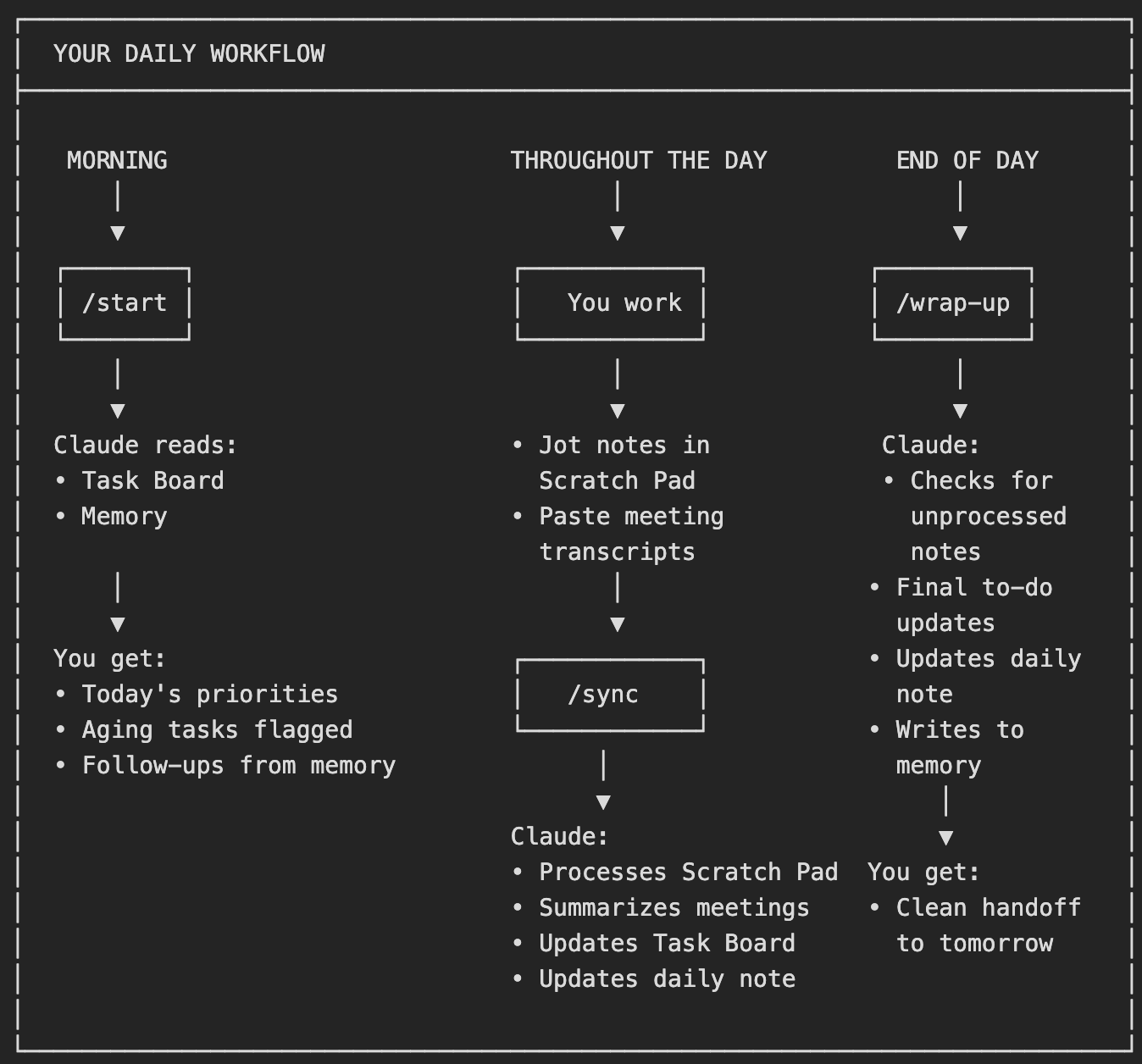
When I run /start in the morning, Claude looks at my tasks and memory. It surfaces aging items, things that have been sitting too long. It asks about completed items. It helps me set priorities and pulls up anything from memory that’s earmarked for that day.
When I run /sync during the day, Claude reads my scratchpad and updates my to-dos. It reads any meeting transcripts I’ve dropped in, summarizes them, renames the files, and updates my daily note with what happened.
When I run /wrap-up at the end of the day, Claude checks for any unprocessed meetings, reviews my to-do list and scratchpad one more time, and writes to memory for continuity. Tomorrow’s /start will pick up right where today left off.
Here’s a real example of how this helps. I had this item on my list and I couldn’t remember where it left off from a week ago. So I asked Claude. It found the meeting where it was discussed, went through the transcript and memory, and came back with the specific answer. Turns out, one of my colleagues reached out to our engineering team to get a report created. That’s it. That’s what I needed. No searching. No scrolling through notes. Just the answer.
What would have taken me ~10m of searching to find, it pulled up in seconds.
Now I work. The AI handles the rest.
How to Set Up Yours in an Afternoon
I’m going to walk you through the exact steps I used to build my own AI Assistant, so you can create your own. I’ll explain the principles and fundamentals that make this system work, so you can modify it for yourself.
By the end, you should be able to follow these steps and experience the same benefits I have.
Let’s get into it.
What you need:
Claude Code installed on your machine
A notes app (I use Obsidian, but any app where notes are stored as files works)
A basic folder structure
Step 1: Install Obsidian
Obsidian is a free notes app that stores everything as plain text files on your computer. This is important, so that Claude can read and edit those files directly.
Go to obsidian.md
Download the app for your operating system (Mac, Windows, or Linux)
Run the installer
When you first open Obsidian, it’ll ask you to create or open a “vault.” A vault is a folder on your computer where your notes live.
Click “Create new vault”
Give it a name (I called mine “Work”)
Choose where to save it — somewhere easy to find, like your Documents folder
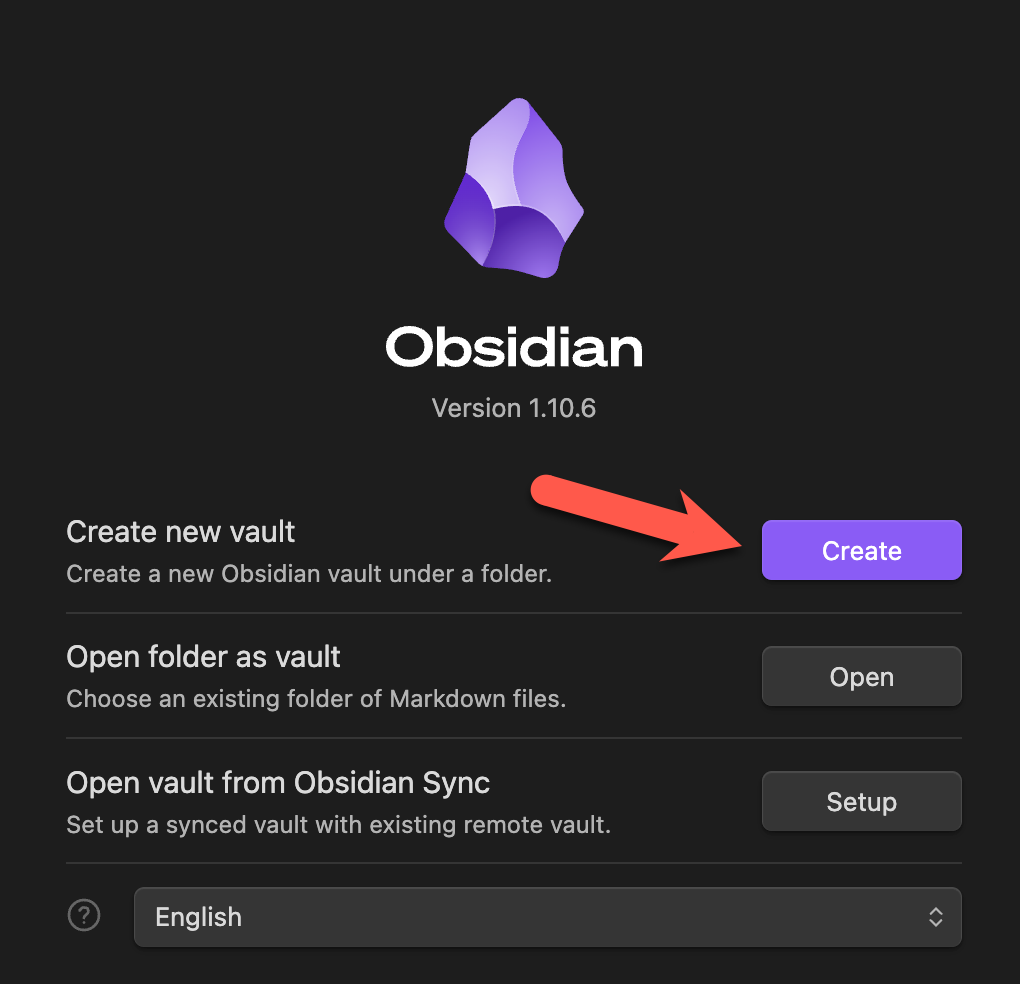
That’s it. You now have a notes app where everything is stored as files Claude can access.
Step 2: Install Claude Code
Claude Code is a command-line tool that lets Claude work directly with files on your computer. This is the key that unlocks everything.
On Mac:
Open Terminal (press Cmd + Space, type “Terminal”, hit Enter)
Copy and paste this command, then hit Enter:
npm install -g @anthropic-ai/claude-code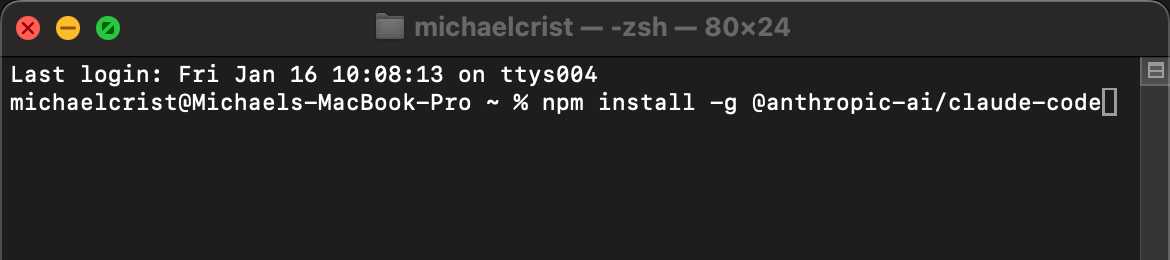
On Windows:
Open Command Prompt or PowerShell
Run the same command:
npm install -g @anthropic-ai/claude-codeDon’t have npm?
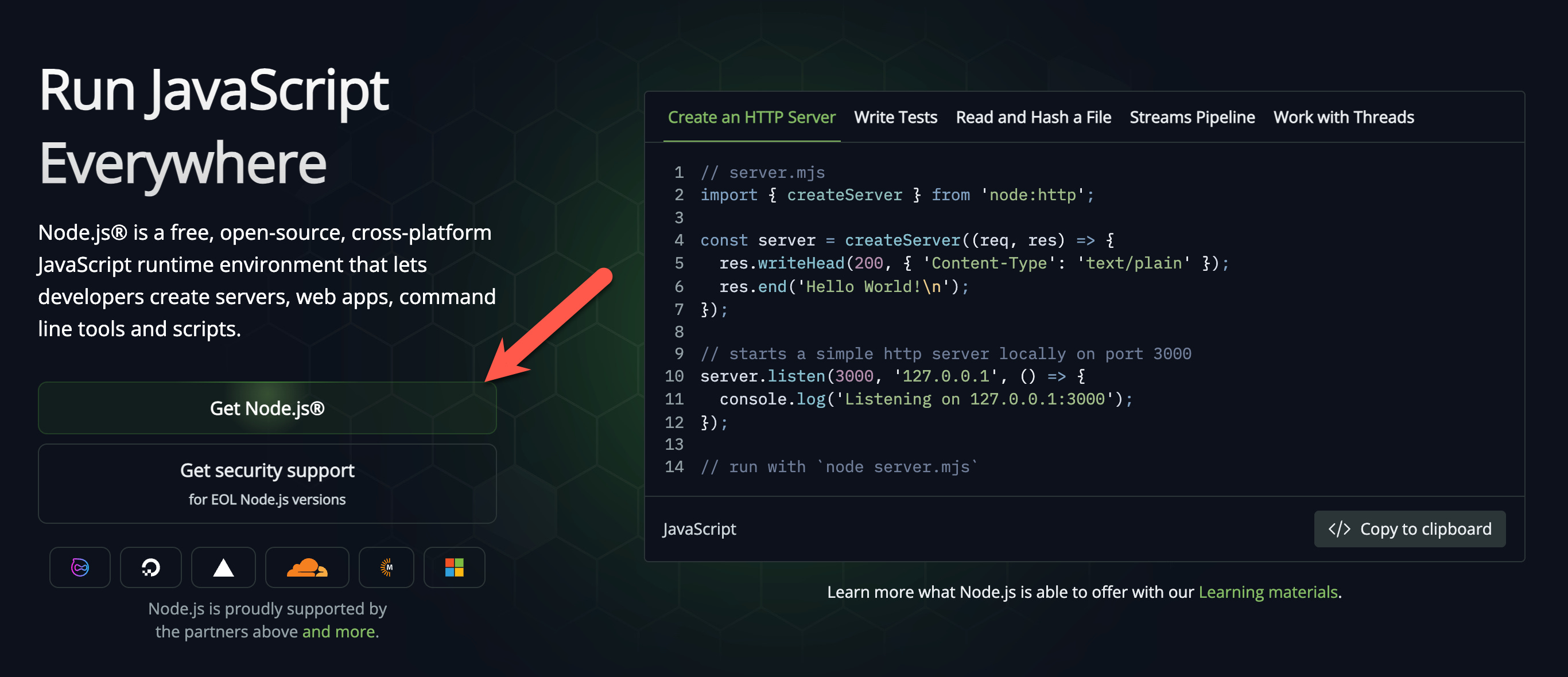
If you get an error about npm not being found, you need to install Node.js first:
Go to nodejs.org
Download the LTS version
Run the installer
Close and reopen your terminal
Try the npm install command again
Verify it worked:
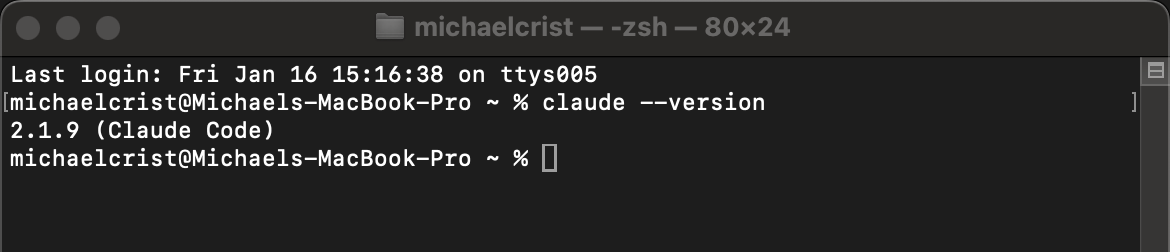
Type this in your terminal:
claude --versionIf you see a version number, you’re good.
Step 3: Create your folder structure
Now let’s set up the folders inside your Obsidian vault. Here’s what the structure looks like:
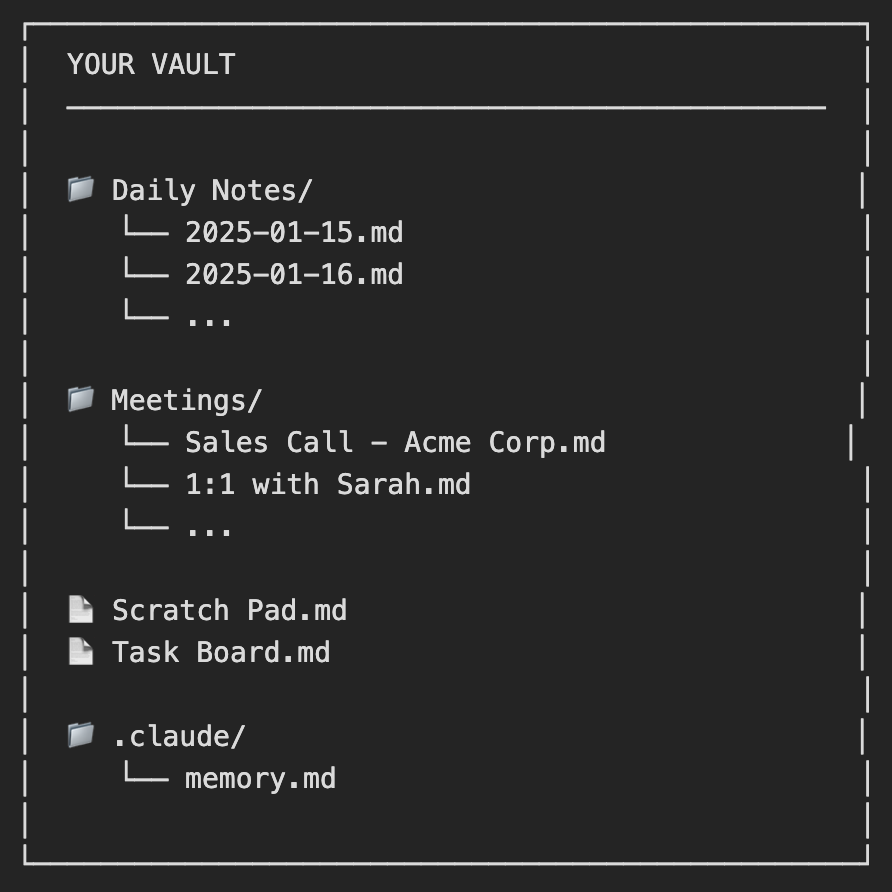
In Obsidian:
Right-click in the left sidebar → “New folder” → name it “Daily Notes”
Right-click again → “New folder” → name it “Meetings”
Right-click → “New note” → name it “Scratch Pad”
Right-click → “New note” → name it “Task Board”
The .claude folder and memory.md file will be created automatically when you set up your commands.
Step 4: Connect Claude Code to your vault
Now we connect the two pieces. This is where we’ll spend a little time in the terminal.
What is terminal?
Terminal is a way to talk to your computer by typing commands instead of clicking around. It looks like something from an 80s hacker movie, but it’s not as scary as it seems. You type a command, hit Enter, and your computer does something. That’s it.
You only need two commands to make this work:

That’s the whole vocabulary. Two words.
If you get stuck: Your favorite LLM (ChatGPT, Claude, whatever) or Google are your friends here. “How do I navigate to a folder in terminal” will get you unstuck fast. Don’t be afraid to ask.
Navigating to your vault
Now you need to tell terminal where your Obsidian vault lives. There are a few ways to do this:
Option A: The shortcut (easiest)
Skip the cd command entirely. Open terminal directly inside your vault folder:
On Mac:
Open Finder and navigate to your vault folder
Right-click on the folder
Choose “New Terminal at Folder”
On Windows:
Open File Explorer and navigate to your vault folder
Right-click in the empty space inside the folder
Choose “Open in Terminal”
Done. Terminal opens and you’re already in the right place.
Option B: The cd command
If the shortcut isn’t available, you can navigate manually using the cd (change directory) command.
Type cd followed by the path to your vault folder:
cd /path/to/your/vaultFor example, if your vault is in Documents and called “Work”:
cd ~/Documents/WorkPro tip: You can also type cd (with a space after it) and then drag your vault folder from Finder/Explorer directly into the terminal window. It’ll paste the path for you.
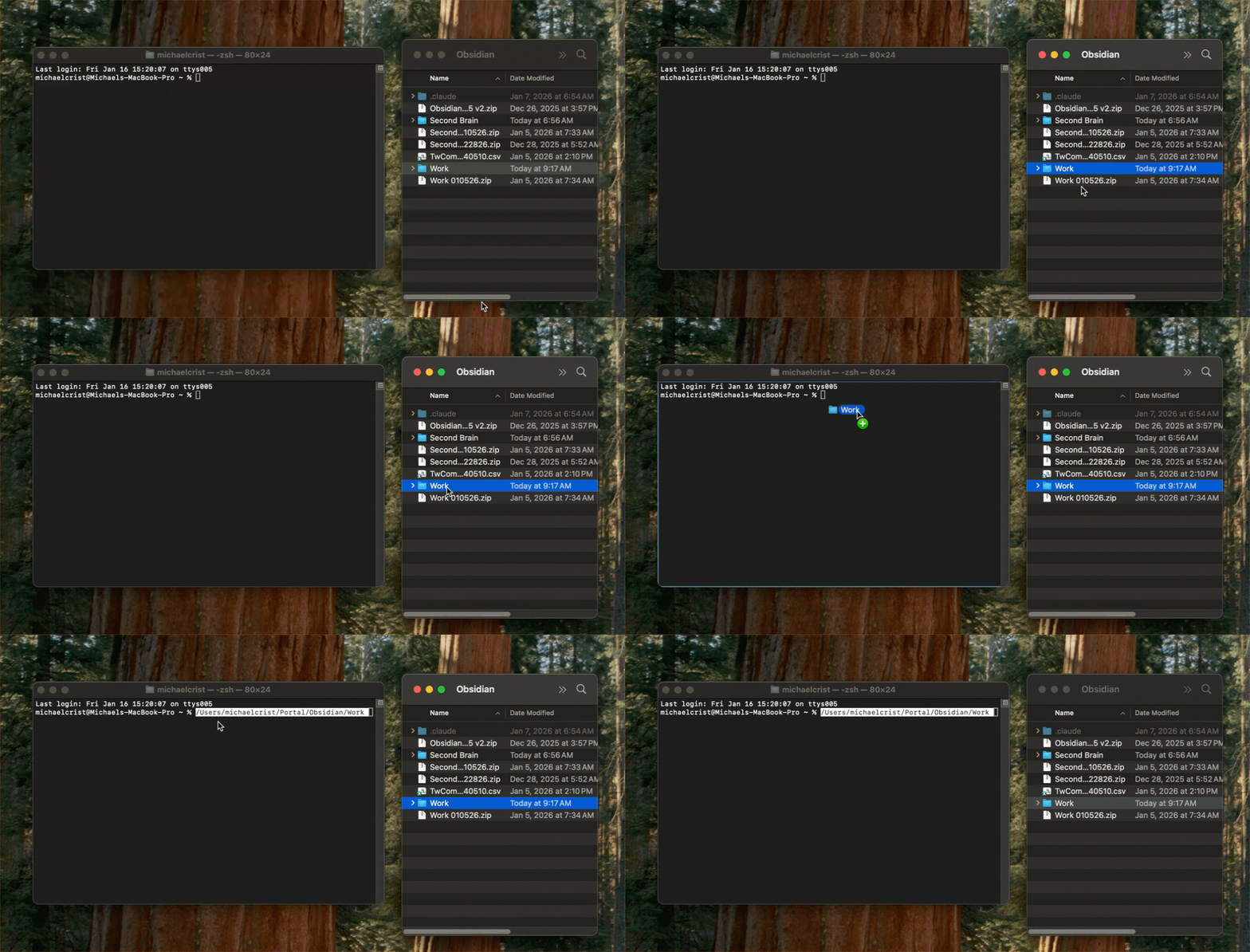
Hit Enter. You won’t see much happen, and that’s normal. No news is good news in terminal.
Starting Claude Code
Now type:
claudeAnd hit Enter.
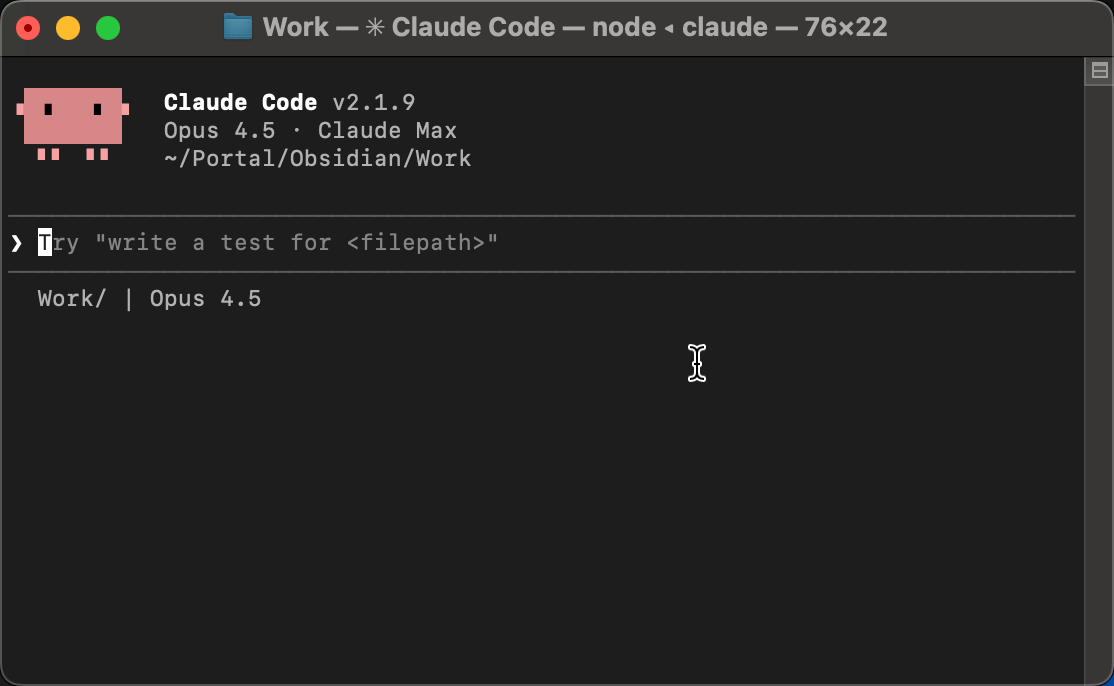
Claude Code is now running and can see all your notes.
A note on what Claude can see: Whatever folder you launch Claude in, it can see everything in that folder and all subfolders. That’s what makes this powerful, but it also means you should be thoughtful about where you run it. Don’t launch Claude from a folder containing passwords, API keys, or sensitive documents you don’t want processed.
Take it for a spin
Before we set up commands, talk to it. This is the same Claude you’d use on claude.ai, you’re just talking to it in terminal instead of a chat window.
Try a few things:
“What files and folders do you see in this directory?”
“Summarize what’s in my Task Board note”
“Search the web for today’s top news headlines”
“What’s the weather in [your city]?”
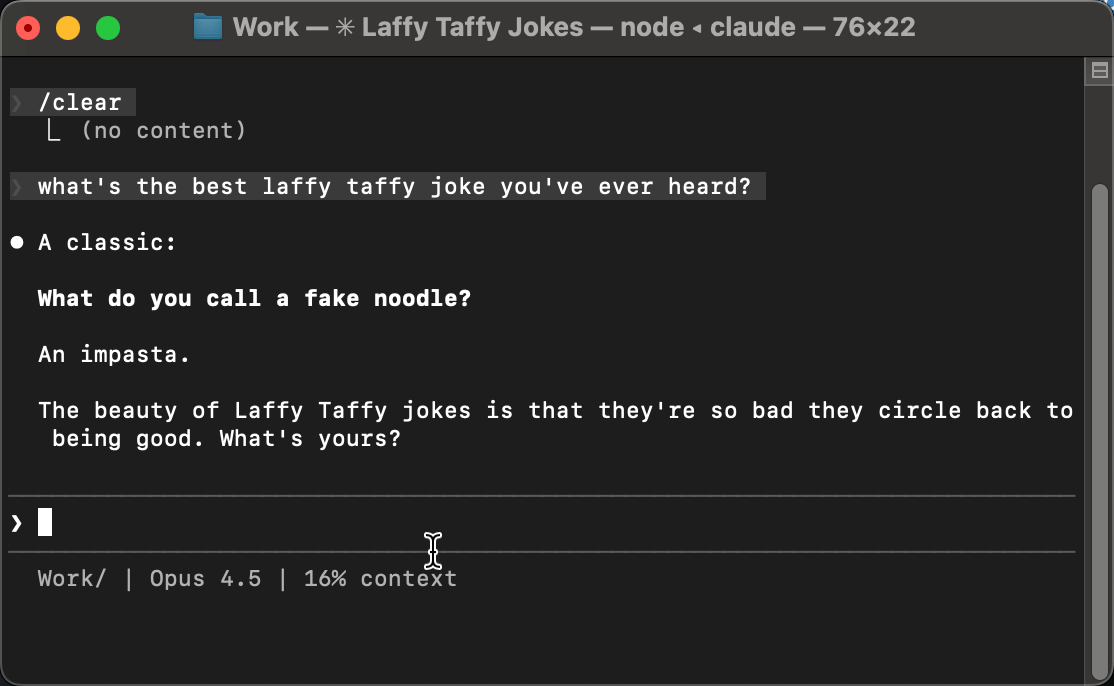
Get a feel for it. Ask it questions. Give it a task. The more you play around, the less intimidating it feels. Once you’re comfortable, we’ll set up the commands that turn this into a real system.
Feeling ambitious? You can also use this prompt to have Claude build all three commands at once.
Step 5: Set up your commands
This is where the magic happens. You’ll create three commands that tell Claude what to do.
Here’s the good news: you don’t need to figure this out yourself. You’re going to ask Claude to build these for you.
I told you no tech skills were required.
How commands work
Commands are text files that live in a special folder. When you type /start in Claude Code, it looks for a file called start.md in the .claude/commands/ folder and follows the instructions inside.
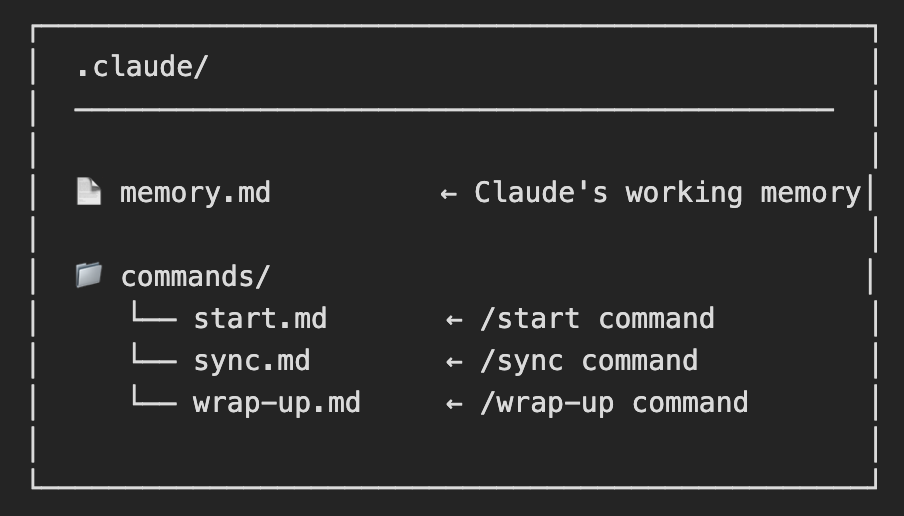
I like to think of these like prompt shortcuts. I have no idea if that’s what they actually are, but that’s what it seems like.
Creating your commands
In your Claude Code terminal, copy and paste these prompts one at a time. Claude will create each command file for you.
For /start (beginning of day):
I want to create a /start command that I run at the beginning of each workday.

When I run /start, you should:
1. Read my Task Board.md file and summarize what's on my plate
2. Read the .claude/memory.md file to check for any context or follow-ups
3. Look at my calendar or any time-sensitive items
4. Help me prioritize and plan my day
5. Ask if there's anything from yesterday I completed that should be removed

Create the command file at .claude/commands/start.md

Keep the instructions clear and concise. I want this to feel like a quick morning standup with an assistant.
Claude will create the folder structure and the command file for you. It might ask a few clarifying questions — answer them however feels right for your workflow.
For /sync (throughout the day):
I want to create a /sync command that I run throughout the day to process my notes.

When I run /sync, you should:
1. Read my Scratch Pad.md file and process any notes I've captured
2. Check the Meetings/ folder for any new transcripts and summarize them
3. Update my Task Board.md with any new to-dos that came up
4. Update or create today's daily note in Daily Notes/ with a summary of what happened
5. Clear out the Scratch Pad once everything is processed

Create the command file at .claude/commands/sync.md

I want this to feel like handing a pile of loose notes to an assistant and having them file everything properly.
For /wrap-up (end of day):
I want to create a /wrap-up command that I run at the end of each workday.

When I run /wrap-up, you should:
1. Check if there are any unprocessed meetings or notes in Scratch Pad
2. Do a final update to my Task Board.md
3. Update today's daily note with a summary of the day
4. Write anything important to .claude/memory.md so you remember it tomorrow
5. Give me a brief "end of day" summary

Create the command file at .claude/commands/wrap-up.md

I want this to feel like closing out the day cleanly — nothing falling through the cracks.
When you’re finished, test each command in sequence to make sure they work. If you run into any issues, just ask Claude to help you fix it.
What you now have
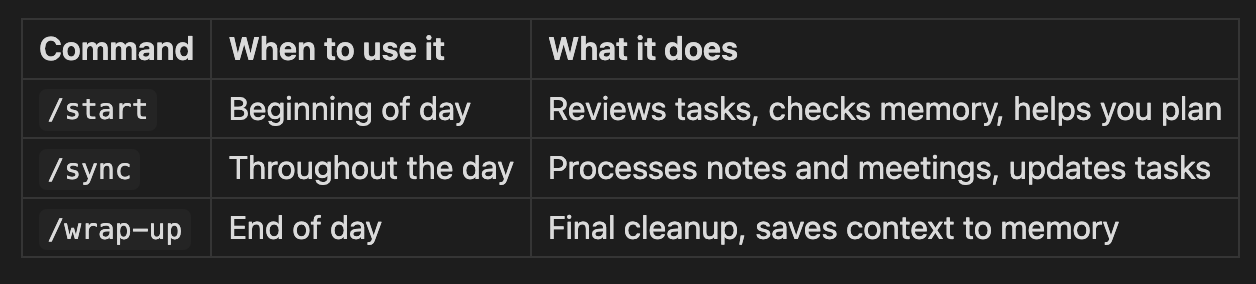
These are starting points. As you use them, you’ll want to tweak things. Maybe you want /start to pull in your calendar. Maybe /sync should also check your email folder. Ask Claude to update the command, it’s all text files.
The to learn is through play. Follow your curiosity. Try stuff. As long as you monitor what Claude’s doing, it’s low risk.
Step 6: Set up memory
Memory is what gives Claude continuity between sessions. Without it, every time you start Claude Code, it’s a blank slate. It’ll have no idea what you talked about yesterday, what’s on your plate, or what you’re waiting on.
The memory file fixes that. It’s a simple text file where Claude writes down important context: ongoing projects, people you’re working with, things to follow up on, decisions that were made. Claude reads it at the start of each session and updates it at the end.
Let’s have Claude create it. Paste this:
I want to set up a memory file that you'll use to maintain context between our sessions.

Create a file at .claude/memory.md with a simple structure for:
- Current projects or priorities I'm focused on
- People I'm working with and any relevant context
- Things to follow up on
- Recent decisions or important context

Keep it concise — this should be a quick-reference file, not a journal. You'll read this at the start of each session and update it during /wrap-up.

For now, create the structure. We'll fill it in as we work together.
Claude will create the file with a clean structure. Over time, as you use /start and /wrap-up, this file will become a living document that keeps Claude up to speed on your world.
Step 7: Test it out
Let’s make sure everything works.
Open Terminal and navigate to your vault (or wherever your vault lives):
cd ~/Documents/WorkStart Claude Code:
claudeRun your first command:
/startSee what it surfaces. Add some notes to your scratch pad, drop in a meeting transcript, run /sync. Watch it work.
The complete picture
Here’s everything you built:
Ready to build yours? Grab the prompt and get started.
But What About...
If you made it this far and you’re new to this, I’m sure you might have a few concerns.
Let’s see if I can help.
“I’m not technical enough for this.”
Look, I get it. The terminal looks intimidating. There’s a learning curve. But it’s 3 commands, a scratch pad, some folders. No coding required. Besides that, you’re talking to a super-nerd that is endlessly patient. If you can order a pizza over the phone, you can figure this out.
“AI will mess up my files.”
Claude Code asks permissions before making changes and you’ll get a chance to review and approve everything. It’s more like a fast assistant handing you drafts than a robot with unsupervised access. Start with non-critical files first if you’re nervous. And never let it do something if you’re unsure what it’s asking.
“What about privacy?”
Honest answer: data does go to the cloud. You can set it not to train on your data, and it’s removed within 30 days. I’m careful what I share. Concern level for me is about a 2 out of 10. My eyes are open, but I’m not worried.
Six Months From Now
The future of knowledge work is already here, but most people are six months behind.
I don’t say that to be dramatic, it’s just true.
I don’t have nine Trello lists anymore. I’ve said goodbye to endless pruning, processing, and manual admin. There is no more background anxiety.
When I finish a meeting, I paste the transcript and forget about it. When something pops into my head, it goes on the scratch pad and I move on. All I have to do is type /start in the morning and Claude tells me what matters.
Now, I just work.
People who figure out who to work alongside AI for brainstorming, processing, organization, prioritization, note taking, and more - not through chat boxes but directly in their filesystem - are going to operate on a different level.
The capability already exists.
Start using it. Break things. Follow your curiosity. The system I showed you is the starting point, not the final destination.
We’re in pioneering territory. There are untold use cases we haven’t even discovered yet. Knowledge work is changing in front of our eyes and soon everyone will feel it.
The door is open. Go see what’s possible.
Thanks for the restack! Hope this is helpful :)
Really interesting workflow, but I think the privacy section is far too relaxed. Giving a cloud‑based LLM full access to your filesystem means you’re effectively exporting your entire knowledge base — meeting notes, strategy docs, internal processes — to an external entity you don’t control.
Even if the provider promises not to train on your data and to delete it within 30 days, there’s no way to independently verify what happens inside their infrastructure, backups, logs, or telemetry systems. For individuals this might be fine, but for anyone handling proprietary know‑how or sensitive business information, the risk profile is significantly higher.
It also creates the perfect environment for rent‑seeking behavior, where large companies can absorb or replicate smaller firms’ ideas and then lock them behind licensing models. That dynamic is already common in the industry, and giving cloud providers direct access to your internal workflows only amplifies it.
The same system built on a local, self‑hosted model would offer all the benefits without exposing your intellectual property to the cloud. For serious work, that’s a much safer long‑term direction.