

The Non-Technical Person's Guide to Building AI Automations
A step-by-step guide to building AI automations with nothing but plain English (two templates included).

You already know how to build AI automations, you just don’t know that you know it yet.
And I think I can prove that in the next 30 seconds with 3 simple questions:
Have you ever delegated something to an employee?
Have you ever trained a new teammate?
Have you ever written down the steps for how something should be done?
If you answered “yes” to any of those, you can build an AI automation.
Not a prompt. Not a prompt chain. Not a folder full of saved ChatGPT conversations.
I’m talking about a real automation that does real work for you.
And no, you don’t need to code it.
If you can describe a process clearly, you can automate it.
In fact, this works especially well for tasks with multiple steps, branching decisions, or where a little bit of judgement is involved.
I know that sounds hard to believe.
I thought so too.
The first time I tried this, I wrote a few sentences describing how I wanted my meeting notes summarized, hit run, and got back something better than what I’d been doing manually for years.
Since then, I’ve built more than 20 of these little plain-English automations.
One of my favorites took 15 of my son’s homeschool curriculum PDFs and turned them into interactive daily lessons. That same process used to take my wife around 30 hours by hand.
Now it takes minutes.
MINUTES.
The first time I ran it, I remember just staring at the screen thinking:
Wait... that worked?
So here’s the deal:
Give me 15 minutes, and I’ll show you how to:
Build simple automations that handle the tedious work you keep doing manually every week
Automate tasks that require judgment, not just mindless repetition
Save hours every week without learning to code
I’ll walk you through it step by step, in simple non-technical language, and I’ll give you templates for everything.
Let’s go 👇
You’re still the bottleneck (sorry)
Here’s what using AI looks like for most people.
You have a task. You open a chat box. You type a prompt, read the response, adjust, type another prompt, read that response, adjust again. By the fifth round you’ve got something decent.
Then tomorrow... you do the whole thing over again.
Some people go full-on super nerd here. They build “prompt databases” - a file (or five) full of carefully written prompts they run in sequence.
Upload a spreadsheet, run prompt one for the first transformation, prompt two for the analysis, prompt three for the chart. Copy, paste, read, adjust. Copy, paste, read, adjust.
YAWN
It feels like automation because you’re using AI.
But nothing’s changed. The same tasks that took you all week still take you all week.

Introducing Skills
Skills are a new kind of software that you write in English.
I’ll explain:
Think about the last time you delegated something to a teammate.
You probably already had the outcome in mind. You knew what you wanted. You gave them some context, pointed them toward the right documents, and let them figure it out.
You didn’t script every step because you trusted them to use their brain (ie. intelligence) if they ran into an obstacle.

Skills can do the EXACT SAME THING.
It starts as a text file with plain English instructions. The same kind you’d write down if you were delegating a task to a teammate.
“Here’s what I need, here’s where to find it, here’s what good looks like.”
The AI handles the ambiguity, the edge cases, the judgment calls. It has a brain too (albeit a fake one cooked up in a datacenter). Since the intelligence is already baked into the model, all you have to do is give it the process.
Think about any automation you’ve used before:
Zapier, scripts, n8n (🤮), even spreadsheet formulas. They’re rigid and require exact inputs, scripted logic, and the moment something doesn’t fit the template...
It breaks.
Why?
Because these tools only do what you told them to do, the way you told them to do it. There is no intelligence layer. They can’t reason their way around an obstacle, make decisions, exercise judgement.
But skills are different.
They’re flexible. If you can generally describe the input, the process, and the output, the AI can figure out the specifics. Just like when you delegate a task to a teammate.
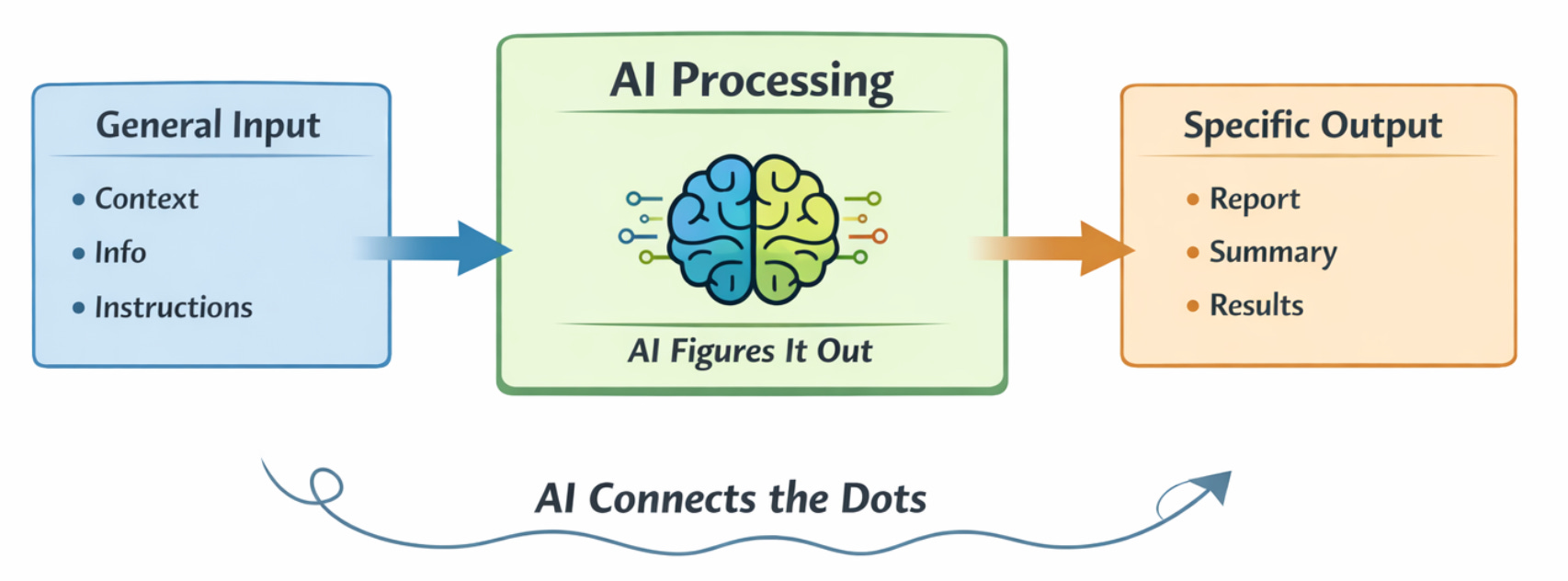
Here’s a real example:
My wife was spending 20 to 30 hours a month building homeschool lesson plans by hand. Most of this time was spent crawling through hundreds of pages of PDFs, cross-referencing documents, deciding what to keep and what to cut, what order to teach things in, compressing 19 days of material into 10.
This is the type of thing that would be almost impossible to build traditional software around.
It’s just too messy... too many branching decisions, too many unpredictable inputs.
So...
I built a skill instead.
All you have to do is drop the PDFs, image files - whatever you want - in a folder and run the skill. It reads everything, interviews you on how you want the material structured, and then generates interactive HTML lessons for each day... complete with images pulled from the source material, vocabulary sections, and generated quizzes.
We went from 20 to 30 hours of manual work down to ONE skill run.
The methodology that makes all of this feel buildable is dead simple:
Input
Process
Output
Or “IPO” for short. The nutty part is that you don’t even have to know the process in some cases. If you can describe your input and output, you can build a skill. The intelligence later - the AI - handles the process and the output entirely.
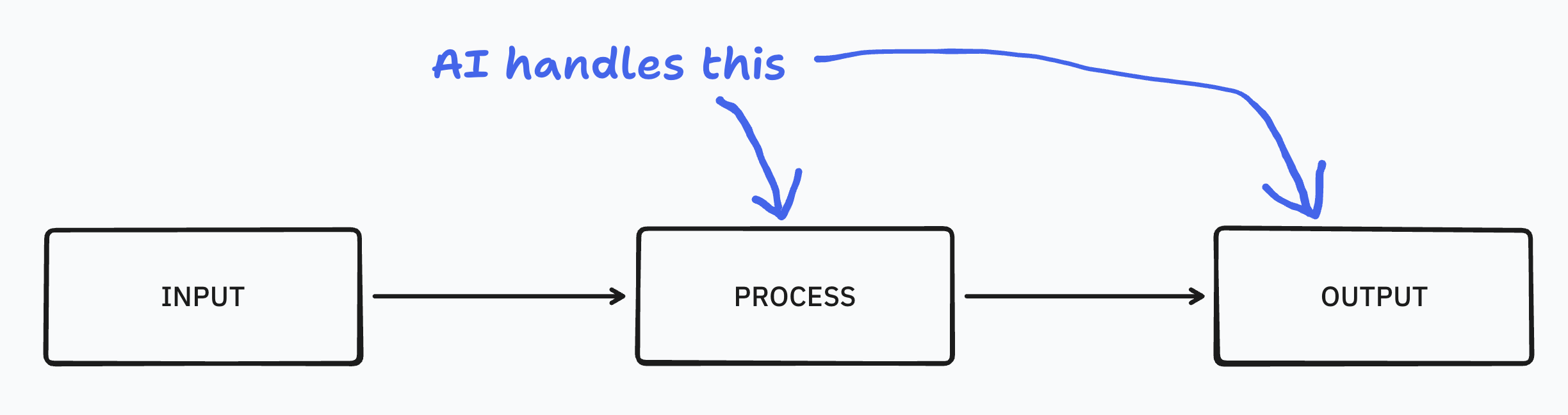
Back to the homeschool example:
I knew my input was PDFs, I knew I wanted interactive HTML lessons as output, but I had no idea how to get from one to the other (from input to output).
Thankfully, the skill figured it out.
What’s inside a skill
Before we start building, I want to show you what’s actually happening inside a skill. This takes about five minutes to understand and it’ll make everything else click faster.
A skill isn’t just a text file. It’s a folder.
And you can think of that folder as a bundle of knowledge you’re handing Claude for one specific workflow. Everything Claude needs to execute that workflow lives inside that folder.
Inside every skill folder, there’s one required file called the SKILL.md. That’s where the step-by-step process goes. Imagine something like, “Here’s what I need done. Here’s the order. Here’s what good looks like.”
(Don’t worry, you don’t have to write this file yourself either. There’s something called the “skill creator” that will help, but I’ll talk more about that later.)
In many cases, your entire skill might be captured in SKILL.md without any other supporting files.
But the folder can also hold anything else the skill needs, like reference documents, writing samples, templates, spreadsheets, images, HTML files, scripts... literally anything.
If Claude needs it to do the job well, you can put it in the folder.
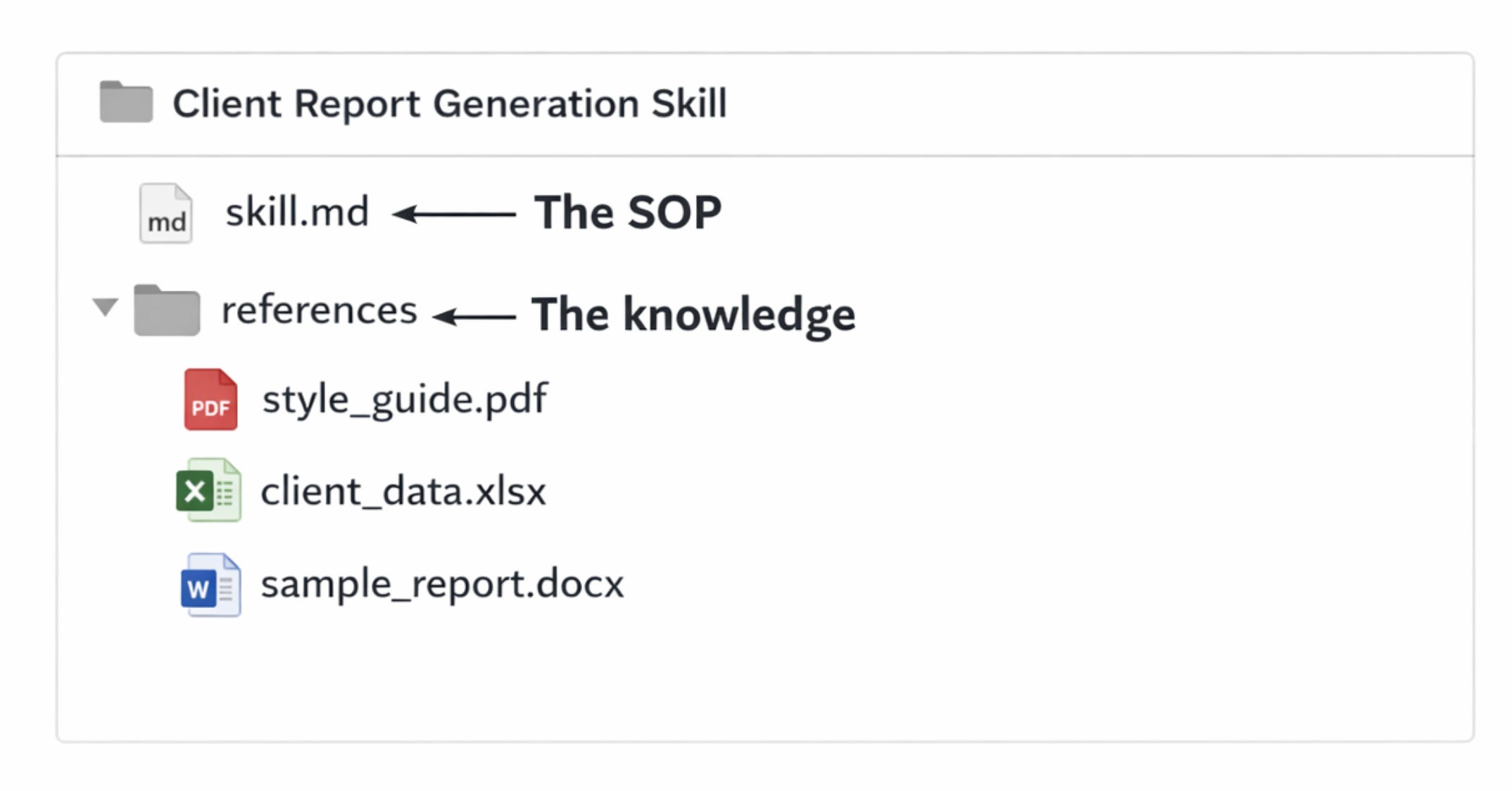
You can almost think of it like handing an employee an process binder on their first day.
Inside the binder is the actual step-by-step process. Maybe five pages.
But in the back, there are 50 pages of appendices. Appendix A, B, C, D. Slides, workflows, reference charts, tables, other processes to cross-reference, pictures... whatever supports the process. And as you read through the steps, the process occasionally tells you to flip to an appendix for more detail.
That’s exactly what a skill is. The SKILL.md tells Claude what to do, and the supporting material in the folder gives it the knowledge to do it well.
Claude can only hold so much in its head at once
Every time you’re working with Claude, there’s a limit to how much information it can juggle at the same time. The longer your conversation gets, the more files you pull in, the more that workspace fills up. And at some point things start to degrade. Claude starts losing track of earlier instructions and the responses get worse, not better.
Now picture 10 skills installed. If Claude loaded every single one of those into your conversation the moment you started a chat... all the instructions, all the reference files, all the appendices... that’s way too much for Claude to hold in its head at once. Your context window is blown before you even ask a question.
So skills are designed to be efficient about this. In technical terms, this is called “progressive
disclosure”.
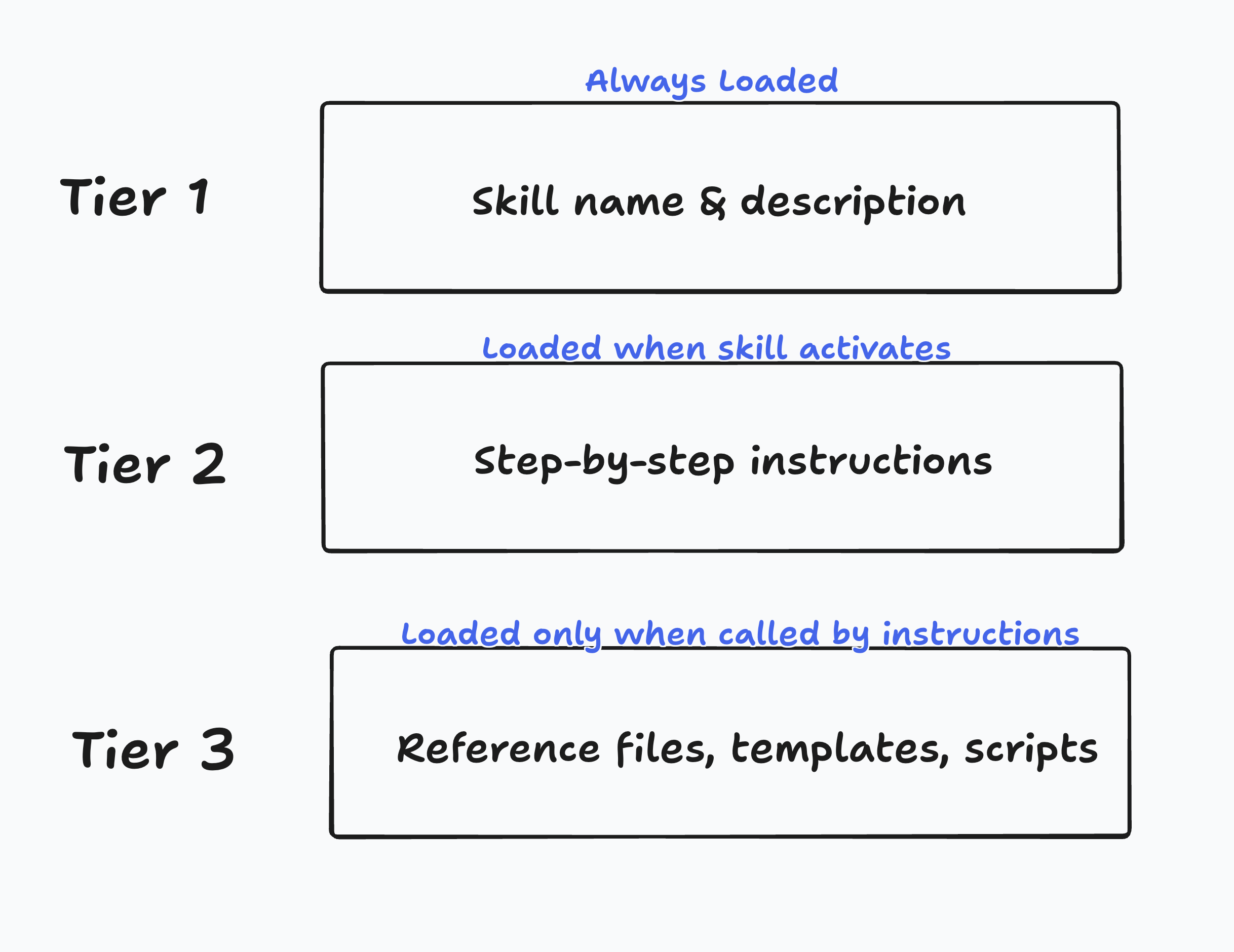
Claude only loads what it needs, when it needs it. There are three tiers of progressive disclosure.
Tier 1: The description.
Every skill has a short description at the top of its file. A name, a one-liner about what the skill does, and what kinds of requests should trigger it. This is the only part that’s always loaded. Claude scans all the descriptions to figure out which SKILL.md to load during your chats.
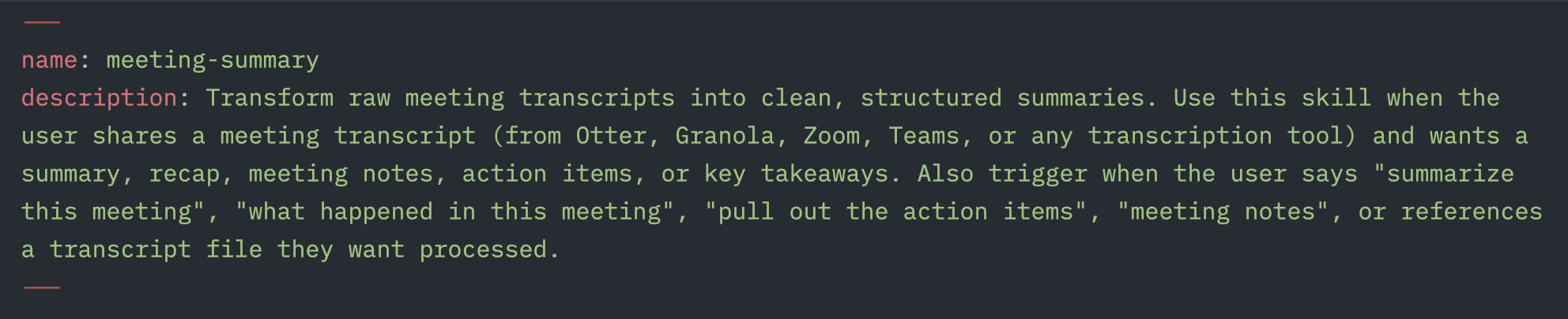
Tier 2: The step-by-step process.
When Claude decides a skill is the right fit, it loads the instructions from the skill.md. The SOP. This only shows up when Claude actually needs it.
Tier 3: The appendices.
As Claude works through the steps, some will say “read this reference file” or “use this template.” Only then does it load the supporting files in your folder structure. And when it’s done, it brings only the outputs of that material into your working session so it doesn’t bloat your context.
The whole thing looks something like this:
This is why the folder structure matters. When everything is crammed into one giant SKILL.md file, Claude loads all of it the second the skill fires. Your conversation gets heavier, responses get slower, things start to drift.
When the skill is structured right... lean instructions that point to reference files... Claude stays sharp because it’s only holding what it needs for the current step.
You don’t need to think about this much. The skill creator handles the structure for you - we’ll talk about how to use that later. But it’s helpful to know when you start building additional skills in the future.
How Claude decides which skill to use
When you type something into Claude, it reads every installed skill’s description to decide which one (if any) to activate. A vague description and Claude has no idea when to pick it. Too broad and it fires on everything.
Someone actually tested this. Skills with poor descriptions only activated about 20% of the time. One out of five. You ask Claude to do the thing the skill was built for... and four out of five times, it just doesn’t use it.
That’s a problem if you’re collecting skills and expecting them to fire automatically.
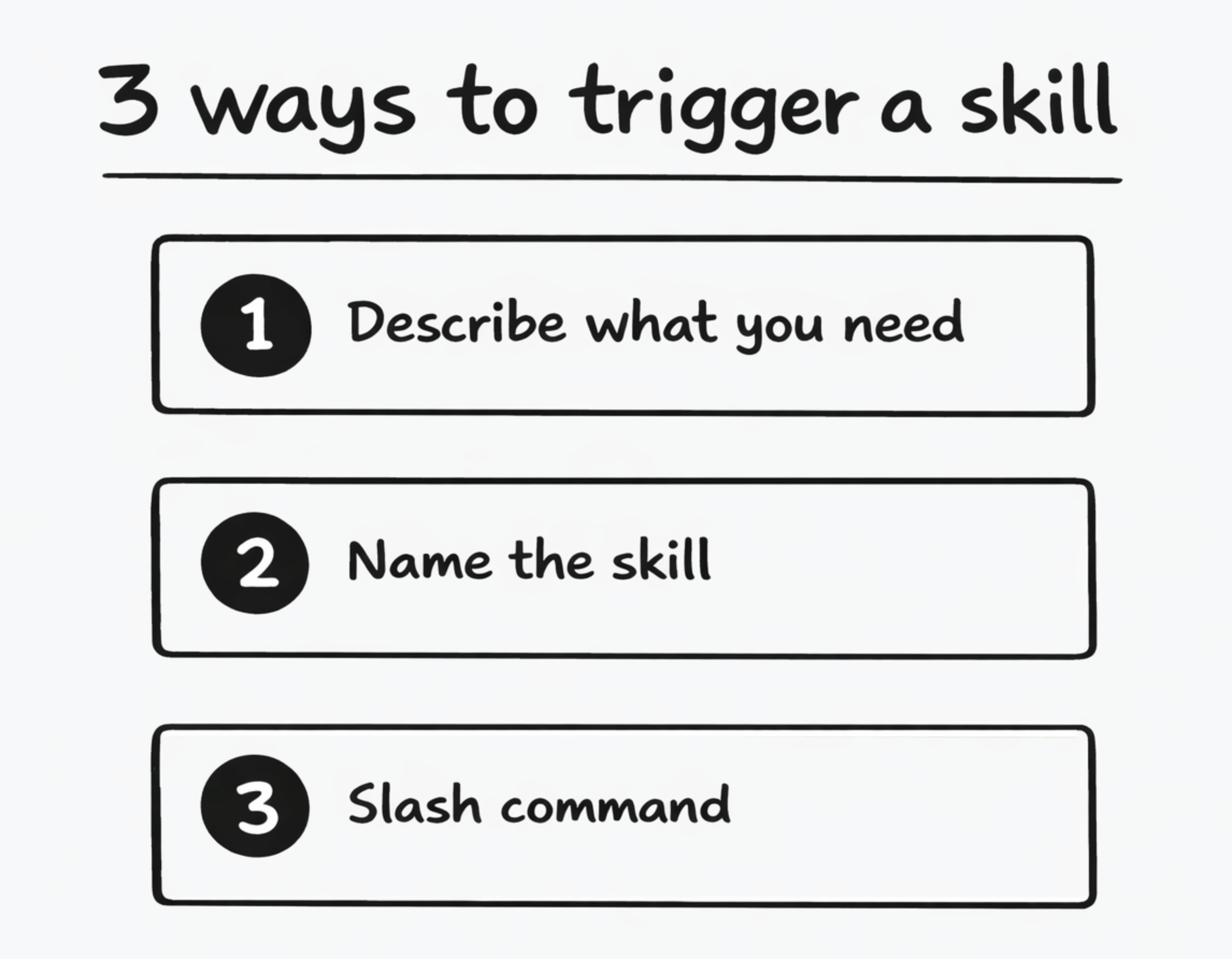
The easiest fix is to explicitly name the skill when you trigger it. Don’t just say “summarize this meeting” and hope Claude picks the right one. Say “use the meeting summary skill to summarize this meeting.”
Naming it fires the skill close to 100% of the time.
But there’s an even better way. You can type /meeting-summary directly and it fires the skill immediately. No guessing, no hoping. The slash command is basically a direct line to the skill. Most people who use skills regularly end up using slash commands more than anything.
Where to find skills (and a word of caution)
There are at least three places I like to download skills.
Claude’s built-in search.
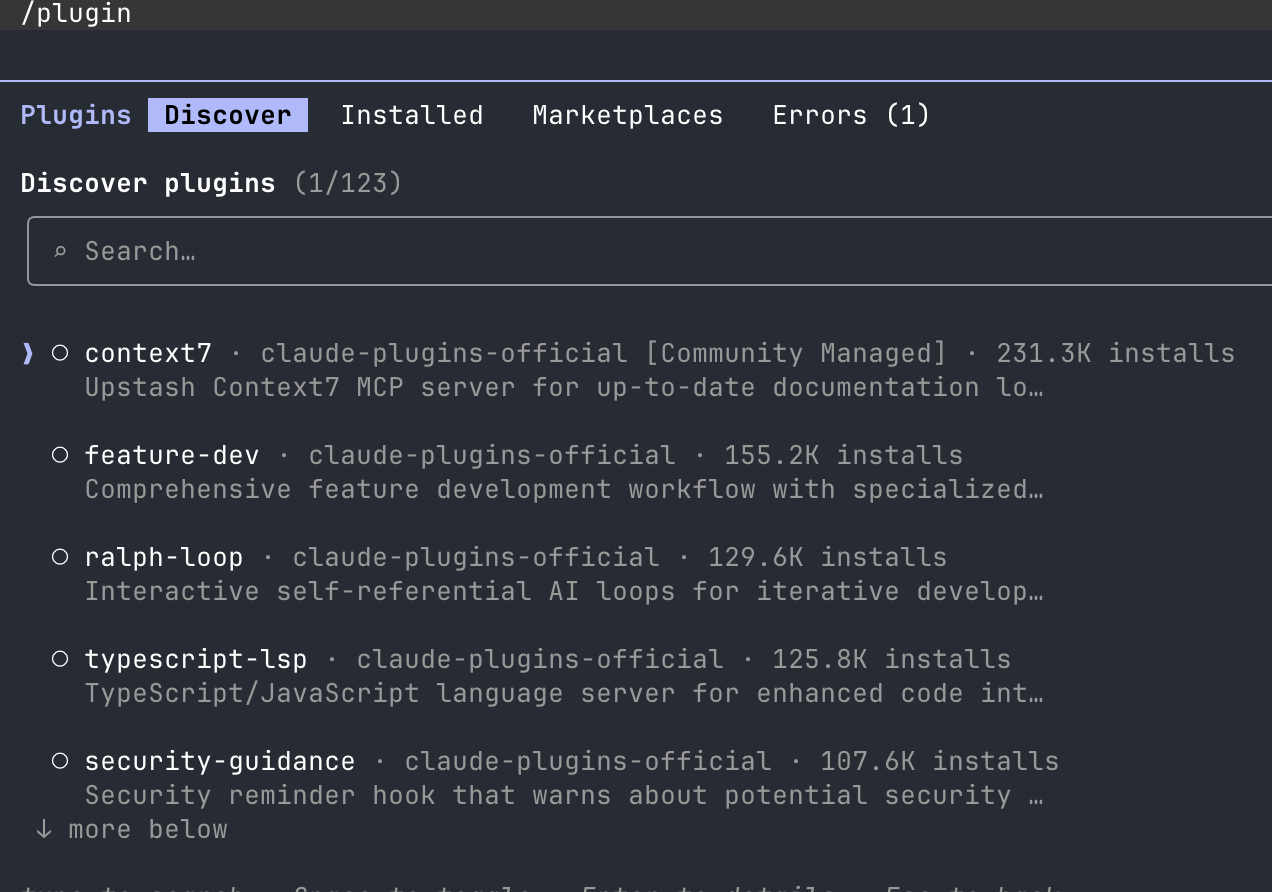
Type /plugins in Claude Code and you can browse skills right from the tool. Official skills, community skills, all searchable. Safest starting point.
GitHub.
You can search GitHub directly or just ask Claude to find skills for you. I look for repos with lots of stars and actual user feedback. If hundreds of people are using a skill, that’s a decent signal that it works.
Build your own.
This is where the real value lives, and it’s what we’re about to do. No downloaded skill knows your processes, your voice, or your business. The stuff you build yourself is the stuff that actually changes your workflow.
A quick word of caution: be careful with third-party skill marketplaces. This is still the wild west. Anybody can upload a skill and bury something in there you wouldn’t even notice. I mostly stick to official sources and things I build myself.
Skills can live in two places
One more thing.
Skills can be at the project-level, or the global-level.
Project-level means the skill lives inside your current project folder. When you open Claude Code from that folder (or navigate to it in your terminal before starting Claude), it picks up the skill automatically. If you’re working in a different folder, Claude won’t see it. The skill is tied to that project.
Global means the skill lives at your root level and works everywhere, no matter which folder you’re in when you start Claude.
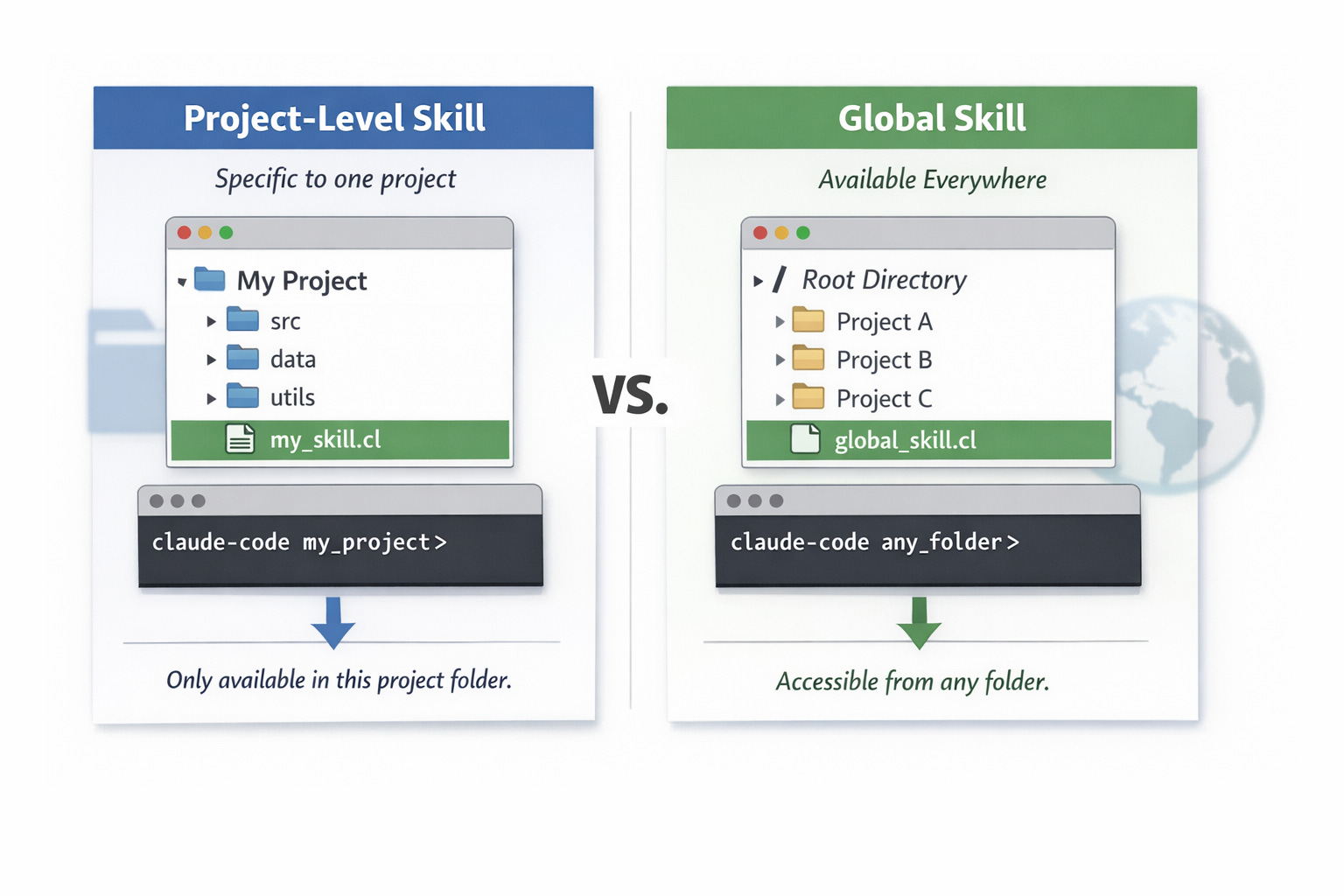
For most people, project-level is the right starting point. You can always move it later.
Alright. You know what a skill is, how the pieces fit together, and where to find them.
Installing the skill creator 😎
You’re going to use something called the skill creator... it’s a skill that builds other skills.
EASY.
First, we need to install it.
INSTRUCTIONS FOR CLAUDE CODE:
In Claude Code, type “/plugin”
Then type “skill” and use your arrow keys to highlight “skill-creator”. Press ENTER
Install
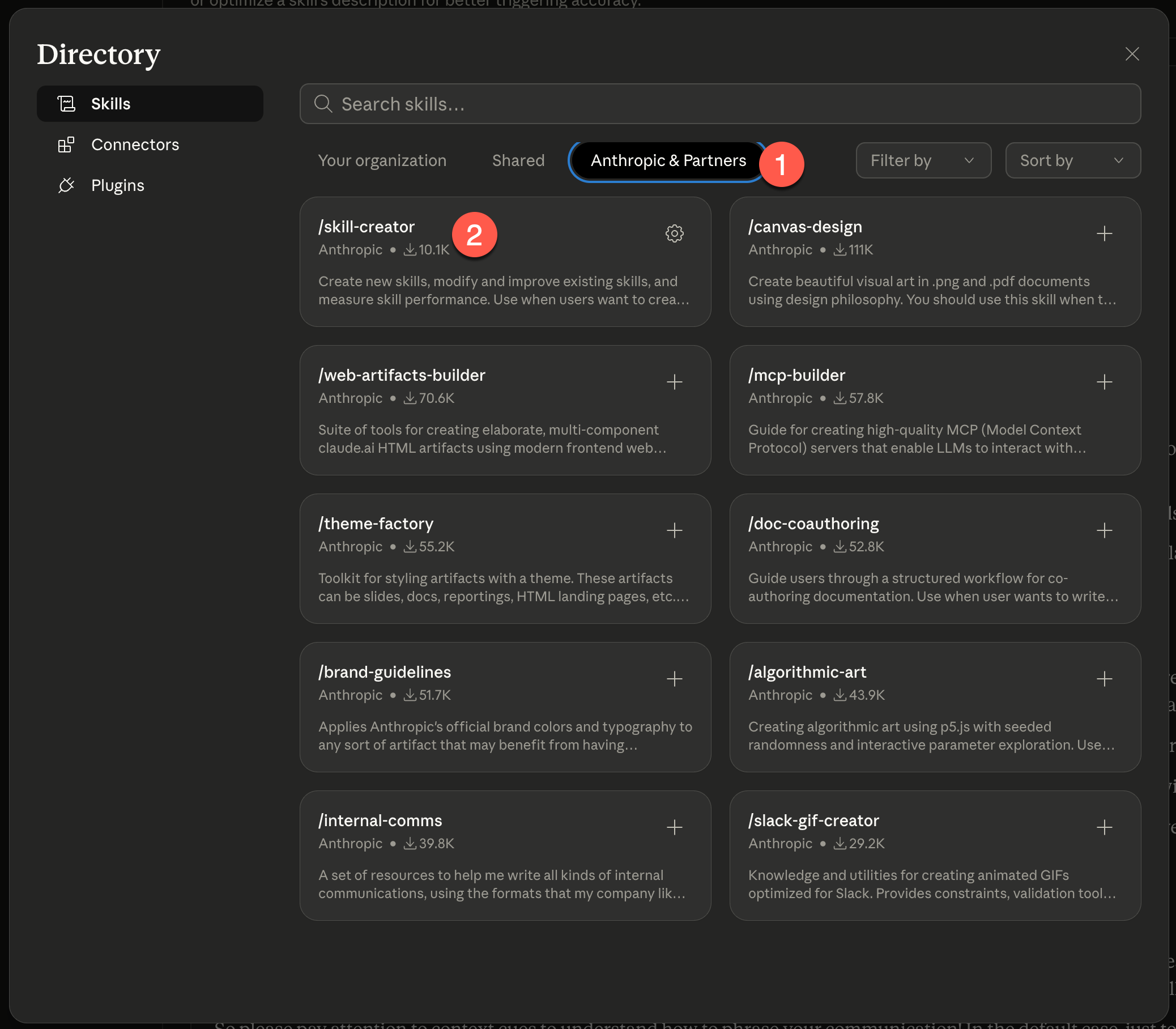
INSTRUCTIONS FOR CLAUDE DESKTOP:
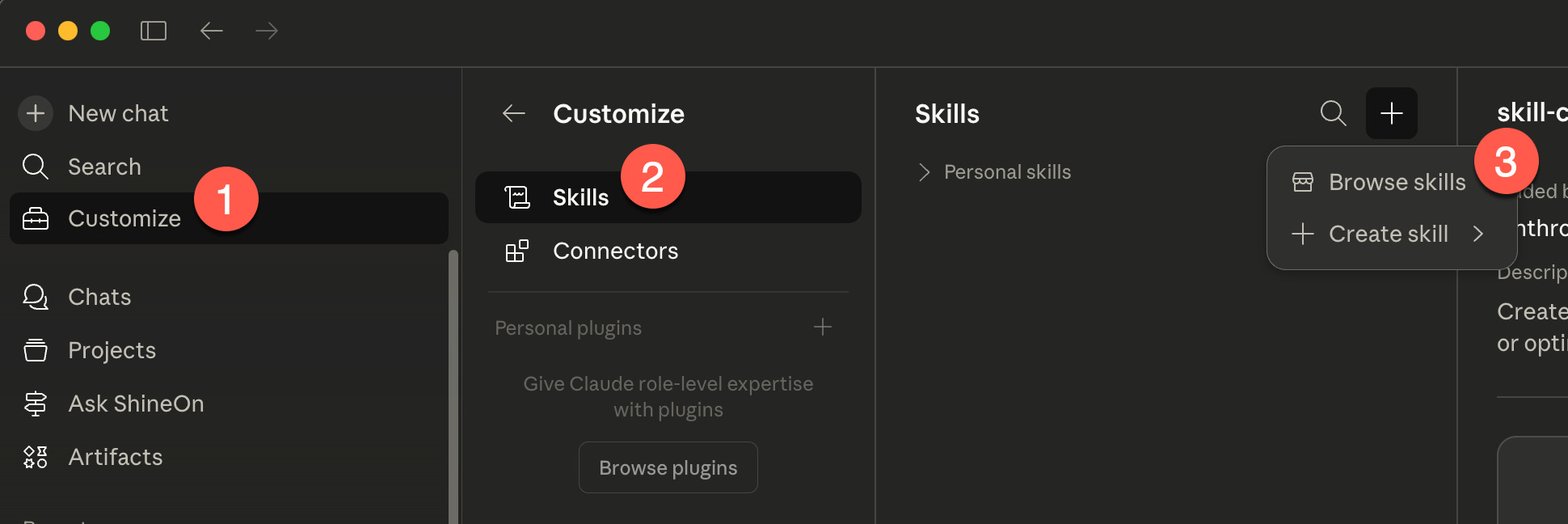
Click “Customize”
Click “Skills”
Click the “+” menu, and then choose “Browse Skills”
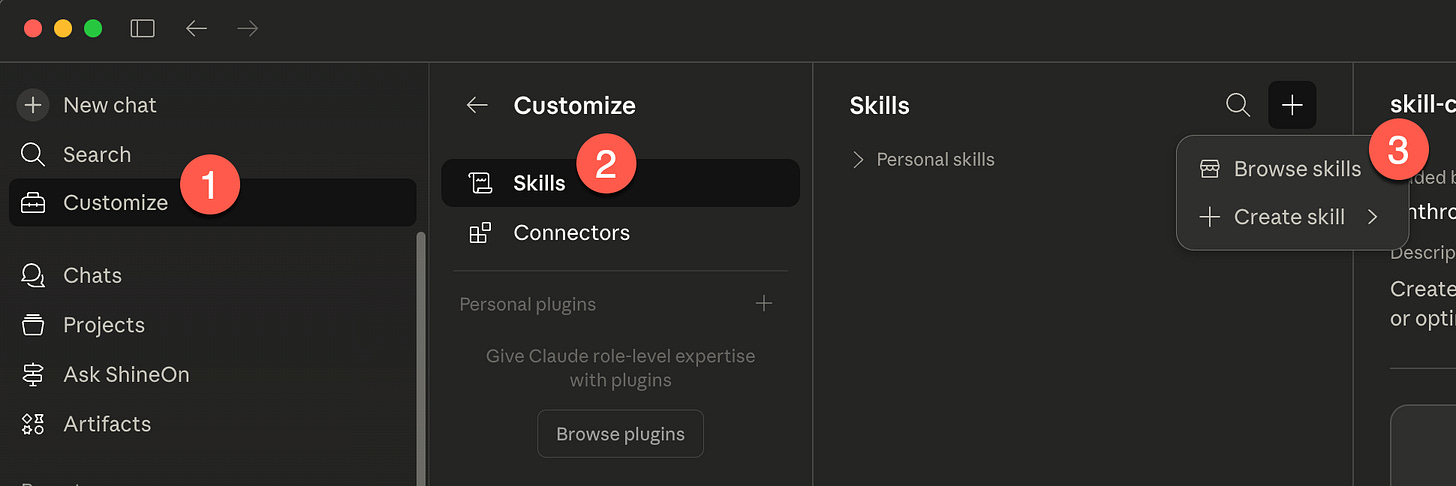
Next, click “Anthropic & Partners”
Finally, click the “+” button on the /skill-creator skill
Alright, now that that’s out of the way...
Let’s build! 👇
Build 1: Meeting summary
If you’ve ever left a meeting and thought “what did we even decide?”... this one’s for you.
We’re going to build a skill that takes a raw meeting transcript and turns it into a clean summary with decisions, action items, owners, and due dates. Messy stuff goes in, useful stuff comes out.
Input. Process. Output.
What you need before we start:
Claude Code installed and running in your project folder
A meeting transcript (from Otter, Granola, Zoom, whatever you use)
If you don’t have a transcript handy, grab one from your last meeting. Or click here to download a fake Dunder Mifflin one that I made up. The skill doesn’t care where it came from.
Step 1: Tell Claude what to build
Copy and paste this into Claude Code:
Use the skill creator to help me build a project-level skill called "meeting-summary."

Here's what I want it to do:

Input: A meeting transcript file. Could be a raw paste from Otter, Granola, or any transcription tool. I'll point the skill to the file when I run it.

Output: A clean, structured meeting summary that includes:
- Meeting title and date
- Attendees (pulled from the transcript if possible)
- A short 2-3 sentence executive summary
- Key decisions that were made
- Action items with owners and due dates
- Open questions or unresolved topics
- Any follow-ups needed

Process guidance:
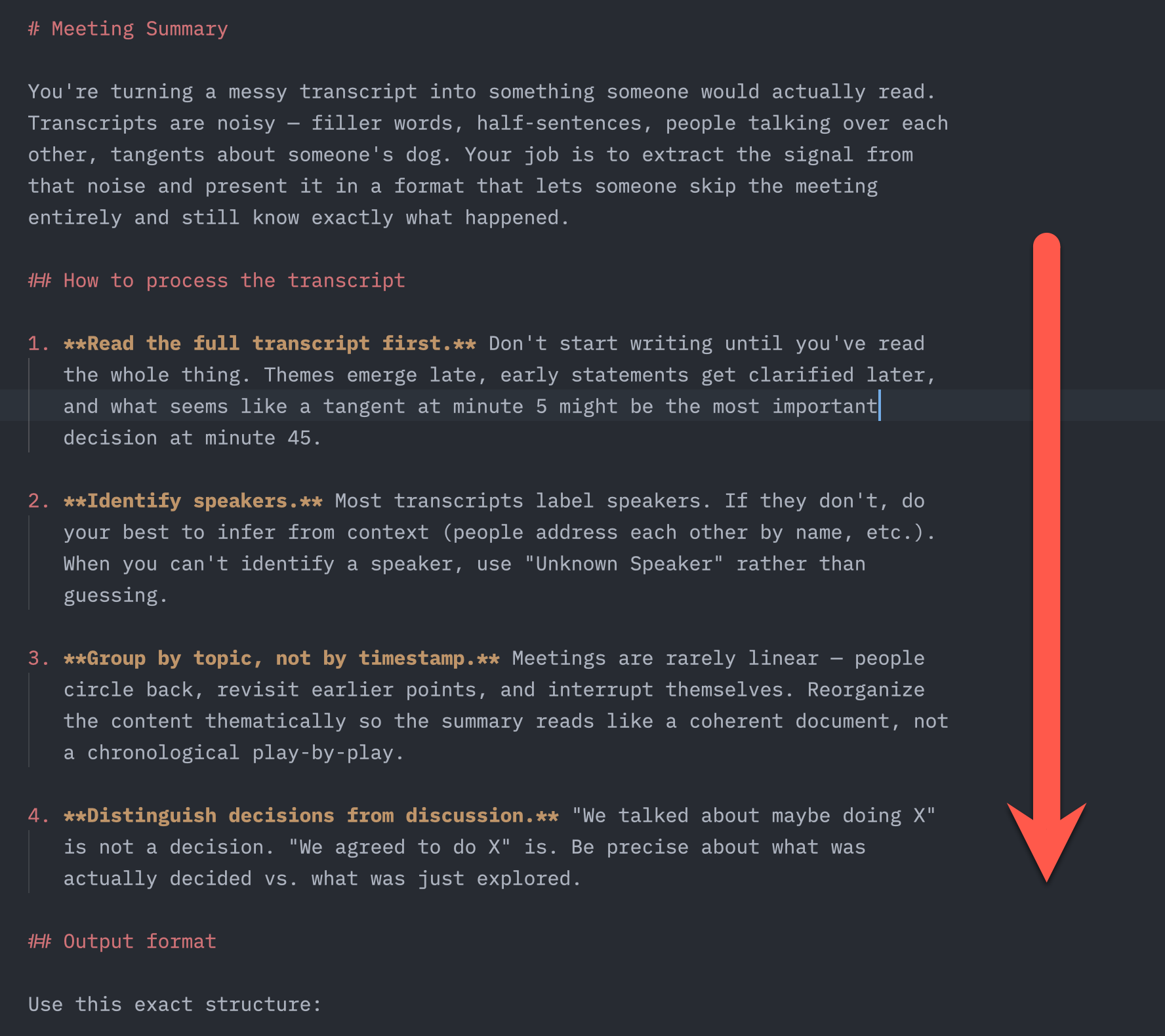
- The transcript will be messy. Filler words, crosstalk, tangents. Cut through the noise and extract what matters.
- Action items should be specific. "John will send the Q2 report by Friday" not "Q2 report was discussed."
- If owners or dates aren't mentioned, flag them as TBD so nothing falls through the cracks.
- Group related discussion points together even if they came up at different times.
- Keep the summary concise. Nobody wants a summary as long as the meeting.

Save this as a project-level skill.
Hit enter.
Step 2: Let it cook
After you hit enter, the skill creator loads up and gets to work. If your prompt was detailed enough (and the one above is), it’ll skip the interview and start building. If it needs more information, it’ll ask you questions first.
Either way, it handles the whole thing.
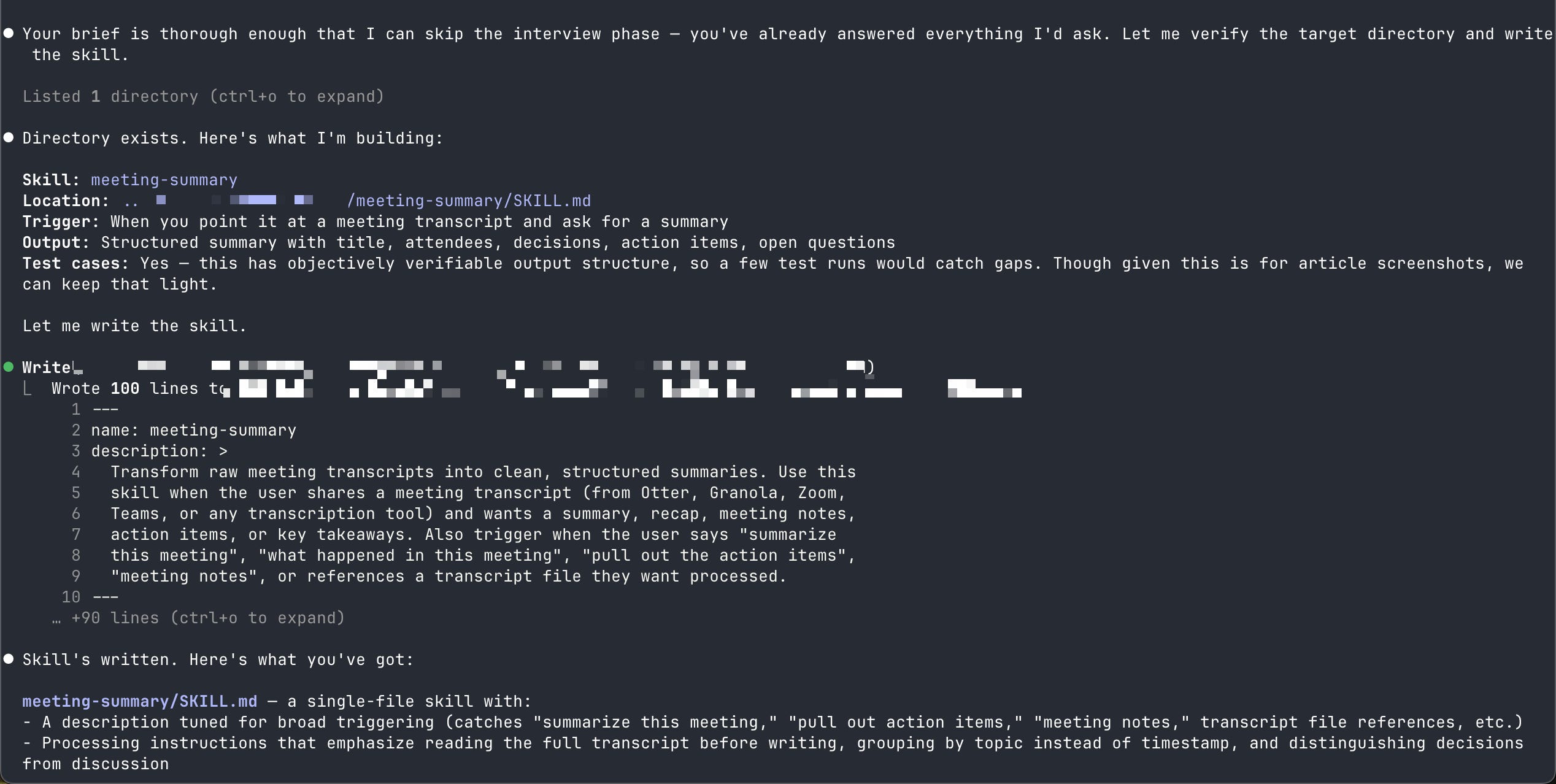
Mine took about a minute. Told me the skill was written, pointed me to the file, done.
That’s not a typo. ABOUT A MINUTE. You just built your first piece of custom software.
Step 3: Test it
Now let’s see it work. Find a meeting transcript and type something like:
Can you use the meeting summary skill to summarize this meeting?

[path to your transcript file]
I tested mine on a fake 20-minute meeting transcript from Dunder Mifflin. It was messy. Tangents everywhere, people talking over each other, someone going off about a beet farm for like three minutes. The kind of meeting where you walk out thinking “I have no idea what we decided.”
About a minute later, I had a clean summary. Seven key decisions, ten action items with owners, four open questions, and a list of follow-ups. Organized by topic, not by timestamp.
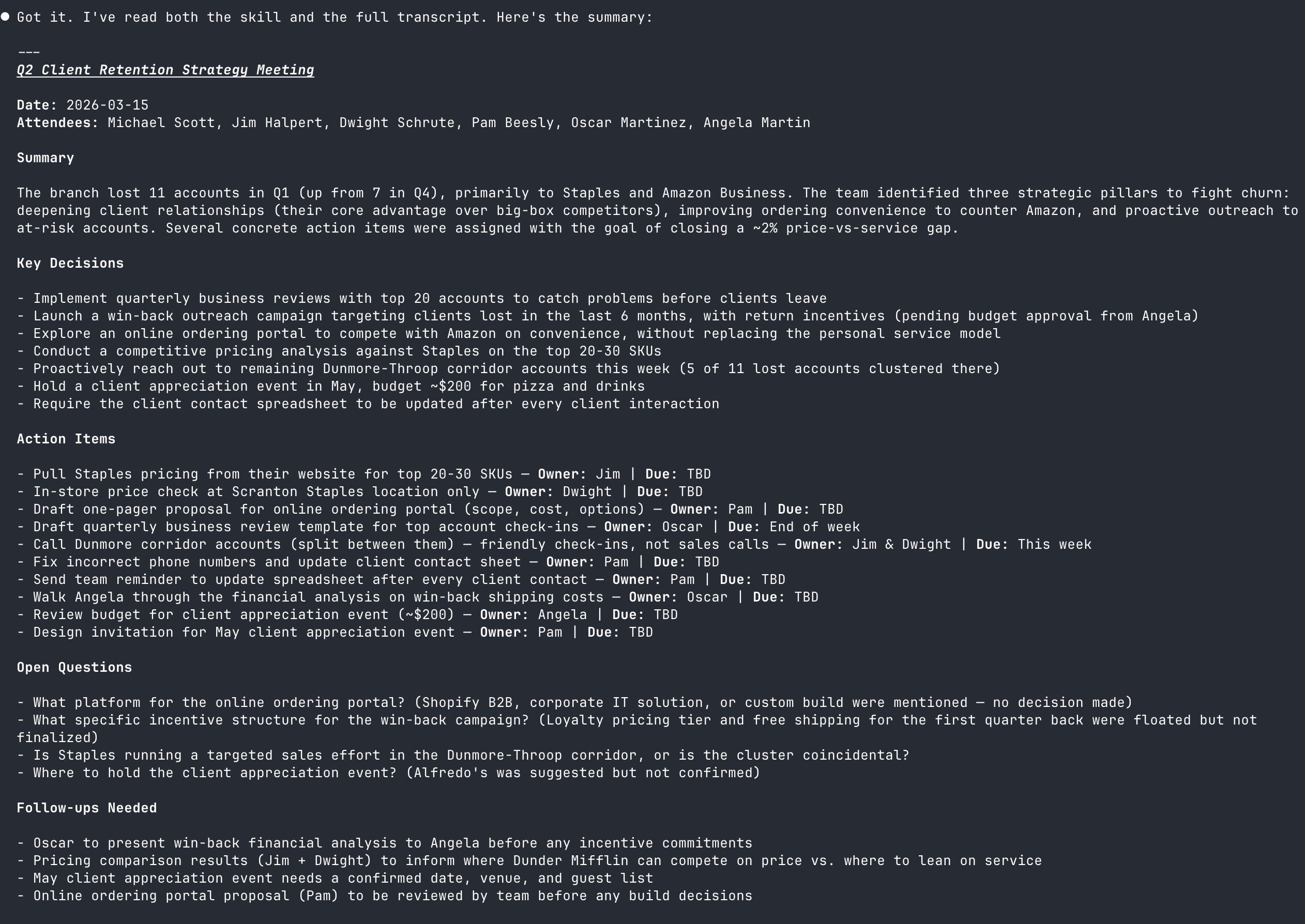
The transcript was 366 lines of chaos.
The summary was 46 lines of signal.
That’s the skill doing what you told it to do. Reading the mess, using judgment to figure out what matters, and giving you the output you defined. No prompt chaining. No copy-pasting. No babysitting.
Input. Process. Output.
And the next time you have a meeting to summarize?
Just rinse and repeat.
Build 2: Write like me
Grammarly costs $30 a month and makes everyone sound the same.
This skill is free and makes you sound like you.
We’re going to build a skill that takes any block of text and rewrites it in your voice. Your rhythm, your word choices, your energy.
This one’s different from Build 1. The meeting summary skill worked right out of the box because the instructions were enough. This skill needs to learn something first.
It needs to learn how you write.
That’s where the reference folder comes in.
Step 1: Tell Claude what to build
Same process as before. Copy and paste this into Claude Code:
I want to build a "write-like-me" skill for Claude Code. Before we build anything, I need you to learn my voice first.

Start by interviewing me. Don't ask me to describe my voice — most people can't. Instead, ask practical questions that reveal voice patterns:

  - What words or phrases do I never want to see in my writing?
  - Am I high energy or low energy when I write? Do I tell jokes? Use sarcasm?
  - How formal am I?
  - Any punctuation habits?
  - Who is my usual audience?
  - What platforms do I write for most?

After the interview, ask me for writing samples. At least 3, but 5-10 is better. Ask me to label each one by type (WORK EMAIL, LINKEDIN POST, BLOG, SLACK MESSAGE, etc.)

Once you have everything, use the skill creator to build a project-level skill called "write-like-me" that:

  - Has a references folder with all my writing samples, organized by type
  - Contains a voice profile built from both the interview and the samples
  - Rewrites any text I paste to match my voice — rhythm, word choices,
    paragraph structure, energy, everything
  - Checks if I mention a platform/context and weights matching samples
    accordingly
  - Is daily-use only. No setup phase, no interview questions in the skill
    file. All the voice intelligence is already baked into the profile and
    reference samples.

Save this as a project-level skill.
This time, something different happens. The skill creator doesn’t just build and leave.
It starts interviewing you.
Step 2: The interview
The skill creator asked me six questions, one at a time. Things like “what words make you cringe?” and “on a scale from texting a friend to legal document, where does your writing land?”
These aren’t throwaway questions.
If you’ve never sat down and thought about how you write... this interview is going to force you to.
What punctuation do you reach for?
How formal are you?
Do you use humor?
Most people have never thought about any of this stuff. The interview alone is worth the ten minutes.
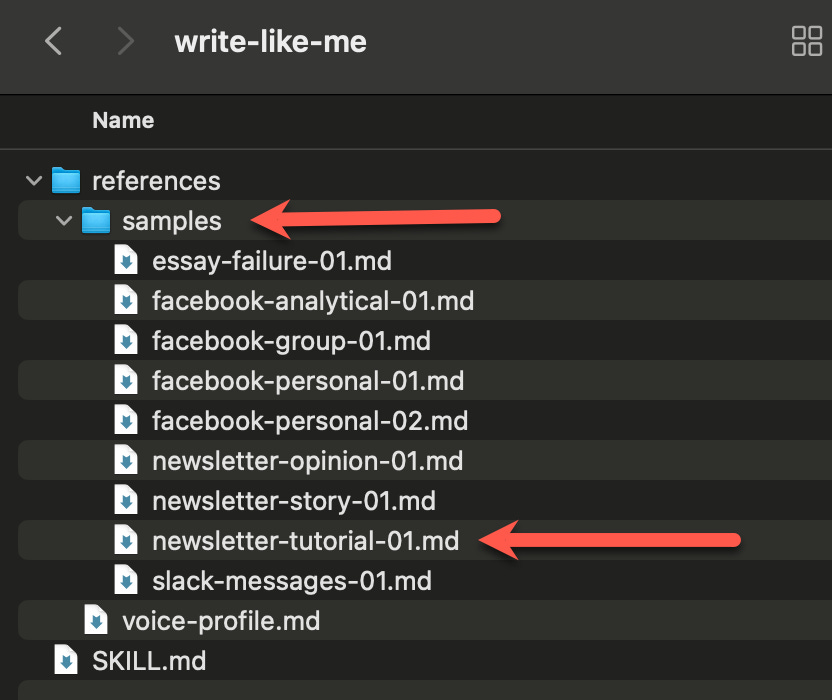
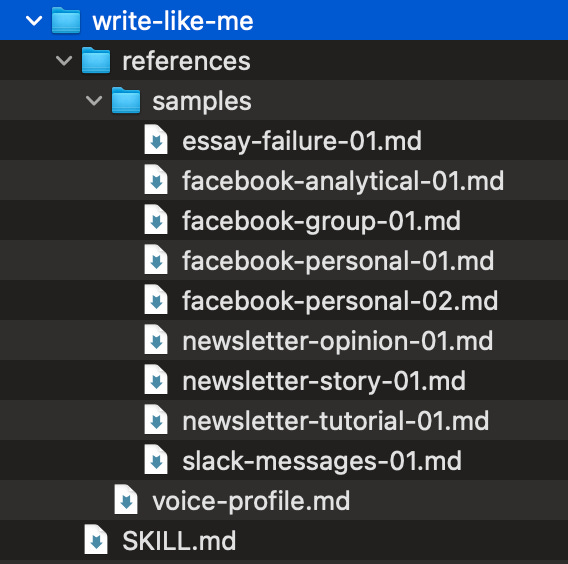
After the questions, it asks for writing samples. I had about nine samples already gathered (emails, blog posts, Facebook posts, Slack messages), so I just pointed Claude at the folder and it read everything, organized it by type, and saved it all to a references folder inside the skill directory.
You can also paste samples in one at a time. Either way works. The more samples you give it, the better it gets.
The whole setup took me about 10 minutes.
Step 3: See what it built
After the interview and samples, the skill creator generates two things:
A voice profile that captures your rules (banned words, punctuation habits, formality level) and your patterns (sentence structure, paragraph rhythm, how you build arguments). A cheat sheet of your writing DNA.
A references folder with all your writing samples, organized and labeled, ready for the skill to study every time it runs.
The skill folder isn’t just one text file anymore. It has a whole reference library inside it. The meeting summary skill was a set of instructions. This skill is instructions plus source material.
And that combination is what makes it powerful.
Step 4: Test it
I asked ChatGPT to write a paragraph about morning routines. Here’s what it gave me:
A consistent morning routine can set a positive tone for the entire day, helping you feel more focused, organized, and in control. By starting your day with intentional habits — such as stretching, journaling, or planning your tasks — you reduce decision fatigue and create a sense of stability. Morning routines can also improve mental clarity and productivity, as your mind is typically freshest after waking up. Over time, these routines can support better time management, reduce stress, and even improve overall well-being by ensuring you make space for healthy behaviors before daily distractions take over.
Eww.
One dense, sterilized paragraph of averageness.
Could have been written by anyone.
Alright, now it’s the skill’s turn.
I pasted it into Claude Code and said “use the write like me skill to rewrite this.”
Here’s what came back:
Your morning sets the ceiling for the rest of your day.
Most people wake up and immediately start reacting. Emails, notifications, whatever the kids need. By 9am, your brain is already scattered.
A morning routine fixes that.
It doesn’t have to be complicated. Stretch. Write down what’s on your mind. Look at your calendar and decide what matters today. That’s it.
The reason it works is simple... your brain is freshest when you wake up. Before the world starts pulling at you. So you front-load the thinking while you still have the capacity for it.
Do this for a few weeks and something shifts. You stop forgetting things. You stress less. You feel like you’re driving the day instead of the day driving you.
Notice the short paragraphs, sentence fragments, ellipses for pacing, direct address, conversational energy.
It sounds like a person wrote it.
Awesome.
You just taught Claude your voice with a text file and some examples.
Skills hiding in your workflow
Once you start seeing skills through the IPO (Input-Process-Output) lens, they show up everywhere. Every repetitive workflow, every process you’ve been doing by hand, every app you’re paying for that only does one or two things.
Here are a few ideas to get your wheels turning:
Research to recommendation.
Dump your scattered notes and sources in, get a decision memo out with options, tradeoffs, and a recommendation. Replaces hours of synthesizing by hand.
Email response drafter.
Point it at an email you need to reply to and get a draft back in your voice with the right tone and next steps. Replaces staring at a blank compose window for 20 minutes.
SOP builder.
Feed it a messy explanation, a Loom transcript, or a Slack thread where someone explained a process. Get a clean, usable standard operating procedure out the other end. Replaces the thing nobody ever gets around to documenting.
Weekly status writer.
Give it your notes and task list from the week, get a polished update with wins, blockers, and asks. Replaces the Friday afternoon scramble.
Brand namer.
Describe your product or business. Get a curated list of name candidates with rationale. I built mine by studying how the best brands in the world got their names and reverse-engineering the process from naming consultants. Replaces a $5,000 branding agency engagement (or agonizing over it alone for weeks).
Slide storyliner.
Raw thinking and notes go in. A deck narrative comes out with the title, arc, key slides, and what each slide needs to accomplish. Replaces opening PowerPoint and staring at a blank slide.
Feedback theme extractor.
Throw a pile of customer feedback or survey responses at it. Get clustered themes, recurring issues, notable quotes, and recommended actions. Replaces reading 200 survey responses with a highlighter.
You get the idea.
Notice that none of these ideas are flashy. None of them are “build me an autonomous AI agent that runs my entire business.”
The best skills are boring, high-frequency, error-prone workflows that you do every week. An hour here, 30 minutes there.
That’s where the time comes back.
This isn’t just a personal productivity thing. Companies like Stripe and Cloudflare are already building internal skills to replace tools they used to pay for. SaaS stocks took a $285 billion hit earlier this year, and a big part of that story is this exact shift... companies realizing they can build custom tools in English instead of buying off-the-shelf software.
You’re learning the same skill (pun intended) that’s reshaping how companies think about software.
If the app takes an input, runs a process, and gives you an output... you already know the framework.
Input. Process. Output.
Hard won tips that took me 20+ skills and 100s of skill-runs to learn
Always use the skill creator.
Don’t try to write the skill file by hand. The skill creator interviews you, builds the folder structure, writes the instructions, and gets it right the first time. It’s better at building skills than you are. Let it do its job.The power is the folder.
Build 1 was a single text file. Build 2 had a reference folder with writing samples and a voice profile. That’s where skills start to get interesting. You can add reference material, templates, examples, documentation... whatever the skill needs to do its job well.Tell it how to think about the material and it can work through all of it. This is where a skill stops being a fancy prompt and starts becoming a mini app.
Fewer skills is better.
I have 20+ skills and honestly, that’s probably too many. Skill bloat is real. Before you build a new one, ask yourself: do I need this, or am I just excited? And think about whether it should be project-level or global. If you’ll use it across multiple projects, build it global so you’re not maintaining duplicates.Simple beats complex.
I’d almost rather have two simple skills that reference each other than one giant complex one. Simple skills break less. They’re easier to update. And they’re easier to trust.Keep the SOP under 200 lines.
Your skill.md is the step-by-step process, not the encyclopedia. If you’re past 200 lines, you’re probably cramming knowledge into the instructions that should live in a reference file instead. The SOP says what to do. The reference files provide the context to do it well. Think of it this way... if your SOP binder is 200 pages of instructions and zero appendices, something went wrong.Tell Claude what, not exactly how.
Your instinct when writing a skill will be to spell out every step, every edge case, every possible scenario. Don’t. Claude is already smart. It doesn’t need you to explain what a PDF is or how to read a spreadsheet. What it needs from you is the process, the judgment calls, and your definition of what good looks like.Give it the information and the flexibility to figure the rest out. Over-specifying is the fastest way to get rigid, brittle output... which is the exact thing skills are supposed to fix.
Skills can test themselves.
The skill creator has a built-in eval system. You can define what “good output” looks like, run the skill five times against the same input, and score the results. You can even A/B test two versions of the same skill to see which one performs better. If you’re the type who wants data instead of vibes... it’s there.Skills get better over time.
You can add a learnings file to any skill that captures what’s working and what isn’t. Every time you run the skill and give it feedback, that feedback accumulates. The skill you’re using three months from now can be meaningfully better than the one you built on day one... without you having to rebuild anything.When a skill gives bad output, diagnose before you rebuild.
There are really only two things that go wrong with a skill. Either the process is off (it’s doing the wrong steps, or doing them in the wrong order) or the knowledge is off (it doesn’t have enough context, or the context is wrong).If the steps are the problem, fix the skill.md. If the knowledge is the problem, update or add reference files. Most people’s instinct when a skill underperforms is to scrap the whole thing and start over. Don’t. Figure out which half is broken first. It’s almost always a small fix.
Skills can call other skills.
One skill can hand off to another mid-workflow. My copywriting skill, for example, runs everything through a separate voice-matching skill before it delivers the final output. Chainable mini apps. You don’t need this on day one, but it’s good to know it’s possible.
The bridge was a boring plain’ol English text file
At the start of this article, you were on one side of a gap:
Using AI, but your workflows hadn’t changed. Prompting, reading, adjusting, prompting again. Doing the work with AI instead of having AI do the work.
Now you’ve built two skills. One that turns messy meeting transcripts into clean summaries. One that rewrites anything in your voice. Both from plain English. Both in minutes.
And you have a framework that makes the next one feel just as buildable.
Input. Process. Output.
One more thing worth knowing:
The skills format is an open standard. Anthropic open-sourced it, and OpenAI adopted it. What you build in Claude works in other tools too.
You’re not locked in.
And skills aren’t just a Claude Code thing. If you use Claude on the web (claude.ai), you can upload skills there too... same format, same results. Cowork (Anthropic’s computer-use agent) supports them. The skills you build in this article work everywhere Claude does.
What you build travels with you.
The gap between “I use AI” and “AI runs my processes” was never about code or technical skill.
It was a text file, a reference folder, and a clear definition of what you wanted.
Now, go automate something.
Take care & see you in the next one
-Michael
P.S. If you found this useful, it’d mean the world to me if you subscribed, restacked, or dropped a comment. All of that’s free for you but a huge boost for me, and I’d really appreciate it.
Your articles are so clear, straightforward and helpful that I couldn’t be more
grateful!
Well written!