

How to Automate Every Meeting On Your Calendar with 1 Cowork Agent (Prompts Included)
For anyone in 20+ hours of meetings a week who forgets half by Friday. The full build (every prompt included) that makes you look like you remember everything.

Every AI notetaker promises to solve your meeting problem. Mine recorded 400 meetings last year and the problem got worse.
I have transcripts piled to the moon in note taking apps I don’t even own. I’d agree to an action item on Monday and completely forget it by Thursday. Finding anything from a past meeting meant reading hours of transcripts.
If you spend half your week in meetings like I do, you know this feeling.
So, I built a system in Claude Cowork that solved this problem for good. In this article, I’m going to show you how you can build this system too.
Don’t worry, as with all of my articles, no code is required and I’ll show you how to do everything step-by-step. Cowork builds every piece of it for you.
(And if you want the shortcut, I provide all of the prompts you can simply copy and paste.)
Here’s what this system will do for you:
Every meeting lands on your computer as a clean note with the summary, decisions, action items with owners, and the transcript at the bottom for reference
You can search years of meetings in seconds and pull up any decision, action item, or data point you couldn’t quite remember
You walk into your next recurring meeting with a prep brief already drafted from the last few times your team met
A daily work log writes itself on top of all of it, so by Friday you can see exactly what your week contained
The full easy-to-follow build is next, with prompts you can copy and paste to stand it up, plus a handful of upgrades you can layer on to make it yours.
Follow the whole thing and you can have your own version running in about 30 minutes, and it’ll save you hours every single week.
Let’s go 👇
If this looks worth your time, save it, build it sometime this week, and send it to the one friend you know that needs it.
You Can’t Out-Discipline This
Tell me if you’ve been here before:
You’re in a group meeting with five or ten people on it and the topic doesn’t involve you right now. So you’re multitasking. You’re rightfully trying to redeem the time, and you’re slowly getting absorbed in your own things.
Within a few minutes, you’re fully into other tasks. And then you hear your name.
“John, what do you think about this?”
Or maybe it’s worse.
“John, can you take this action?”
You wake up. You’re back in the present moment, and you don’t quite know how you got there. You don’t want to look like you weren’t paying attention, so you say “yeah, yeah, sure, I got that action.”
Then you pretend to write something in your notes.

I’m very guilty of this. I multitask all the time. I have to. I don’t have enough hours in the day to join all the meetings I need to and do my regular work.
As a leader in a modern office job, I spend at least half of my week in meetings. Easily 20 hours, sometimes more. By the time Thursday rolls around I can’t fully reconstruct what I committed to on Monday. I had a KPI meeting the other day where we identified 110 KPIs and outlined a bunch of next steps. It took me two days to get around to it.
By then, I couldn’t even remember what those “next steps” were.
And even when you ARE paying attention, you can’t always take good notes. Maybe today is the day you had a doctor’s appointment and you’re driving back and forth, listening to the meeting while navigating traffic. You can’t write notes while you drive.
Or maybe you’re physically in the meeting room but the conversation is moving too fast to catch every decision and action item that flies by.
This is where an AI note taker comes in. Something like Granola that sits on your computer and listens to every meeting, transcribing everything in real time. You don’t have to write a single thing down. The capture problem mostly gets solved.
Yay.
But now you have a bunch of transcripts on the cloud somewhere. Ten meetings a week. Ten thousand words a meeting. And next Tuesday somebody will inevitably ask you about a decision that was made three weeks ago and you can’t remember which meeting it happened in.
Or something comes up an you want to know what action items are still open across all your meetings. Or maybe you walk into a recurring meeting and you can’t remember what you discussed last time. Or your boss is asks about a data point came up in a meeting last month and you need it now but you can’t remember where.
The problem is that capture is the easy part. But a transcript on its own is just data. It only becomes useful when you can turn it into the thing you actually need:
A decision pulled in seconds when somebody asks
An action item surfaced before you forget it
A brief for the meeting you’re walking into in fifteen minutes
That’s the layer we’re going to build.
Here’s What You’re Building
I had a manual version of this for years.
Before AI showed up, I took tons of notes on every meeting. In Slack, you can click your own name in the sidebar to send messages to yourself. That’s where I wrote all my work notes for years. Slack organizes messages by day automatically, so if I needed to find notes from a specific meeting, I could just scroll up to the date. And Slack is searchable, so I could find a phrase later if I needed it.
It was simple, and it worked for me. For years.
Then Claude Desktop showed up and it blew my freaking mind. For the first time I had intelligence sitting on top of my file system. I knew I had to get all my meeting transcripts in a place where Claude could read them. Because there was so much more I could do with the raw material if I just gave Claude access to it. Way, way, way more than I could do with my scrappy Slack notes.
So then I started building. I put together an automatic note-taking system that saves me literally hundreds of hours a year.
If you build the system I’m going to walk you through below, here’s what you’re going to get:
Every time you have a meeting, the transcript ends up on your computer. In a folder you actually own, with a clean filename you can find later.
You get a structured summary of every meeting, built around the things that actually matter to you. Decisions made, action items with owners, key points with timestamps, whatever fields you care about most.
You can take those summaries and launch them into the rest of your work. Once Claude has the meeting context, it can draft just about any artifact you need from it. Tomorrow’s executive summary off this morning’s call. The SOP you’ve been putting off based on the new process the team agreed to. The deck for next Tuesday’s recurring meeting built from the last three Tuesdays. The meeting minutes you have to send out by EOD. Whatever you have to deliver next, you can start it from your meeting notes.
And at any point, ever, you can search across every meeting you’ve ever had and find exactly what you need within seconds.
Literally seconds.
The decision from three weeks ago, the action item that didn’t make it onto your list, the data point that came up once in a conversation last month and disappeared, the thing someone said about a project that you can’t quite remember. All of it is sitting right there waiting for you.
The whole thing is SUPER SIMPLE to set up. You don’t have to be technical to build it. We’re going to use Claude to help us write every piece of it.
By the end of this article, you’ll have your own version up and running.
Watch It Work
Once this system is running, it changes the texture of your work day. Let me walk you through a few moments that happen to me on the regular.
Working the meeting summary.
You had a heavy meeting on Monday and walked out with a vague sense of what you committed to. Wednesday rolls around and now you actually have to do the work. I had this exact thing happen last week. We identified 110 KPIs in a single meeting and outlined a whole stack of next steps. Two days later I had to act on it.
Instead of trying to reconstruct any of it from memory, I opened the meeting note. The action items were right there with who owned each one, the decisions were right there with the rationale, and the full conversation was in the raw transcript if I needed to go back to it. I didn’t have to remember any of it. I just had to read.
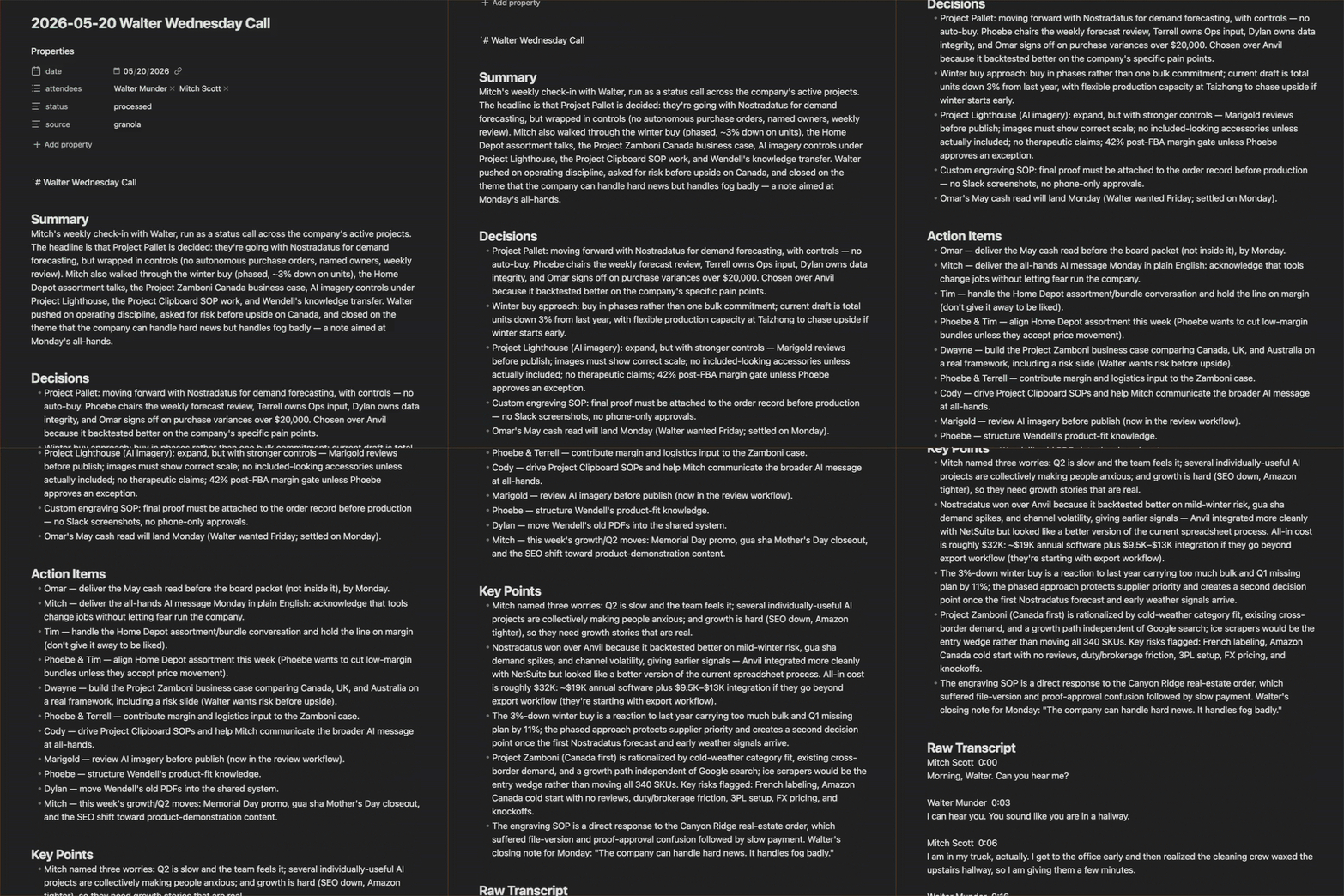
This is the day-to-day payoff. Every meeting on your calendar produces a clean note built around the fields that matter to you. When it’s time to act on something a few days later, the note is sitting there waiting.
Meeting prep.
You have a recurring meeting in 15 minutes. You haven’t touched the project in two weeks and you can’t really remember where you left off last time. Normally this is where you’d waste the first 10 minutes of the meeting rebuilding context with everyone else.
Instead you ask Claude to review the last several meetings on this recurring event and surface what’s been covered, where you’re at, and what needs to happen next. It hands you back a brief that covers last meeting’s decisions, the action items that were assigned, the open questions, and the two things that came up that need to be discussed today.
You walk in with full context. Nobody wastes the first 10 minutes recapping. You can actually get to the work.
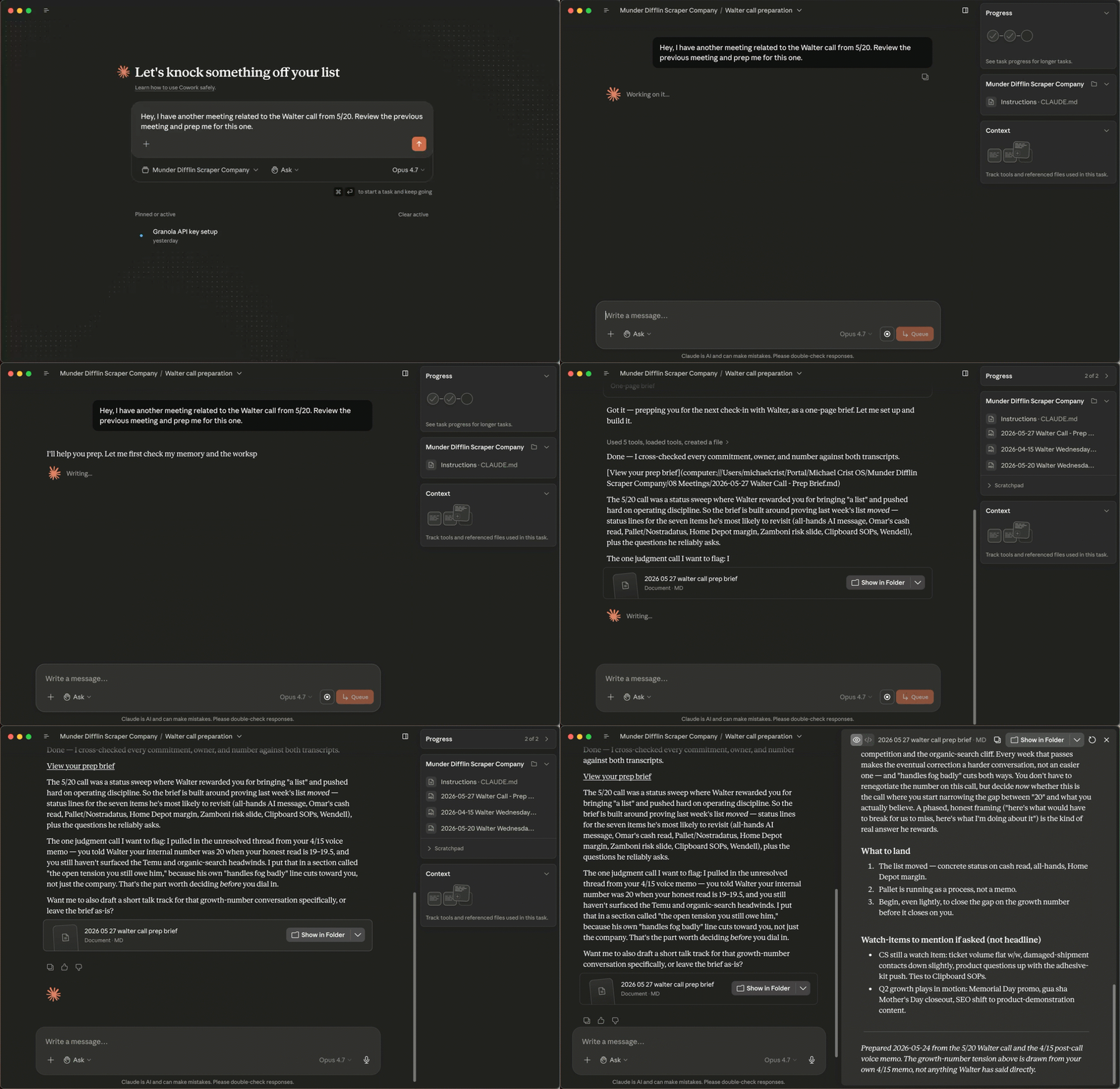
Mid-meeting search.
You’re in a meeting and someone mentions a project from a few weeks back and asks what you decided about it. Normally this is the moment you’d stall. You’d say “let me get back to you on that” or try to bluff your way through.
Instead, you quietly ask Claude to search your past meeting notes. In seconds it finds the decision, who made it, the context around it, and the action items that came out of it. You wait for the right beat to chime in and answer like you’ve been holding it in your head the whole time.
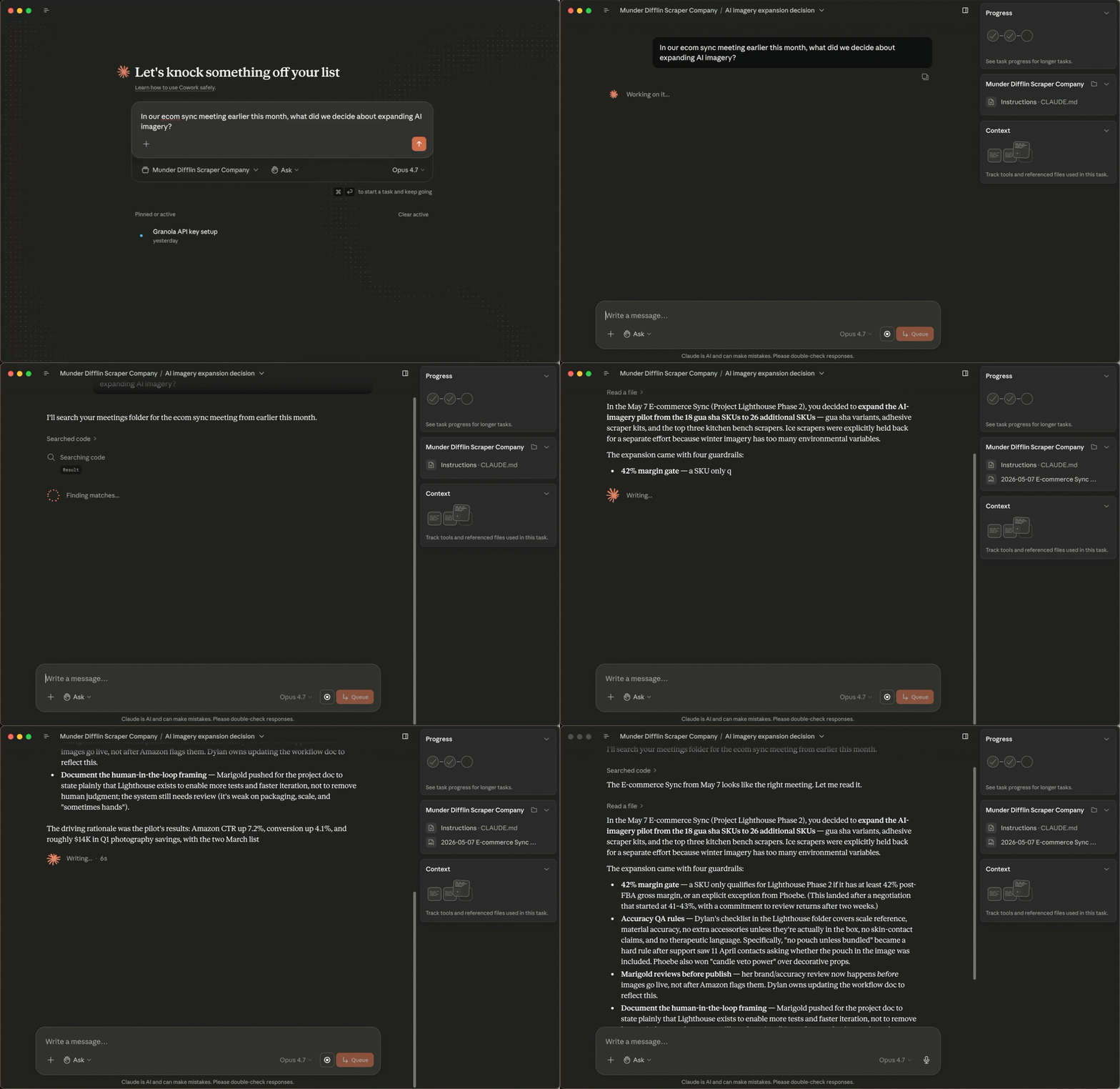
People think you’re a freaking genius and that you never forget anything. They don’t know you’re searching old meetings in the background while everyone else is still talking.
Other things you can do.
A daily work log gets auto-generated for you at the end of every day. The meetings you attended, the decisions that came out of them, and the action items that landed on your plate all live in one note, with links back to the source meetings. By Friday afternoon you can scroll back through the whole week and see exactly what happened and what’s still open.
That’s the version that comes built in. Once the foundation is there, you can layer on whatever else fits how you work. A weekly action item digest. A quarterly review across an entire project. A plugin that auto-drafts a status update for a specific recurring meeting. The structure of the system makes most of what you’d want to build on top of it pretty trivial.
If you run meetings for a living, you don’t have a choice about this. Project managers, meeting hosts, CEOs, anyone running a team. The cost of forgetting compounds across everyone you’re responsible for, not just you. You can’t be fully present in every meeting and still do the rest of your job. The only way out is through a great system.
The whole pipeline is buildable in about 30 minutes.
Below, you can find every prompt I use to run this.
Copy what you want, tweak what you need, and in about 30 minutes you’ll have your own version up and running.
Step-by-Step Setup
We’re going to walk through this end to end. Should take you about 30 minutes.
Quick note for Claude Code users: I’m writing this for Cowork because that’s the audience that needs the most hand-holding. Everything here works on Code too. Same prompts, same architecture, same outcome. The only real translation: where I say “build a plugin,” you’ll say “build a skill.” Where I show you a Cowork screenshot, you already know the Code equivalent. If you’re on Code, you don’t need me walking you through the install bits anyway. Read through, mentally swap the language, and you’ll be fine.
Step 1: Install Claude Desktop
Go to claude.com/download and grab Claude Desktop. It’s available for Mac and Windows. (No Linux yet. Cowork isn’t there. If you’re on Linux, you’re already a Code user and the disclaimer above covers you.)
Once it’s installed, open it up and look for the Cowork tab. That’s the agentic mode we’re going to use. Cowork is the lowest common denominator here. Anybody can use it. You don’t have to know how to code.
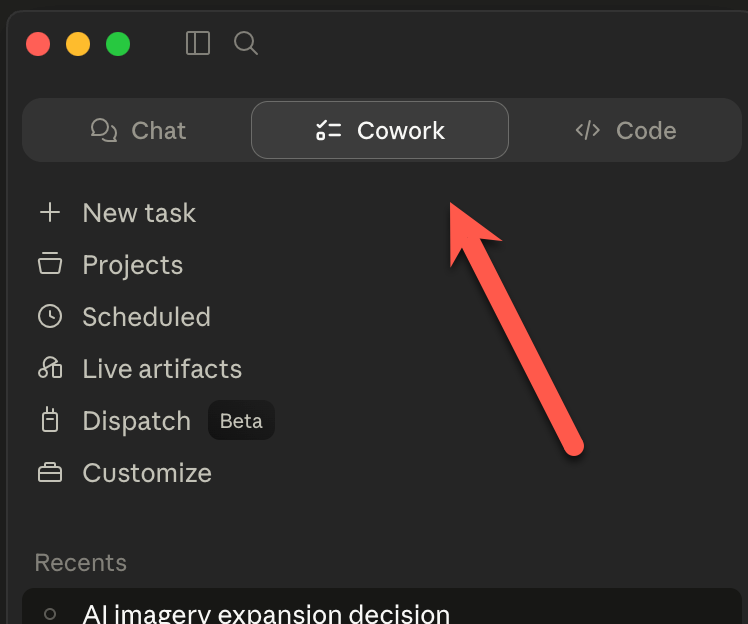
One thing to flag up front: Cowork requires a paid Claude plan (Pro, Max, Team, or Enterprise). The free tier won’t cut it for this.
Step 2: Set Up Obsidian
If you don’t have Obsidian installed yet, go install it from obsidian.md. It’s free.
Open it and create a new vault, or add to one you already have. That’s all you need to do here. We’ll set up the folder structure inside the vault using a prompt in the next step.
If you’ve never used Obsidian before and you want a fuller intro, I wrote a getting-started post a while back: https://michaelcrist.substack.com/p/obsidian-get-started
That’ll get you up and running. Come back here when you’re done.
Step 3: Open Cowork and Build Your Template
You’re going to run every prompt in this tutorial inside Cowork, so let’s get that set up first.
Open Claude Desktop and click into the Cowork tab. Click Projects, then New project. Choose Use an existing folder and point it at your Obsidian vault. From here on out, every prompt I give you gets pasted into this Cowork project.
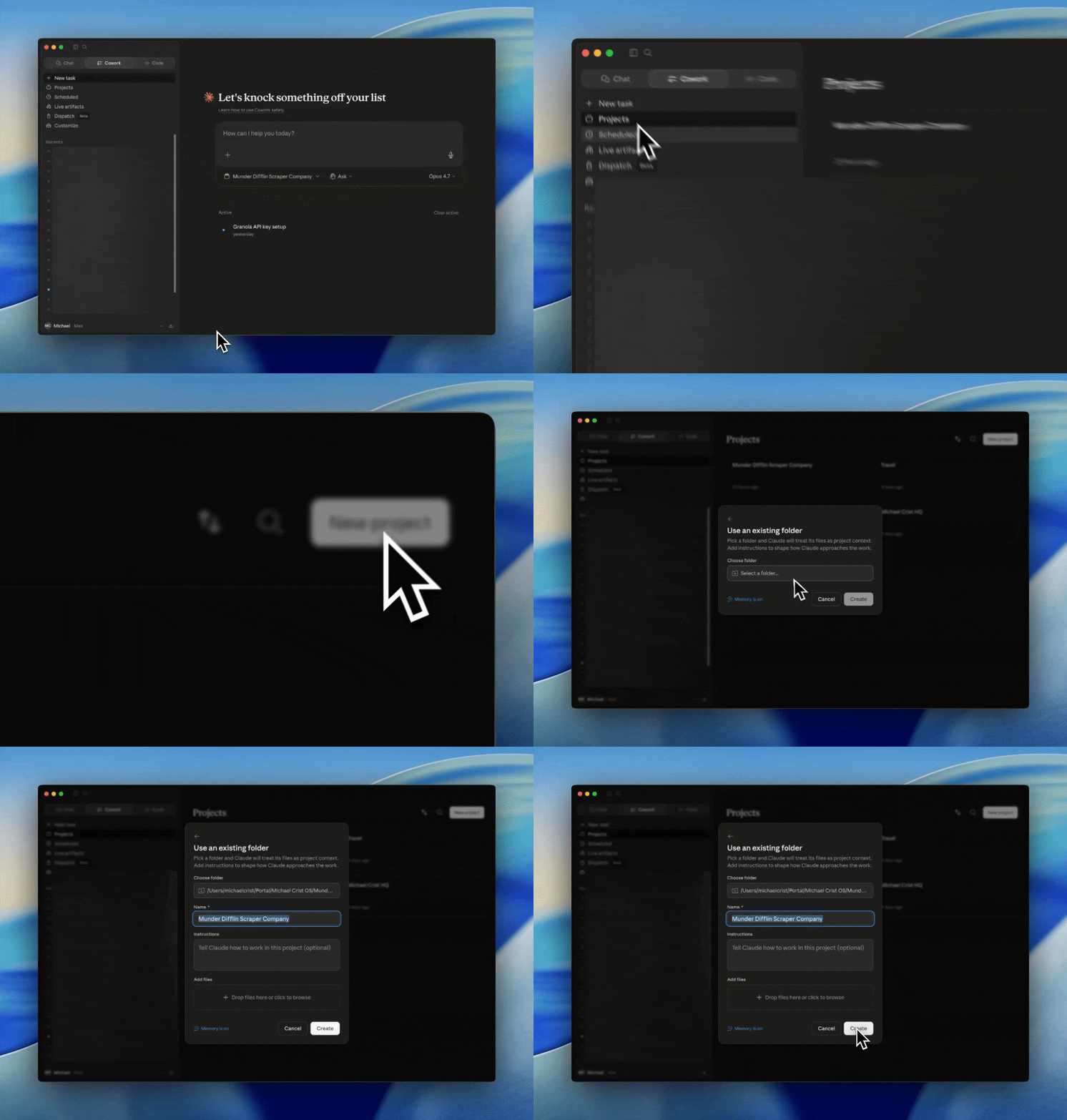
Now the first piece: the template every meeting note will be built on. The AI fills it in for you every time a new meeting lands.
Paste this prompt into Cowork:
