

How to Get Started With Obsidian
What is Obsidian?
Obsidian is a free note-taking app. Unlike Notion or Google Docs, Obsidian stores everything as plain text files on your computer. No cloud databases, no proprietary formats. Just folders and files.
Why does that matter? Two reasons. First, you own your data. If Obsidian disappears tomorrow, your notes are still sitting right there in your Documents folder. Second, because everything is plain text, other tools can read and work with your notes directly. AI tools like Claude Code, scripts, search tools, whatever. No special integrations or permissions needed. Your notes are just files in a folder.
Step 1: Download and Install
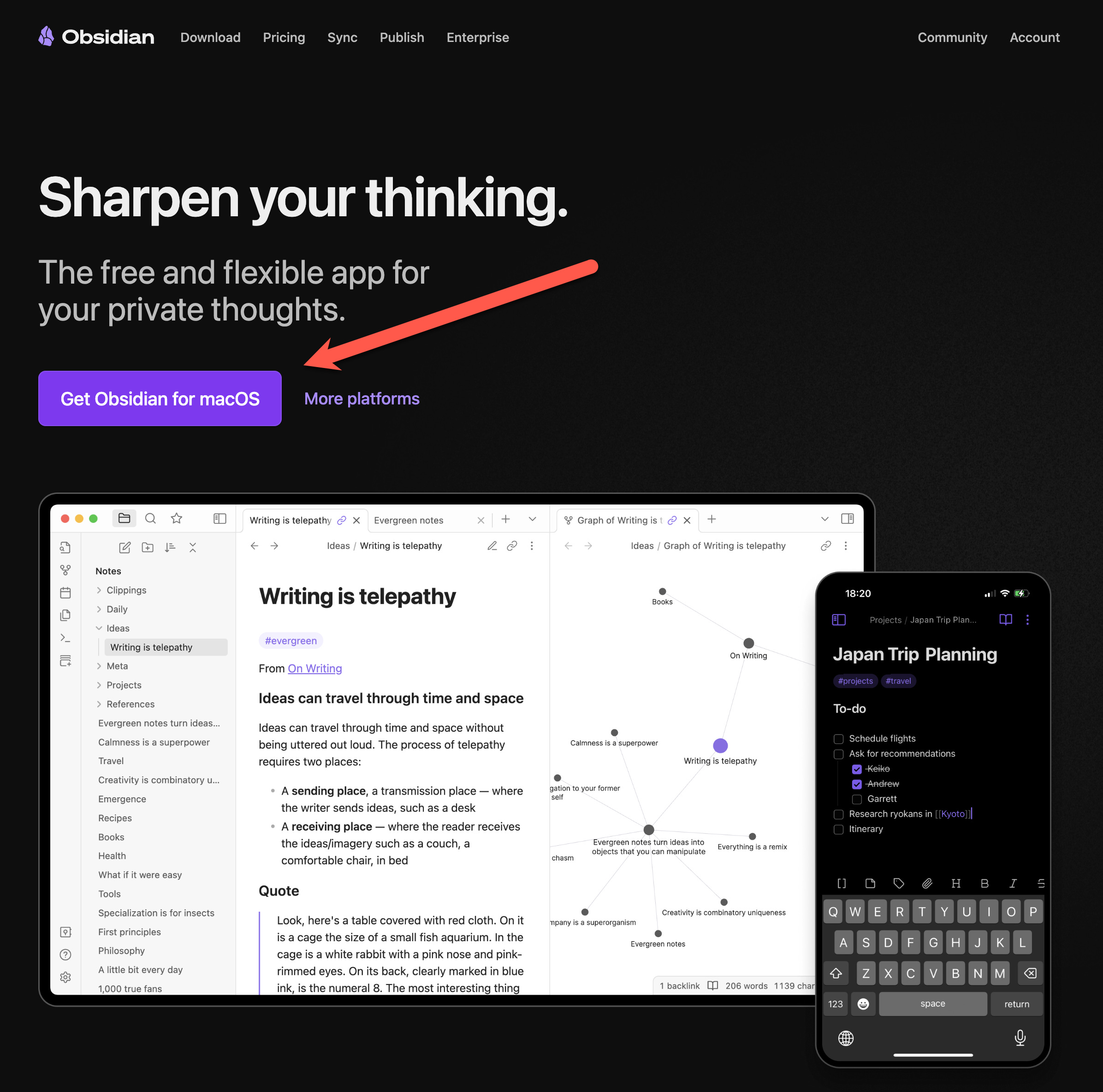
Go to obsidian.md
Download the app for your operating system (Mac, Windows, or Linux)
Run the installer
Step 2: Create a Vault
When you first open Obsidian, it’ll ask you to create or open a “vault.” A vault is just a folder on your computer where your notes live. That’s all it is.
Click “Create new vault”
Give it a name (I called mine “Work”)
Choose where to save it — somewhere easy to find, like your Documents folder
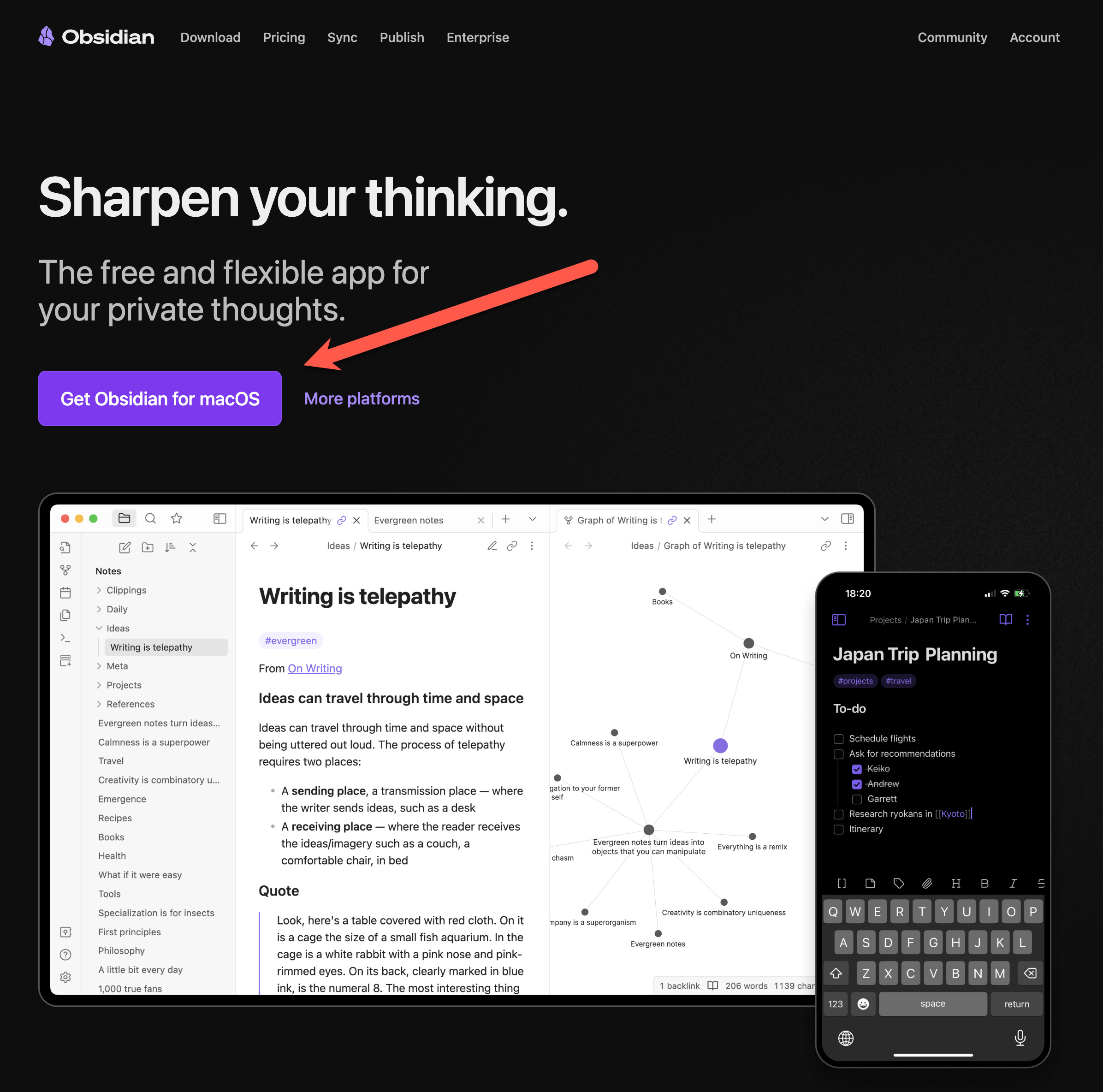
That’s it. You now have a notes app where everything is stored as plain files on your computer.
Step 3: Create Your Folder Structure
Your vault is empty right now. You need some folders to organize your notes. There’s no single right answer here, so don’t overthink it. You can always reorganize later.
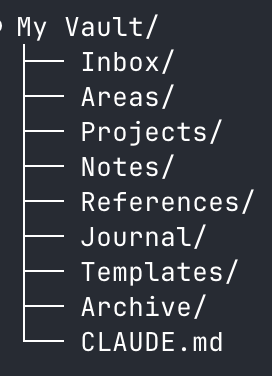
If you’re not sure where to start, here are two structures I’ve used depending on the use case.
If you want a thinking partner (personal projects, learning, ideas):
If you want an operational co-pilot (managing work, people, projects):
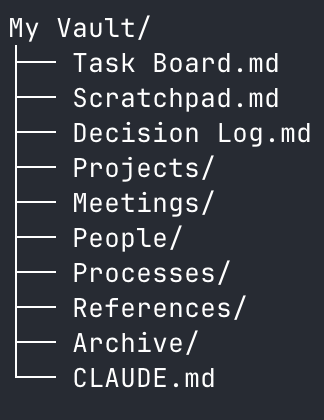
Pick whichever fits, combine them, or make your own. The specific folders matter less than having some structure. A flat vault with 200 unsorted notes is chaos. A few well-named folders go a long way.
How to create folders and notes in Obsidian:
Right-click in the left sidebar → “New folder” → give it a name
Right-click again → “New note” → give it a name
Repeat until your structure is in place
Don’t stress about getting this perfect. Start with 3-5 folders that match how you think about your work. You’ll refine it as you go.
Mobile Access and Syncing
Obsidian has apps for iOS and Android, so you can access your notes on your phone or tablet.
One thing to understand: your notes always live on your device as local files. This isn’t like Notion, where everything is stored in the cloud and you need an internet connection to access it. With Obsidian, the files are on your computer (or phone) first. Syncing just keeps copies in sync across your devices.
You have two options for syncing:
Obsidian Sync ($4/month) — Obsidian’s built-in sync service. Turn it on and it just works. This is the easiest option.
iCloud or Dropbox — Put your vault folder inside iCloud Drive or Dropbox, and it syncs through those services. Free, but can occasionally have conflicts if you’re editing the same note on two devices at once.
If you’re only using Obsidian on one computer, you don’t need sync at all. Your files are already right there on your machine.
That’s it. Obsidian is installed, your vault is created, and you have a folder structure to start with. You’re ready to start taking notes, or if you’re setting up Claude Code to work with your vault, head over to the Claude Code Setup Guide to get that connected.